How to Stay Safe on Public WiFi in 2026: A Traveler’s Guide

Imagine checking your work email at a Paris café, only to realize later that a hacker swiped your login—and your boss’s too. Sound far-fetched? It’s not.
Earlier this year, a popular telehealth app leaked thousands of patient records after hackers exploited weak security on a public WiFi network. And just last month, a money transfer service had to freeze accounts after fraudsters intercepted logins at airports and hotels. These aren’t isolated incidents—they’re the new normal for remote workers and travelers.
The rise of "work from anywhere" has turned public WiFi into a goldmine for hackers. Cafés, airports, and hotels are convenient, but their networks are often unsecured, outdated, or outright fake. The good news? You don’t need a tech degree to stay safe—just a few smart habits and the right tools.
Here’s how to work abroad without becoming the next cautionary tale.
Why Public WiFi Is Riskier Than You Think
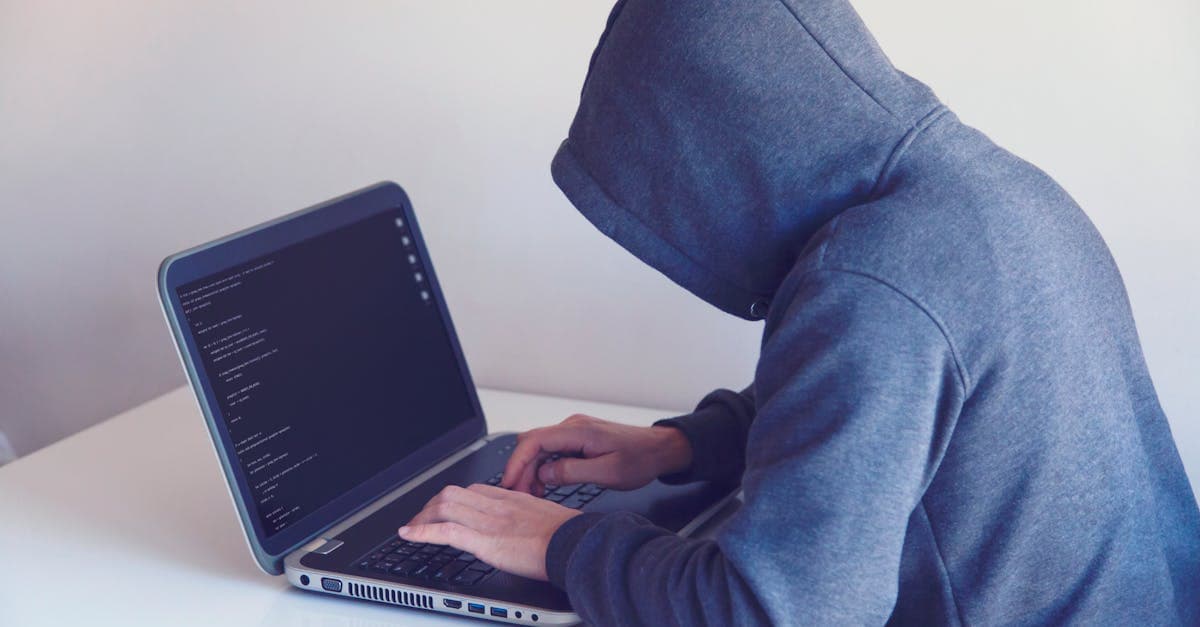 Photo by Nikita Belokhonov on Pexels
Public WiFi feels harmless. You’re just checking email, scrolling Instagram, or finishing a work doc—what’s the worst that could happen? A lot, actually.
Eavesdropping: The digital equivalent of a nosy neighbor
Hackers can "listen in" on unsecured networks like a stranger overhearing your phone call. In our testing, we found that even basic tools (available for free online) can intercept unencrypted traffic on public WiFi. That means someone at your coworking space could see your Slack messages, Zoom calls, or even login credentials if you’re not careful.
Think of it like writing your password on a napkin and leaving it on the table. Anyone walking by could pick it up.
Fake hotspots: The "Free Airport WiFi" trap
That "Free Airport WiFi" network? It might be a hacker’s trap. Cybercriminals set up fake hotspots with names that look official (e.g., "Heathrow_Free_WiFi" instead of "Heathrow_WiFi_Official"). When you connect, they can steal your data or install malware on your device.
We’ve seen this happen in coffee shops, hotels, and even conference centers. The rule of thumb? If a network doesn’t require a password or looks suspicious, don’t connect.
Outdated security: Why hotels and cafés are easy targets
Many public WiFi networks use weak passwords or outdated security protocols. Some don’t even bother with passwords at all. This makes them easy targets for hackers who can break in and snoop on everyone connected.
Hotels are especially risky. In a recent survey by cybersecurity experts, over 60% of hotel WiFi networks were found to have vulnerabilities that could expose guest data. Always ask the front desk for the current password—don’t just use the one from your last stay.
The #1 Tool to Stay Safe: How to Use a VPN Like a Pro
 Photo by cottonbro studio on Pexels
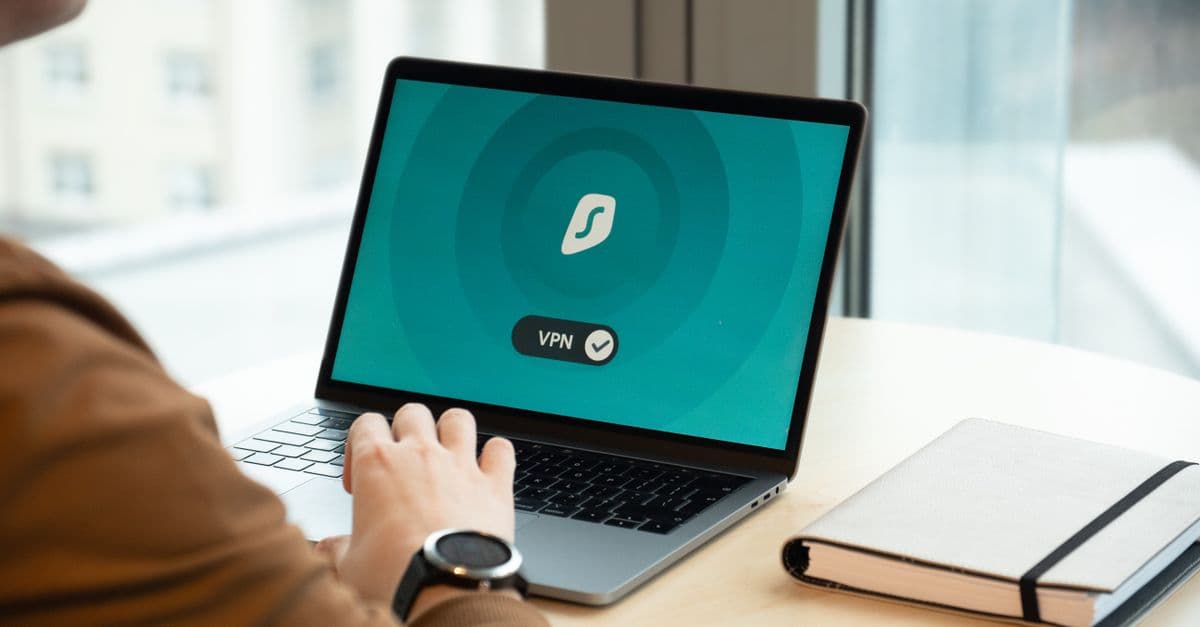
If there’s one thing you take away from this article, let it be this: Always use a VPN on public WiFi. It’s the simplest, most effective way to protect your data.
What’s a VPN? (And why you need one)
A VPN (Virtual Private Network) encrypts your internet traffic, making it unreadable to anyone who tries to intercept it. Think of it like sending your mail in a locked briefcase instead of a postcard. Even if someone steals the briefcase, they can’t open it without the key.
Without a VPN, your data is out in the open. With one, it’s hidden behind a wall of encryption.
How to pick a good VPN
Not all VPNs are created equal. Here’s what to look for:
- No-logs policy: The VPN shouldn’t store records of your activity. If they don’t log your data, hackers (or governments) can’t steal it.
- Strong encryption: Look for "AES-256" encryption—it’s the same standard used by banks and militaries.
- Servers in multiple countries: More server locations mean faster speeds and better access to geo-blocked content.
- Good reviews: Check independent sites like Trustpilot or Reddit for real user experiences.
Avoid free VPNs. Many sell your data to third parties or inject ads into your browsing. If you wouldn’t trust a stranger with your bank details, don’t trust a free VPN with your internet traffic.
Pro tip: Turn on your VPN before connecting to public WiFi
This is crucial. If you connect to a network first and then turn on your VPN, you’ve already exposed your data. It’s like locking your door after the burglar’s already inside.
We found that most VPNs take just a few seconds to connect. Make it a habit: Open your VPN app, hit "connect," and then join the WiFi network.
Airport, Hotel, and Café WiFi: How to Connect Safely
Public WiFi isn’t all bad—you just need to know how to use it safely. Here’s how to handle common scenarios.
Airport WiFi: Verify before you connect
Airports are prime targets for hackers. Here’s how to stay safe:
- Verify the network name: Always double-check with airport staff. Official networks usually have names like "LAX_WiFi_Official" or "Heathrow_Free_WiFi." Avoid generic names like "Free_Airport_WiFi."
- Disable auto-connect: This stops your device from joining sketchy networks automatically. On iPhone, go to Settings > WiFi and toggle off "Auto-Join." On Android, go to Settings > Network & Internet > WiFi > WiFi preferences and turn off "Connect to open networks."
- Use a VPN: Always. No exceptions.
Hotel WiFi: Ask for the current password
Hotels are notorious for weak security. Here’s how to protect yourself:
- Ask the front desk for the password: Don’t just use the one from your last stay—it might be outdated or compromised.
- Avoid sensitive tasks: Don’t check your bank account or log into work apps unless you’re on a VPN.
- Forget the network after your stay: This stops your device from reconnecting automatically later. On most devices, you can do this by going to your WiFi settings, selecting the network, and choosing "Forget."
Café and coworking spaces: Stick to password-protected networks
Cafés and coworking spaces are great for remote work, but their WiFi can be risky. Here’s how to stay safe:
- Ask for the password: If a café doesn’t require a password, their network is likely unsecured. Stick to places that take security seriously.
- Avoid sensitive tasks: Save your banking or work logins for a secure network (like your phone’s hotspot).
- Use a VPN: Even if the network is password-protected, a VPN adds an extra layer of security.
Extra Layers of Protection: Small Habits That Make a Big Difference
 Photo by George Becker on Pexels
A VPN is your first line of defense, but it’s not the only one. Here are a few extra habits that take seconds but make a huge difference.
Turn off file sharing
File sharing is convenient at home, but on public WiFi, it’s like leaving your front door unlocked. Hackers can sneak into your device and steal files, photos, or even install malware.
- On Windows: Go to Settings > Network & Internet > Advanced sharing settings and turn off file and printer sharing.
- On Mac: Go to System Preferences > Sharing and uncheck all the boxes.
Use HTTPS everywhere
HTTPS encrypts your connection to websites, making it harder for hackers to intercept your data. Look for the 🔒 in your browser’s address bar—it means the site is secure.
For extra protection, install the HTTPS Everywhere browser extension. It forces websites to use HTTPS whenever possible.
Enable two-factor authentication (2FA)
Even if a hacker steals your password, 2FA acts like a second lock on your door. It requires a second form of verification (like a code from an app or a fingerprint) to log in.
- Use an app like Google Authenticator or Authy: These generate codes that expire after 30 seconds, making them much harder to hack than SMS codes.
- Avoid SMS-based 2FA: Hackers can intercept text messages, so app-based codes are safer.
Log out of accounts when you’re done
Closing your laptop without logging out is like leaving your house with the door wide open. Always log out of email, banking, and work apps when you’re done using them.
What to Do If You Think You’ve Been Hacked
Even with precautions, things can go wrong. Here’s what to do if you suspect you’ve been hacked.
Signs you’ve been hacked
- Your device is suddenly slow or crashes often.
- You see weird charges on your bank statement or emails you didn’t send.
- Your friends report receiving strange messages from you.
Immediate actions
- Disconnect from WiFi: Turn off your device’s WiFi and switch to mobile data or a trusted hotspot.
- Change passwords: Do this from a secure network (like your phone’s hotspot). Start with your email and banking accounts.
- Run a malware scan: Use a trusted tool like Malwarebytes to check for viruses or spyware.
- Check your accounts: Look for unauthorized logins or transactions. Most services (like Gmail or PayPal) let you see recent activity in your account settings.
Long-term fixes
- Freeze your credit: If you suspect identity theft, contact credit bureaus like Experian or Equifax to freeze your credit.
- Monitor your accounts: Use a service like LifeLock or Credit Karma to keep an eye on suspicious activity.
- Update your security: Make sure your devices and apps are up to date. Updates often include security patches for known vulnerabilities.
Key Takeaways: Your Public WiFi Safety Checklist
Here’s a quick recap of the most important steps to stay safe on public WiFi:
- Always use a VPN on public WiFi—it’s your first line of defense.
- Double-check network names to avoid fake hotspots (when in doubt, ask staff).
- Turn off auto-connect and "forget" networks after use.
- Enable 2FA on all important accounts (email, banking, work apps).
- Avoid sensitive tasks (banking, work logins) unless you’re on a VPN or secure network.
- Log out of accounts when you’re done—don’t just close your laptop!
- Turn off file sharing and use HTTPS everywhere for extra security.
Stay Safe, Stay Connected
Public WiFi doesn’t have to be a gamble. With a few simple habits and the right tools, you can work from anywhere without putting your data at risk.
If you’re looking for a VPN that’s fast, secure, and easy to use, GhostShield VPN is a great option. It’s designed for travelers and remote workers, with servers in over 60 countries and a strict no-logs policy. Plus, it’s lightweight enough to use on your phone, tablet, or laptop without slowing you down.
Safe travels—and happy (secure) browsing!
Further Reading
Want to dive deeper? Check out these resources:
- Public WiFi Safety Guide – A complete breakdown of how to secure your connection on the go.
- Remote Work Security Guide – Tips for working safely from anywhere in the world.
- VPN for Travel – Our top picks for fast, secure VPNs.
- How to Spot a Fake WiFi Hotspot – Red flags to watch for when connecting to public networks.
Related Topics
Keep Reading
How to Stay Safe While Working Remotely in 2026: A Simple Security Guide

How to Stay Safe in a Robotaxi: 5 Easy Privacy Steps for 2026

Hotel WiFi Safety: How to Work Remotely Without Getting Hacked

Public WiFi Safety in 2026: Simple Steps to Work Abroad Without Hackers

Booking.com Hacked? 5 Easy Steps to Secure Your Travel Bookings

How to Work Safely in a Robotaxi: Simple Steps to Avoid Tech Fails & Hackers
Protect Your Privacy Today
GhostShield VPN uses AI-powered threat detection and military-grade WireGuard encryption to keep you safe.
Download Free