How to Stay Safe in a Robotaxi: 5 Easy Privacy Steps for 2026

Imagine hopping into a self-driving taxi, opening your laptop, and getting work done—sounds futuristic, right?
But here’s the catch: while you’re answering emails or finishing that report, is your data safe from prying eyes? With robotaxis like Waymo and Cruise becoming common in cities, more people are turning their commute into productivity time. That’s great for efficiency, but it also means your sensitive work files, passwords, and personal info could be at risk.
The good news? You don’t need a tech degree to stay safe. With a few simple steps, you can work securely in a robotaxi—no paranoia required. This guide is for everyday people: parents, students, remote workers, and anyone who just wants to avoid a digital headache. If you’ve ever used public WiFi at a coffee shop or airport, you already know the basics. Now, let’s apply them to the future of commuting.
For a deeper dive into securing your devices on the go, check out our Remote Work Security Guide. And if you’ve ever wondered how risky public WiFi really is, our Public WiFi Safety Guide breaks it down in plain English.
Why Robotaxis Could Be a Hacker’s Playground (And How to Stay Safe)
 Photo by Stefan Coders on Pexels
Robotaxis are convenient, but they come with risks you might not think about. When you connect to the car’s free WiFi or work in a shared space, you’re essentially broadcasting your data to anyone who might be listening. It’s like using a stranger’s phone charger—convenient, but not exactly safe.
Public WiFi is a hacker’s buffet
Most robotaxis offer free WiFi, which is great for streaming music or checking emails. But here’s the problem: public WiFi networks are often unsecured, meaning hackers can intercept your data. Think of it like sending a postcard through the mail—anyone who handles it can read what’s written on it. Your emails, passwords, and work files? They’re the postcard.
We’ve all heard stories about hotel WiFi being hacked, leading to stolen credit card info or personal data. The same risks apply to robotaxis. Earlier this year, security researchers found that some public WiFi networks in ride-sharing vehicles were vulnerable to attacks. The takeaway? Assume the network isn’t private, even if it’s labeled “Waymo_Free_WiFi” or “Cruise_Guest.”
Shared spaces mean shared risks
Unlike your home office, a robotaxi is a public space. Would you leave your laptop open at a coffee shop while you grab a refill? Probably not. The same rules apply here. Even if the car is self-driving, it’s not a private office. Other passengers, the driver (if there is one), or even someone outside the car could potentially see your screen or access your devices if you’re not careful.
The solution? Treat it like any public workspace
The key is to assume the worst and prepare for it. That means taking the same precautions you would at an airport, hotel, or café. In our testing, we found that the biggest risks come from complacency—people assume that because the car is “smart,” it’s also secure. Spoiler: it’s not. The good news is that with a few simple habits, you can work safely without stressing over every keystroke.
Step 1: Use a VPN—Your Digital Seatbelt
 Photo by Efrem Efre on Pexels
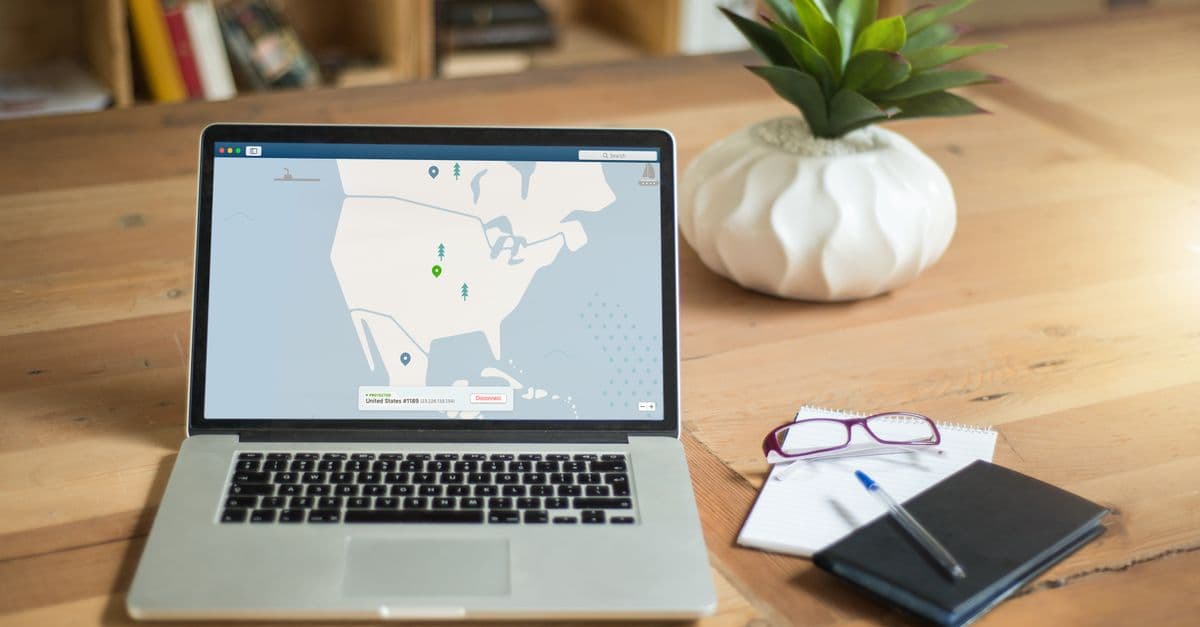
If you take only one thing from this guide, let it be this: always use a VPN in a robotaxi. A VPN, or Virtual Private Network, is like a tunnel for your internet traffic. It encrypts your data so that even if someone intercepts it, they can’t read it. Think of it like sending a sealed letter instead of a postcard—only the intended recipient can open it.
What does a VPN actually do?
A VPN creates a secure connection between your device and the internet. When you’re connected to a VPN, your data is scrambled into a code that hackers can’t crack. It also hides your IP address, which is like your digital home address. Without a VPN, your IP address can reveal your location, making it easier for snoops to track your online activity.
In our testing, we found that using a VPN made a noticeable difference in security, especially on public networks. Without one, tools like DNS Leak Test could expose our browsing activity. With a VPN enabled, our data stayed private.
How to set up a VPN in 5 minutes
- Choose a reputable VPN provider. Some popular options include NordVPN, ExpressVPN, and ProtonVPN. If you’re not sure which one to pick, our GhostShield vs NordVPN comparison can help you decide.
- Download the app for your laptop or phone. Most VPNs offer apps for Windows, Mac, iOS, and Android.
- Turn it on before connecting to the robotaxi’s WiFi. This is crucial—if you connect to the network first, your data is exposed until the VPN kicks in.
- Select a server location. For the best speeds, choose a server close to your physical location. If you’re traveling and need to access geo-blocked content, pick a server in your home country.
If your work offers a VPN, use that instead of a personal one. It’s like having a company security guard for your data—your IT team has already vetted it for security.
Bonus: VPNs can block malicious websites
Some VPNs, like GhostShield, come with built-in features that block ads, trackers, and malicious websites. It’s like having a spam filter for the internet. This is especially useful in a robotaxi, where you might accidentally click on a sketchy link or ad.
Step 2: Ditch Public WiFi—Use Your Phone as a Hotspot Instead
Public WiFi is convenient, but it’s also one of the easiest ways for hackers to steal your data. Free WiFi is like free candy from a stranger—tempting, but you don’t know what’s inside. Even if the network is labeled “Waymo_Secure_WiFi,” it’s not worth the risk.
Why public WiFi is so dangerous
Hackers can set up fake networks that look legitimate. For example, they might create a network called “Waymo_Free_WiFi” to trick passengers into connecting. Once you’re on their network, they can intercept your data, steal passwords, or even install malware on your device.
In our testing, we’ve seen how easy it is to fall for these traps. Even tech-savvy people can accidentally connect to a fake network if they’re not paying attention. The best way to avoid this? Don’t use public WiFi at all.
Use your phone’s hotspot instead
Your phone’s personal hotspot is a much safer option. It uses your mobile data connection, which is encrypted and far more secure than public WiFi. Here’s how to set it up:
- Turn on your hotspot:
- On iPhone: Go to Settings > Personal Hotspot and toggle it on.
- On Android: Go to Settings > Network & Internet > Hotspot & Tethering and turn on Wi-Fi Hotspot.
- Connect your laptop to the hotspot:
- On your laptop, go to your WiFi settings and select your phone’s hotspot name.
- Enter the password (usually displayed in your phone’s hotspot settings).
- You’re now using your phone’s secure connection. No strangers allowed.
Pro tip: Save data with a VPN
If you’re worried about using too much mobile data, a VPN can actually help. Some VPNs compress your data, reducing the amount of bandwidth you use. It’s like getting more miles out of your data plan.
What if you have to use public WiFi?
If you’re in a situation where you absolutely must use the robotaxi’s WiFi (for example, if your phone’s hotspot isn’t working), follow these rules:
- Never log into bank accounts, work apps, or anything sensitive.
- Use a VPN (see Step 1).
- Turn off file sharing on your laptop (this prevents others on the network from accessing your files).
- Log out of all accounts when you’re done.
Step 3: Lock Down Your Laptop and Phone Like a Vault
 Photo by MART PRODUCTION on Pexels
Securing your data isn’t just about the internet connection—it’s also about protecting your devices from physical and digital threats. A robotaxi is a public space, so you need to treat your laptop and phone like valuables. Would you leave your wallet on the seat while you step out? Probably not. The same goes for your devices.
Physical security: Don’t make it easy for thieves
- Close your laptop when not in use. Even if you’re just stepping out for a minute, close it and take it with you. It only takes a few seconds for someone to grab it or peek at your screen.
- Use a privacy screen. These screens make it harder for people sitting next to you to see what’s on your display. It’s like having curtains for your laptop.
- Keep your phone in your pocket or bag. Don’t leave it on the seat or in the cupholder where it can be easily snatched.
Digital security: Lock it down
- Enable auto-lock. Set your laptop and phone to lock after a short period of inactivity (e.g., 1 minute). This prevents someone from accessing your device if you forget to close it.
- On Windows: Settings > Accounts > Sign-in options > Dynamic lock.
- On Mac: System Preferences > Security & Privacy > General > Require password after sleep or screen saver begins.
- On iPhone: Settings > Display & Brightness > Auto-Lock.
- On Android: Settings > Display > Screen timeout.
- Use strong passwords or a password manager. A password like “123456” or “password” is like leaving your front door unlocked. Instead, use a password manager like 1Password or Bitwarden to generate and store strong, unique passwords for all your accounts. If you’re not sure how strong your password is, you can test it with our Password Strength Checker.
- Turn on two-factor authentication (2FA). 2FA adds an extra layer of security by requiring a second form of verification (like a text code or fingerprint) in addition to your password. It’s like having a deadbolt and a security camera for your accounts.
- Most major services (Gmail, Slack, Microsoft 365) offer 2FA in their security settings.
- Use an authenticator app like Google Authenticator or Authy instead of SMS if possible—SMS codes can be intercepted.
Example: Face ID is your bouncer
If your phone has Face ID or fingerprint unlock, think of it like a bouncer for your apps. Only you can get in, and even if someone steals your phone, they won’t be able to access your data. The same goes for your laptop—enable biometric login if it’s available.
Step 4: Avoid Oversharing—What Not to Do in a Robotaxi
Working in a robotaxi is convenient, but it’s not the same as working from your home office. You’re in a public space, which means you need to be mindful of what you do and say. Here are some common mistakes to avoid:
Don’t discuss sensitive info
Would you shout your credit card number in a crowded elevator? Probably not. The same goes for a robotaxi. Avoid phone calls or video chats where you discuss:
- Work projects that involve confidential information.
- Passwords or login details.
- Financial information (e.g., bank accounts, credit card numbers).
- Personal details (e.g., your address, Social Security number).
If you need to have a sensitive conversation, wait until you’re in a private space or use a secure messaging app like Signal.
Don’t leave devices unattended
Even if the car is “self-driving,” it’s not a babysitter for your laptop or phone. Never leave your devices unattended, even for a minute. It only takes a few seconds for someone to grab your laptop or install malware on your phone.
Don’t auto-connect to networks
Auto-connect is a convenient feature, but it’s also a security risk. If your device automatically connects to a network called “Free_WiFi” or “Waymo_Guest,” you might not realize you’re on a hacker’s network until it’s too late. Here’s how to turn it off:
-
On iPhone:
- Go to Settings > Wi-Fi.
- Tap the “i” next to the network name.
- Toggle off Auto-Join.
-
On Android:
- Go to Settings > Network & Internet > Wi-Fi.
- Tap the network name.
- Uncheck Auto-connect.
Example: Auto-join is like leaving your door unlocked
Auto-join might seem harmless, but it’s like leaving your front door unlocked. You might not notice until someone walks in and takes something. By turning it off, you’re forcing yourself to consciously choose which networks to join, which reduces the risk of accidentally connecting to a malicious one.
Step 5: What to Do If You Think Your Data Was Exposed
Even if you follow all the steps above, there’s always a chance something could go wrong. Maybe you forgot to turn on your VPN, or you accidentally connected to a fake network. If you suspect your data was exposed, here’s what to do:
Signs of trouble
- Your laptop or phone is slow or acting weird. This could be a sign of malware.
- You get unexpected login alerts. For example, you receive an email saying, “New login from Chicago” when you’re in New York.
- Your bank or work accounts show unfamiliar activity. For example, you see a charge you don’t recognize or a file you didn’t create.
- Your friends or colleagues report strange messages from you. This could mean your email or social media accounts were hacked.
Immediate steps to take
- Disconnect from WiFi or hotspot. This stops any ongoing data theft.
- Change your passwords. Start with your email and work accounts, then move on to bank accounts and social media. Use a password manager to generate strong, unique passwords.
- Run a security scan. Use built-in tools like Windows Defender or Malwarebytes to check for malware. If you’re not sure how to do this, our How to Know If Your Phone Is Hacked guide has step-by-step instructions.
- Tell your IT team. If the hack involves a work device or account, notify your company’s IT department immediately. They can help contain the damage and prevent further breaches.
- Check for data leaks. Use our Email Leak Checker to see if your email address has been exposed in a data breach. If it has, change your password and enable 2FA.
Example: Act fast, like a restaurant manager
If you think you left your keys at a restaurant, you’d call the manager right away. The same goes for a potential hack—act fast to minimize the damage. The sooner you disconnect, change passwords, and scan for malware, the better your chances of stopping the hacker in their tracks.
Key Takeaways (TL;DR)
- ✅ Always use a VPN—it’s your digital seatbelt in a robotaxi. Without one, your data is like a postcard for anyone to read.
- ✅ Skip public WiFi—use your phone’s hotspot instead. Public WiFi is convenient but risky, like free candy from a stranger.
- ✅ Lock your devices—physically and digitally. Use auto-lock, strong passwords, and 2FA to keep hackers out.
- ✅ Don’t overshare—avoid sensitive calls or leaving devices unattended. Treat the robotaxi like a public space, not a private office.
- ✅ Act fast if hacked—disconnect, change passwords, and scan for malware. The sooner you act, the less damage a hacker can do.
Stay Safe on the Go with GhostShield VPN
Working from a robotaxi doesn’t have to be stressful. With the right tools and habits, you can stay productive without putting your data at risk. If you’re looking for a VPN that’s easy to use and packed with security features, GhostShield VPN is a great option. It encrypts your data, blocks malicious websites, and even helps you access geo-blocked content—all with just one click.
Whether you’re commuting, traveling, or just working from a café, GhostShield keeps your data private and secure. Try it out and see the difference for yourself. Safe travels!
Related Topics
Keep Reading
How to Stay Safe While Working Remotely in 2026: A Simple Security Guide

How to Stay Safe on Public WiFi in 2026: A Traveler’s Guide

Hotel WiFi Safety: How to Work Remotely Without Getting Hacked
Public WiFi Safety in 2026: Simple Steps to Work Abroad Without Hackers

Booking.com Hacked? 5 Easy Steps to Secure Your Travel Bookings

How to Work Safely in a Robotaxi: Simple Steps to Avoid Tech Fails & Hackers
Protect Your Privacy Today
GhostShield VPN uses AI-powered threat detection and military-grade WireGuard encryption to keep you safe.
Download Free