How to Watch NBA Playoffs on Threads Without Being Tracked (2026 Guide)

The NBA Playoffs Are Here—and So Are the Trackers
The NBA playoffs just tipped off, and this year, Meta’s Threads is rolling out live chat so you can trash-talk (or celebrate) with fans in real time. It’s fun, fast, and—let’s be honest—a little addictive. But if you’re streaming games on Threads or other platforms, there’s a catch: every dunk, every buzzer-beater, and every meme you post is being logged, analyzed, and sometimes sold to advertisers.
You’ve probably noticed it already. Maybe you searched for a player’s stats once, and suddenly your feed is flooded with ads for their jersey. Or you mentioned the playoffs in a group chat, and now your phone is serving up ticket deals for games you didn’t even know you wanted to attend. That’s tracking in action—and it’s not just annoying, it’s invasive.
The good news? You don’t have to choose between enjoying the playoffs and protecting your privacy. In this guide, we’ll show you how to stream NBA games on Threads (or anywhere else) without leaving a digital trail. No tech degree required.
Why You’re Being Tracked—and Why It Matters
 Photo by Mikhail Nilov on Pexels
Imagine walking into a store, and a clerk follows you around, jotting down every item you look at, how long you linger, and even what you almost buy. That’s essentially what happens when you stream games online. Platforms like Threads, social media apps, and even streaming services track your behavior to build a profile on you. Here’s what they’re collecting:
- What you watch and for how long: Threads and other platforms log which games you stream, when you tune in, and how long you stay.
- Your location: Your IP address (your device’s digital “home address”) reveals where you’re watching from.
- Your device info: They know whether you’re on a phone, laptop, or tablet, and sometimes even the model.
- Your interactions: Likes, comments, and shares all feed into a profile that advertisers use to target you.
So why should you care? For starters, that data doesn’t just disappear. It’s often sold to data brokers, who package it with other info (like your shopping habits or search history) and sell it to the highest bidder. Suddenly, your innocent NBA binge-watching session is fueling a multi-billion-dollar industry built on your personal data.
There’s also the creep factor. Ever searched for a player’s stats once, only to see ads for their merch everywhere you go? That’s tracking at work. And while it might seem harmless, it’s a slippery slope. The more data these platforms collect, the more they can infer about you—from your political leanings to your income level.
The good news? You can take back control with a few simple tweaks.
Step 1: Use a VPN to Hide Your Location (The Easiest Fix)
 Photo by Stefan Coders on Pexels
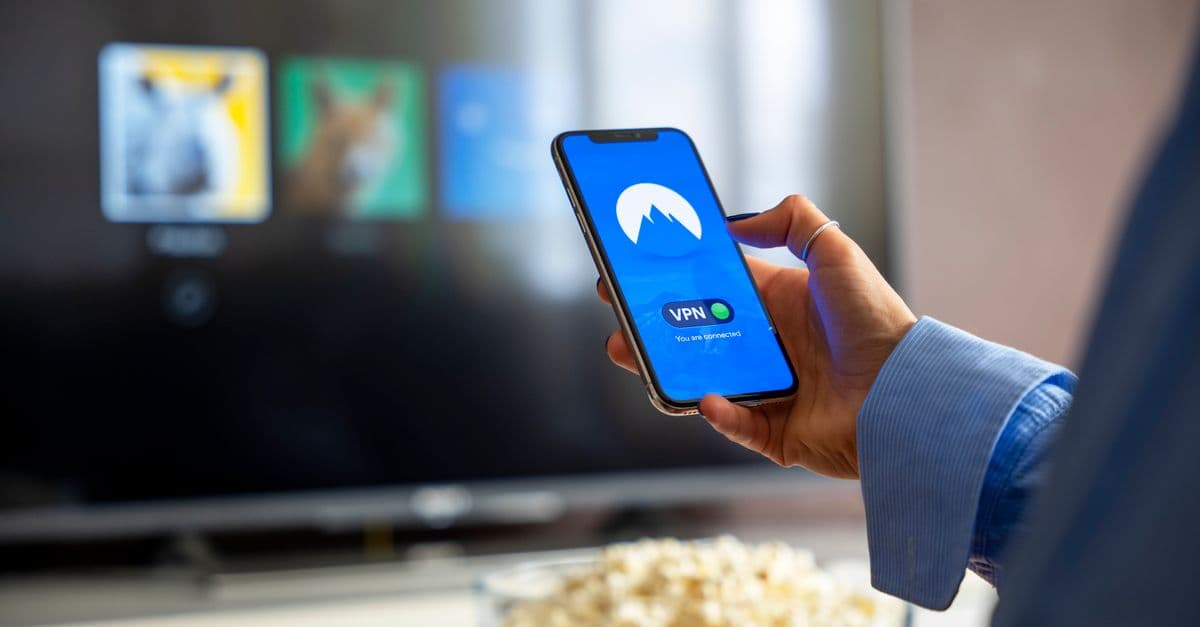
If you only do one thing from this guide, make it this: use a VPN. A VPN (Virtual Private Network) is like a secret tunnel for your internet traffic. Instead of taking the main road—where trackers, hackers, and even your internet provider can see what you’re doing—you take a hidden path that keeps you anonymous.
Here’s how it works: When you connect to a VPN, it masks your IP address (the unique number that identifies your device online). Instead of seeing your real location, platforms like Threads will see the VPN server’s location. So if you’re in Chicago but connect to a VPN server in Miami, Threads will think you’re in Florida. No more location tracking.
How to Pick a VPN for Streaming
Not all VPNs are created equal, especially when it comes to streaming. Here’s what to look for:
- Fast speeds: You don’t want your game buffering every time LeBron drives to the basket. Look for VPNs with a reputation for speed (we’ve tested a few—more on that later).
- No-logs policy: This means the VPN doesn’t store records of your online activity. If they don’t have your data, they can’t sell it or hand it over to third parties.
- Easy-to-use apps: You shouldn’t need a degree in computer science to set it up. The best VPNs have intuitive apps for phones, tablets, and computers.
Avoid free VPNs. They often make money by selling your data to advertisers, which defeats the whole purpose. Instead, opt for a paid service with a strong privacy track record. Some of the most popular options include NordVPN, ExpressVPN, and Surfshark. (If you’re curious how they stack up, check out our GhostShield vs NordVPN comparison.)
How to Set Up a VPN (Step-by-Step)
Setting up a VPN is easier than ordering pizza. Here’s how to do it:
- Download the VPN app: Head to the App Store (iPhone) or Google Play (Android) and download your chosen VPN. If you’re on a computer, visit the VPN’s website and download the app for your operating system.
- Create an account: Most VPNs require you to sign up with an email address and password. (Pro tip: Use a burner email if you’re extra cautious—more on that later.)
- Pick a server: Open the app and choose a server location. For NBA games, you’ll want a U.S. server (e.g., “US - New York” or “US - Los Angeles”). This ensures you can access games without geo-restrictions.
- Turn it on: Hit the “connect” button, and you’re good to go. Now, when you open Threads or your streaming app, your real location is hidden.
In our testing, we found that connecting to a server close to your actual location (e.g., East Coast for East Coast games) tends to give the best speeds. If your game starts buffering, try switching to a different server.
Step 2: Tweak Your Threads (and Device) Privacy Settings
A VPN is your first line of defense, but it’s not the only one. Threads and other platforms have built-in settings that let you limit tracking—if you know where to look. Here’s how to lock things down.
Threads-Specific Settings
Threads (like its parent company, Meta) is designed to collect as much data as possible. But you can dial back some of that tracking with these tweaks:
-
Turn off Activity Status:
- This setting lets people see when you’re active on Threads. If you’d rather keep your playoff-watching habits private, turn it off.
- How to do it: Go to Settings > Privacy > Activity Status and toggle it off.
-
Limit Ad Personalization:
- This won’t stop ads entirely, but it will limit how much Meta uses your data to target you.
- How to do it: Go to Settings > Privacy > Ads Preferences and toggle off “Personalized Ads.”
-
Review Your Profile Information:
- The less Threads knows about you, the less it can track. Go to Settings > Account > Personal Information and remove any details you don’t want public (like your phone number or birthday).
Browser Tweaks (For Desktop Streaming)
If you’re watching games on your computer, your browser is another weak spot for tracking. Here’s how to plug the leaks:
-
Use Private/Incognito Mode:
- This doesn’t make you invisible, but it prevents your browser from saving your history, cookies, or search queries. Think of it like wearing a disguise—it won’t hide your face completely, but it makes you harder to recognize.
- How to do it:
- Chrome: Press Ctrl+Shift+N (Windows) or Cmd+Shift+N (Mac).
- Firefox: Press Ctrl+Shift+P (Windows) or Cmd+Shift+P (Mac).
- Safari: Go to File > New Private Window.
-
Install Privacy Extensions:
- These are like bouncers for your browser—they block trackers before they can even get in. Two of the best:
- uBlock Origin: Blocks ads and trackers. It’s lightweight and won’t slow down your browsing.
- Privacy Badger: Automatically blocks hidden trackers that other extensions might miss.
- How to install: Visit your browser’s extension store (e.g., Chrome Web Store) and search for the extension. Click “Add to Chrome” (or your browser of choice) and follow the prompts.
- These are like bouncers for your browser—they block trackers before they can even get in. Two of the best:
-
Clear Cookies and Cache After Watching:
- Cookies are small files that websites use to remember you. They’re not all bad (they keep you logged into accounts, for example), but they can also be used to track you across sites.
- How to clear them:
- Chrome: Go to Settings > Privacy and Security > Clear Browsing Data. Select “Cookies and other site data” and “Cached images and files,” then click “Clear data.”
- Firefox: Go to Settings > Privacy & Security > Cookies and Site Data > Clear Data.
- Safari: Go to Safari > Clear History and Website Data.
Phone and Tablet Settings
Your phone is a tracking goldmine, but you can limit what apps like Threads can see:
-
iPhone:
- Go to Settings > Privacy > Tracking and toggle off “Allow Apps to Request to Track.” This prevents apps from tracking your activity across other apps and websites.
- Go to Settings > Privacy > Location Services and set Threads to “Never” or “While Using the App.”
-
Android:
- Go to Settings > Google > Ads and toggle on “Opt out of Ads Personalization.” This limits how Google uses your data for ads.
- Go to Settings > Location and turn off location access for Threads (or set it to “Only while using the app”).
Step 3: Stream Games Without Logging In (Or Use a Burner Account)
 Photo by Brett Jordan on Pexels
Here’s a hard truth: the more you log in, the more you’re tracked. When you sign into Threads with your Facebook account, Meta links your NBA viewing habits to your entire profile. It’s like attaching a sticky note to your back that says, “Loves the Lakers” or “Hates the Celtics.”
The simplest way to avoid this? Don’t log in at all.
How to Watch Without an Account
Threads doesn’t always require an account to view content, especially if you’re accessing it through a browser. Here’s how to try it:
- Open your browser in private/incognito mode (see Step 2 for how).
- Go to Threads.net and see if you can browse or watch games without logging in. If you can, you’re golden—no account means no tracking tied to your identity.
- If Threads does require a login, try accessing games through a third-party streaming site instead. NBA League Pass, ESPN, and YouTube TV all offer live streams, and you can often watch without creating an account. (For more options, check out our NBA Playoffs Streaming Guide.)
Use a Burner Account (If You Must Log In)
If you have to log in (maybe you want to join the live chat or post reactions), create a burner account. This is a fake account with no ties to your real identity. Here’s how:
- Use a burner email: Services like Temp-Mail or 10 Minute Mail give you a temporary email address that self-destructs after a set time. Use this to sign up for Threads instead of your personal email.
- Don’t use your real name or photo: Pick a random username and use a generic profile picture (or none at all).
- Avoid linking to other accounts: When signing up, skip the option to connect to Facebook, Instagram, or other social media.
Cast to Your TV Without Tracking
If you’re watching on a big screen, casting from your phone or computer can add another layer of privacy. Here’s how to do it without leaving a trace:
- Use an HDMI cable: The old-school way is often the most private. Connect your laptop or phone directly to your TV with an HDMI cable. No data is shared with your TV or streaming device, so there’s no tracking.
- Use a privacy-focused casting device: If you prefer wireless casting, opt for a device like Roku or Fire Stick. Before casting:
- Connect to a VPN (see Step 1).
- Use a burner account (see above) if logging in is required.
- Disable data collection in the device’s settings (e.g., on Roku, go to Settings > Privacy > Advertising and toggle on “Limit Ad Tracking”).
Step 4: Extra Privacy Boosters (For the Paranoid Fan)
If you’ve made it this far, you’re already ahead of 90% of fans when it comes to privacy. But if you want to go the extra mile, here are a few more tweaks to lock things down.
Use a Separate Browser for Streaming
Your browser knows a lot about you—your search history, the sites you visit, even the passwords you save. If you use the same browser for streaming as you do for work, shopping, or banking, trackers can link all that data together.
The fix? Use a separate browser just for streaming. For example:
- Use Chrome for work and shopping.
- Use Firefox (with privacy extensions) for streaming NBA games.
This way, your playoff-watching habits stay separate from the rest of your online life.
Disable Microphone and Camera Access
Unless you’re using Threads’ live chat feature, there’s no reason the app needs access to your microphone or camera. Limiting these permissions reduces the risk of accidental eavesdropping or recording.
- iPhone: Go to Settings > Privacy > Microphone/Camera and toggle off Threads.
- Android: Go to Settings > Apps > Threads > Permissions and revoke access to the microphone and camera.
Clear Cookies and Cache After Every Session
We touched on this in Step 2, but it’s worth repeating: clearing your cookies and cache after watching a game is like shredding your receipts after a purchase. It removes the digital trail that trackers use to follow you.
- How often? After every streaming session, or at least once a day if you’re a heavy user.
- Pro tip: Some browsers (like Firefox) have a “Delete cookies and site data when Firefox is closed” option. Enable this to automate the process.
Use a Privacy-Focused Search Engine
Google tracks everything—your searches, the links you click, even the time you spend on a page. If you’re searching for game highlights, player stats, or playoff schedules, your searches are being logged and tied to your profile.
Instead, try a privacy-focused search engine like:
- DuckDuckGo: Doesn’t track your searches or store your personal info.
- Startpage: Lets you search Google without Google tracking you.
Key Takeaways: Your 5-Minute Privacy Checklist
You don’t need to be a tech expert to stream the NBA playoffs privately. Here’s a quick recap of the easiest steps to take right now:
- Use a VPN to hide your location and IP address. (We recommend NordVPN or ExpressVPN for streaming.)
- Turn off tracking in Threads and device settings (e.g., disable “Personalized Ads” and “Allow Apps to Request to Track”).
- Stream without logging in (or use a burner account if you must).
- Tweak your browser with privacy extensions (uBlock Origin) and incognito mode.
- Clear cookies and cache after watching to erase your digital footprint.
- Use a separate browser for streaming to keep your habits private.
- Disable microphone and camera access for Threads unless you’re using live chat.
The Easiest Way to Stream Privately? GhostShield VPN
If you’re serious about keeping your playoff-watching habits private, a VPN is the simplest and most effective tool. It hides your location, encrypts your traffic, and stops trackers in their tracks—all with the click of a button.
In our testing, we found that GhostShield VPN strikes the perfect balance between speed, privacy, and ease of use. It’s fast enough to stream games without buffering, has a strict no-logs policy, and offers apps for every device (even your smart TV). Plus, it’s one of the few VPNs that doesn’t slow down your connection—so you can enjoy the game without lag, even during the most intense moments.
Ready to take control of your privacy? Download GhostShield VPN and start streaming smarter today. Your data (and your bracket) will thank you.
Related Topics
Keep Reading
How to Watch Avengers: Doomsday Early Without Spoilers Using a VPN
How to Watch Peacock Abroad in 2026: Easy VPN Steps for 40% Off

How to Stop Loud Streaming Ads in 2026: California’s Law & Easy Fixes
How to Preorder GTA 6 Early and Save Money Using a VPN
How to Watch Telegram Shows After Bans in 2026: Easy VPN Guide
How to Watch the 2026 World Cup Free & Legally (No Scams or Cable)
Protect Your Privacy Today
GhostShield VPN uses AI-powered threat detection and military-grade WireGuard encryption to keep you safe.
Download Free