How to Block North Korean Hackers: Easy Steps to Protect Your Data in 2026
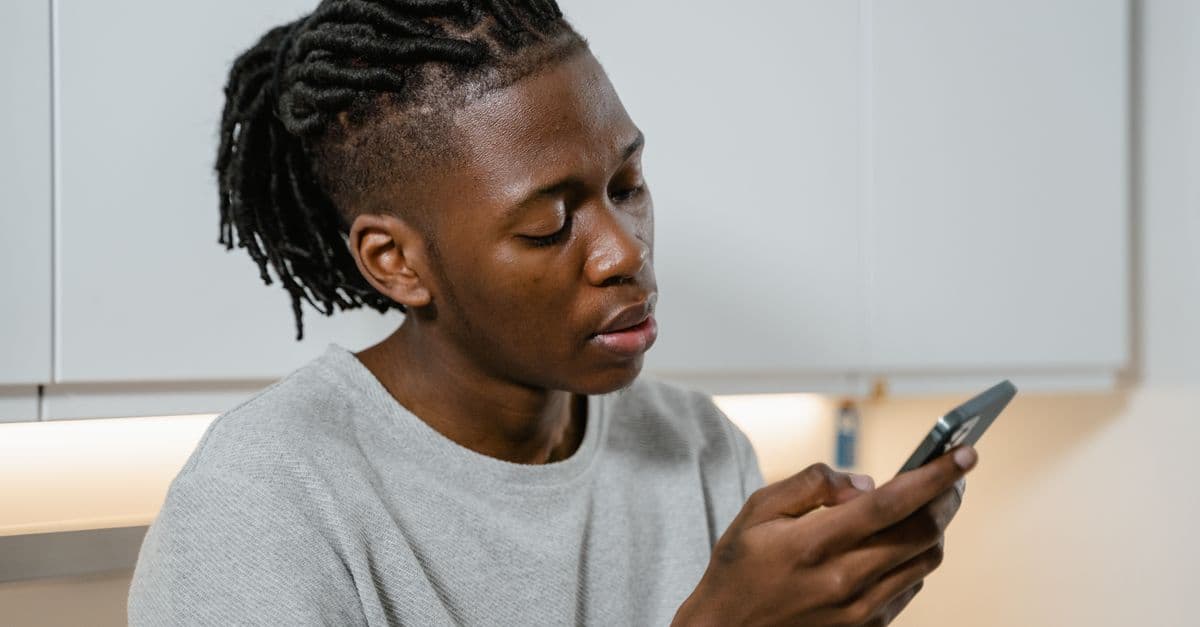
You Might Think Hackers Only Go After Big Companies—But Here’s the Truth
Picture this: a text from "Amazon" says your package is delayed. You click the link, enter your password, and within hours your bank account has three weird charges. It wasn’t Amazon at all.
If this sounds like something that could happen to you, you’re not alone. In 2026, nearly half of U.S. tech breaches are tied to North Korean cybercriminals, according to cybersecurity firms. The scary part? They’re not just targeting governments or corporations. They’re going after everyday people—students, remote workers, travelers—anyone with an unlocked digital door.
The good news? You don’t need a cybersecurity degree to fight back. In this guide, I’ll show you simple, free (or cheap) ways to lock your devices, spot scams, and use tools like VPNs to stay safe. No tech expertise required.
Lock Down Your Devices Like a Pro (No Geek Skills Needed)
 Photo by Morthy Jameson on Pexels
You wouldn’t leave your front door wide open when you leave the house. So why leave your phone or laptop unprotected? Hackers exploit weak spots—like outdated software or weak passwords—to sneak in. Here’s how to shut them out.
Update Everything, Automatically
Hackers love old software because it’s full of known vulnerabilities—like a window left unlocked. Turning on auto-updates for your phone, laptop, and apps closes those gaps without you having to think about it.
Example: The 2021 Colonial Pipeline hack, which caused gas shortages across the U.S., happened because of one unpatched password. Don’t let that be you.
How to do it:
- On iPhone: Go to Settings > General > Software Update and turn on Automatic Updates.
- On Android: Go to Settings > System > Advanced > System Update and enable auto-updates.
- On Windows: Go to Settings > Update & Security > Windows Update and select Automatic.
- On Mac: Go to System Settings > General > Software Update and check Automatically keep my Mac up to date.
Passwords: Ditch "123456" for a Password Manager
If you’re still using "password123" or the same password for everything, you’re basically handing hackers the keys to your digital life. A password manager is like a vault for your passwords—it generates strong, unique passwords and remembers them for you.
Analogy: Would you use the same key for your house, car, and mailbox? No? Then don’t reuse passwords.
How to do it:
- Download a free password manager like Bitwarden or 1Password.
- Let it generate strong passwords for your accounts (e.g.,
7x!9@Lp#2$vQ). - Use the password manager to autofill logins so you don’t have to remember them.
Pro tip: Start with your email and banking passwords—those are the most valuable to hackers.
Two-Factor Authentication (2FA): Your Digital Bodyguard
2FA adds an extra layer of security by requiring a second code (usually sent to your phone) when you log in. Even if a hacker steals your password, they can’t get in without that code.
Example: If someone steals your Gmail password and tries to sign in, 2FA asks for the code sent to your phone, and without it they’re locked out.
How to do it:
- Go to your account settings (e.g., Gmail, Facebook, or your bank).
- Look for Security or Two-Factor Authentication and enable it.
- Choose SMS (text message) or an app like Google Authenticator or Authy.
Why apps are better than SMS: Hackers can intercept text messages, but app-based codes are much harder to steal.
For more tips on securing your phone, check out our Complete Guide to Phone Security.
Spot Phishing Scams Before They Hook You
 Photo by Dan Nelson on Pexels
Phishing is when hackers trick you into giving up your passwords, credit card numbers, or other sensitive info. They might send an email pretending to be Amazon, your bank, or even a friend. North Korean hackers are especially good at this—they’ll impersonate trusted companies to steal your data.
The "Too Good to Be True" Rule
If an email, text, or DM promises free money, a "missed delivery," or an "urgent security alert," it’s probably a scam. Hackers rely on urgency and fear to trick you into clicking.
Example: Earlier this year, North Korean hackers sent fake "Apple ID suspension" emails. Victims who clicked the link were taken to a fake login page that stole their passwords.
Analogy: Would a stranger hand you $100 on the street? No? Then why would a prince email you about an inheritance?
Check the Sender’s Email Address
Hackers can make emails look real, but the sender’s address is a dead giveaway. Hover over the sender’s name to see the real email.
Red flags:
- Typos (e.g.,
support@amaz0n.cominstead ofsupport@amazon.com). - Weird domains (e.g.,
apple-security@random-site.ru). - Urgent demands ("Your account will be deleted in 1 hour!").
When in Doubt, Call the Real Company
If you get a suspicious message, don’t click any links. Instead, look up the company’s official phone number (don’t use the one in the email) and call them to ask if it’s legit.
Example: If you get a text from "Netflix" saying your payment failed, call Netflix’s real customer service number from its official website and ask before you click anything.
For more on spotting scams, try our Email Leak Checker to see if your email has been involved in a breach.
Public Wi-Fi: How to Use It Without Getting Hacked
Public Wi-Fi is convenient, but it’s also a hacker’s playground. When you connect to a network at a coffee shop, airport, or hotel, hackers can "eavesdrop" on your activity—like someone listening to your phone call in a café.
Assume Public Wi-Fi Is a Hacker’s Playground
Never log into banking, email, or work accounts on public Wi-Fi. Hackers can steal your passwords, credit card numbers, and even your location.
Example: A hacker at a coffee shop once stole 50+ passwords in an hour using a $20 tool. All it took was one unprotected connection.
Use a VPN: Your Invisible Shield
A VPN (Virtual Private Network) encrypts your data so hackers can’t read it. Think of it like sending your mail in a locked box instead of a postcard.
How it works: When you connect to a VPN, your internet traffic is routed through a secure server, hiding your activity from prying eyes.
How to do it:
- Download a VPN app like ProtonVPN (free option available) or NordVPN.
- Open the app and connect to a server (any location will do).
- Now you can browse safely on public Wi-Fi.
Free option: Some browsers, like Opera, have built-in VPNs for basic protection.
For more on staying safe on public Wi-Fi, check out our Public Wi-Fi Risks Guide.
Turn Off Auto-Connect
Disable "auto-join" for Wi-Fi networks so your phone doesn’t connect to fake hotspots set up by hackers.
Example: Hackers often create networks like "Free Airport Wi-Fi" to trick people into connecting. Once you’re on, they can steal your data.
How to do it:
- On iPhone: Go to Settings > Wi-Fi and turn off Auto-Join Hotspot.
- On Android: Go to Settings > Network & Internet > Wi-Fi > Wi-Fi Preferences and turn off Auto-connect to open networks.
Extra Layers of Protection (Because Hackers Are Persistent)
 Photo by Stefan Coders on Pexels
Hackers are always looking for new ways to break in. Here are a few extra steps to keep them out.
Freeze Your Credit: The Nuclear Option for Identity Theft
If a hacker gets your Social Security number, they can open credit cards or loans in your name. Freezing your credit blocks them from doing this.
Analogy: It’s like putting your credit report in a safe.
How to do it:
- Go to Experian, Equifax, or TransUnion.
- Look for Credit Freeze and follow the steps.
- It’s free and takes about 10 minutes.
Bonus: You can unfreeze it anytime if you need to apply for a loan or credit card.
Backup Your Data: The "Oops, I Got Hacked" Safety Net
Ransomware attacks (like WannaCry) lock you out of your files and demand payment to get them back. Backing up your data means you won’t lose everything if this happens.
Example: In 2024, a ransomware attack hit a hospital, locking doctors out of patient records. Backups saved the day.
How to do it:
- Use cloud backups like Google Drive or iCloud.
- Or, use an external hard drive for offline backups.
Check If Your Data’s Been Leaked
Hackers often sell stolen data on the dark web. You can check if your email or phone number is out there using Have I Been Pwned.
How to do it:
- Go to Have I Been Pwned.
- Enter your email or phone number.
- If it’s been leaked, change those passwords ASAP.
What to Do If You Think You’ve Been Hacked
If you suspect you’ve been hacked, don’t panic. Here’s what to do:
Change Passwords Immediately
Start with your email and banking passwords—those are the most valuable to hackers. Use a password manager to generate new, strong passwords.
Run a Malware Scan
Use a free tool like Malwarebytes or Windows Defender to scan your device for malware.
Report It
File a report with the FTC or IC3 (for cybercrimes). Reporting helps authorities track hackers, including groups like North Korea’s Lazarus Group.
Monitor Your Accounts
Check your bank statements and credit reports for weird charges. Even a $1 charge could be a hacker testing your card.
Key Takeaways: Your 5-Minute Cybersecurity Checklist
- 🔒 Update everything: Turn on auto-updates for your devices and apps.
- 🔑 Use a password manager: Ditch "password123" for unique, strong passwords.
- 📱 Enable 2FA: Add an extra layer of security to your accounts.
- 🎣 Spot phishing scams: Check sender emails and don’t click suspicious links.
- 📶 Use a VPN on public Wi-Fi: Encrypt your data so hackers can’t read it.
- 🛡️ Freeze your credit: Block hackers from opening accounts in your name.
- 💾 Backup your data: Protect your files from ransomware attacks.
- 🔍 Check for leaks: Use Have I Been Pwned to see if your data’s been exposed.
How GhostShield VPN Can Help
If you’re looking for a simple way to protect your data from hackers—especially on public Wi-Fi—GhostShield VPN is a great option. It encrypts your internet traffic, making it nearly impossible for hackers to steal your passwords or personal info. Plus, it’s easy to set up and works on all your devices.
If you’re ready to take your online security to the next level, check out GhostShield’s pricing plans or download it here.
Stay safe out there!
Related Topics
Keep Reading

How to Protect Your Photos from Hackers in 2026: A Simple Step-by-Step Guide
How to Watch England vs India Cricket Live Anywhere Without Cable in 2024

How to Use Passkeys in 2026: Ditch Passwords for Good in Minutes

How to Stop Apps from Listening: Voice AI Privacy Tips for Your Phone

How to Use ChatGPT and AI Chatbots Safely Without Risking Your Data
