How to Use Google Translate Headphones Safely While Traveling

Lost in Translation? How to Use Google Translate’s Headphone Feature Safely Abroad
Picture this: You’re standing in a bustling Tokyo market, stomach growling, but the menu is all squiggly lines. You pop in your earbuds, tap your phone, and suddenly—poof—your phone whispers the translation into your ear. No awkward pointing, no charades, just smooth conversation. That’s the magic of Google Translate’s real-time headphone feature.
It’s like having a tiny interpreter in your pocket. But here’s the catch: using it on public WiFi can be risky. Hackers can eavesdrop, steal your data, or even hijack your connection. The good news? You don’t have to choose between convenience and safety. This guide will show you how to use Google Translate’s headphone feature without the tech headaches—so you can focus on the fun stuff, like finding the best ramen in town.
How Google Translate’s Headphone Feature Works (The Basics)
 Photo by LinkedIn Sales Navigator on Pexels
Google Translate’s headphone feature is pretty simple: it listens to a conversation in one language and translates it into another in real time, piping the translation straight into your earbuds. Think of it like a high-tech game of telephone, but way more accurate.
Here’s how it works:
- You plug in your headphones (wired or wireless) and open the Google Translate app.
- Tap the microphone icon, choose the languages you’re translating between, and start talking.
- The app listens, translates, and speaks the translation out loud through your headphones.
It’s not perfect—background noise, slang, or strong accents can trip it up—but for most everyday situations, it’s a game-changer. Need to ask for directions in Paris? Check. Trying to order paella in Barcelona? Easy. It’s like having a bilingual friend in your ear, minus the jet lag.
The feature works in two modes:
- Online mode: Uses the internet to translate, supporting over 100 languages. Great for accuracy, but requires a connection.
- Offline mode: Download language packs ahead of time, so you can translate without WiFi. Works for 59 languages, and it’s a lifesaver in spots with bad signal.
The Risks: Why Public WiFi Is a Problem for Translations
 Photo by cottonbro studio on Pexels
Public WiFi is everywhere—airports, cafes, hotels, even some city parks. It’s convenient, but it’s also a playground for hackers. When you use Google Translate’s online mode on public WiFi, your conversations (and any other data you send) can be intercepted. It’s like shouting your credit card number in a crowded room and hoping no one’s listening.
Here’s why public WiFi is risky:
- Eavesdropping: Hackers can use tools to “listen in” on unsecured networks, capturing everything from your translations to your login details.
- Data leaks: Some public networks log your activity, meaning your translations (including personal details like hotel bookings or medical needs) could be stored or sold.
- Fake hotspots: Hackers set up networks with names like “Free Airport WiFi” to trick you into connecting. Once you’re on, they can steal your data or infect your device with malware.
Even if you’re just asking for directions, you never know who’s lurking on the same network. The last thing you want is for a hacker to overhear you discussing your hotel room number or travel plans.
How to Use Google Translate Safely Abroad
The good news? You don’t have to avoid Google Translate’s headphone feature just because public WiFi is risky. With a few simple steps, you can use it safely—no tech degree required.
1. Go Offline First
The easiest way to avoid public WiFi risks is to not use public WiFi at all. Google Translate lets you download language packs for offline use, so you can translate without an internet connection.
Here’s how to set it up:
- Open the Google Translate app and tap your profile icon in the top-right corner.
- Select “Offline translation” and download the language packs you need.
- Pro tip: Download packs before you travel. They’re big files, and you don’t want to rely on spotty airport WiFi to get them.
Offline mode isn’t as accurate as online mode (it struggles with slang or complex sentences), but it’s perfect for basic conversations. Use it for sensitive topics, like medical needs or financial discussions, and save online mode for casual chats.
2. Use a VPN (The Easy Way)
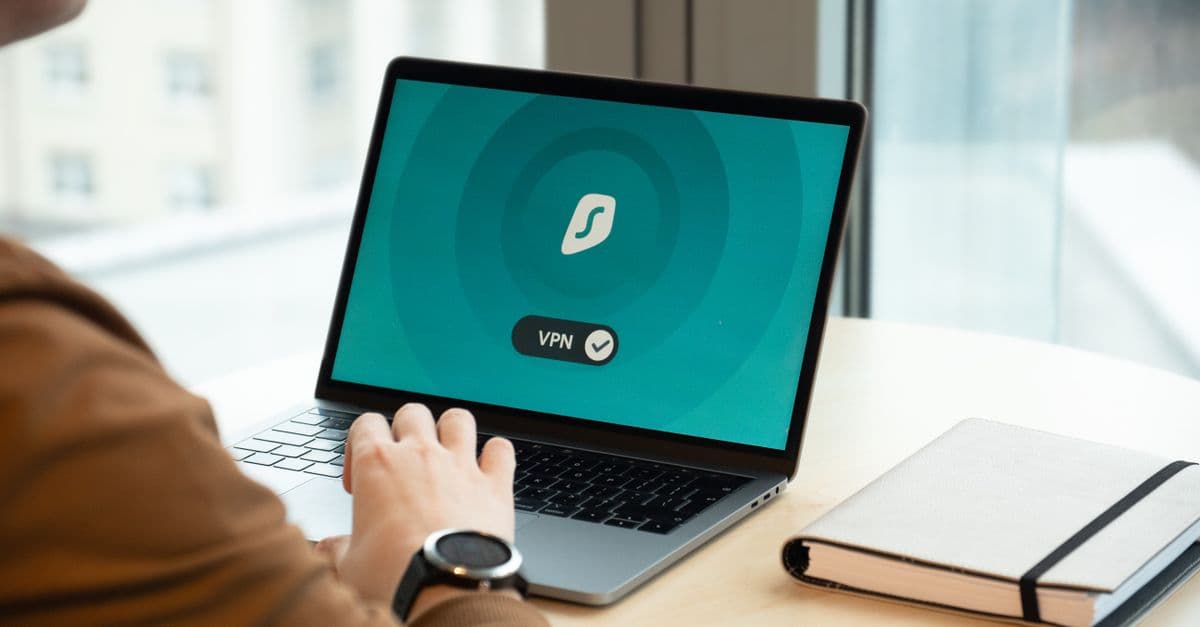
If you must use online mode (say, for a language not available offline), a VPN is your best friend. A VPN (Virtual Private Network) encrypts your internet connection, making it nearly impossible for hackers to snoop on your activity. Think of it like a secret tunnel for your data—no one can see what’s inside.
Here’s how to use a VPN with Google Translate:
- Download a VPN app before you travel. Free options like ProtonVPN or paid ones like NordVPN work well.
- Open the VPN app and connect to a server in your home country (or any country you trust).
- Once connected, open Google Translate and use it like normal. Your connection is now encrypted.
VPNs are easy to set up and use, even if you’re not tech-savvy. Most apps have a “quick connect” button that does all the work for you. Just remember to turn it on before you connect to public WiFi.
For more details on how VPNs work and which ones to choose, check out our Complete Guide to Online Privacy.
3. Avoid Sensitive Conversations on Public WiFi
Even with a VPN, it’s smart to avoid sensitive topics on public WiFi. Stick to offline mode for anything personal, like:
- Medical needs (e.g., “I’m allergic to peanuts”).
- Financial details (e.g., “Where’s the nearest ATM?”).
- Hotel or travel plans (e.g., “I’m checking into room 302”).
Save online mode for casual chats, like ordering food or asking for directions. And if you’re ever unsure, just switch to offline mode—it’s better to be safe than sorry.
Extra Safety Tips for Stress-Free Translations
 Photo by Karolina Grabowska www.kaboompics.com on Pexels
Google Translate’s headphone feature is already a travel game-changer, but a few extra precautions can make it even safer. Here’s what to do:
Update Your Apps
Before you travel, make sure Google Translate and your phone’s operating system are up to date. Updates often include security patches that fix vulnerabilities hackers could exploit. It’s a quick step that can save you a lot of headaches later.
Turn Off Auto-Connect
Your phone loves to automatically connect to WiFi and Bluetooth networks, but this can be risky. Hackers set up fake networks with names like “Free Hotel WiFi” to trick you into connecting. Once you’re on, they can steal your data or infect your device.
Here’s how to disable auto-connect:
- iPhone: Go to Settings > WiFi > tap the “i” next to a network > disable “Auto-Join.”
- Android: Go to Settings > Network & Internet > WiFi > WiFi preferences > disable “Auto-connect.”
For Bluetooth, just keep it turned off when you’re not using it.
Use Wired Headphones
Wireless headphones are convenient, but they’re not as secure as wired ones. Bluetooth can be hacked (though it’s rare), and some public places have been known to intercept Bluetooth signals. If you’re discussing sensitive topics, plug in a pair of wired earbuds instead.
Clear Your Translation History
Google Translate saves your translation history by default, which can be handy—but it’s also a privacy risk. If someone gets access to your phone, they could see sensitive conversations. To clear your history:
- Open Google Translate and tap your profile icon.
- Select “Clear history” and confirm.
Do this after any sensitive conversations, just to be safe.
What to Do If You Think Your Data Was Exposed
Even with precautions, things can go wrong. Maybe you forgot to turn on your VPN, or you connected to a sketchy network by accident. Here’s what to do if you suspect your data was exposed:
Signs of Trouble
- Your phone is suddenly slow or overheating.
- You see unexpected pop-ups or ads.
- Apps crash frequently, or your battery drains faster than usual.
- You notice unfamiliar apps or messages sent from your accounts.
Quick Fixes
- Change your passwords: Start with your email and Google account, then move on to any other accounts you used while traveling.
- Run a malware scan: Use a free tool like Malwarebytes to check for viruses or spyware.
- Log out of all devices: Go to your Google account settings and sign out of any devices you don’t recognize.
- Check for breaches: Use a tool like GhostShield’s Email Leak Checker to see if your email has been involved in a data breach.
If you’re seeing unauthorized charges or messages sent from your accounts, it’s time to take more drastic action. Check out our How to Know If Your Phone Is Hacked guide for step-by-step recovery tips.
Key Takeaways (TL;DR)
- Offline mode is your best friend: Download language packs before you travel to avoid public WiFi risks.
- VPNs = simple protection: Use one to encrypt your connection, even if it’s just a free version.
- Sensitive convos? Go offline: Save online mode for casual chats, not personal details.
- Update everything: Keep Google Translate and your OS updated to block security holes.
- Wired > wireless: Bluetooth headphones are convenient but less secure than wired ones.
- Clear your history: Delete your translation history after sensitive conversations.
- When in doubt, turn it off: If you’re unsure about a network, switch to offline mode or use your phone’s data instead.
Stay Safe, Stay Smart
Google Translate’s headphone feature is a traveler’s dream—it breaks down language barriers and makes exploring new places so much easier. But like any tool, it’s only as safe as you make it. By going offline, using a VPN, and following a few simple precautions, you can use it without worrying about hackers or data leaks.
If you’re looking for a VPN that’s easy to use and travel-friendly, GhostShield VPN is a great option. It’s designed for everyday people, not tech experts, so you can set it up in minutes and forget about it. Whether you’re translating a menu in Rome or asking for directions in Seoul, GhostShield keeps your connection secure—so you can focus on the adventure.
Safe travels, and happy translating!
Related Topics
Keep Reading
How to Stay Safe While Working Remotely in 2026: A Simple Security Guide

Public WiFi Safety in 2026: Simple Steps to Work Abroad Without Hackers

How to Stay Safe in a Robotaxi: 5 Easy Privacy Steps for 2026

Booking.com Hacked? 5 Easy Steps to Secure Your Travel Bookings

How to Stay Safe on Public WiFi in 2026: A Traveler’s Guide

How to Work Safely in a Robotaxi: Simple Steps to Avoid Tech Fails & Hackers
Protect Your Privacy Today
GhostShield VPN uses AI-powered threat detection and military-grade WireGuard encryption to keep you safe.
Download Free