How to Keep Kids Safe on Social Media in 2026: A Parent’s Guide
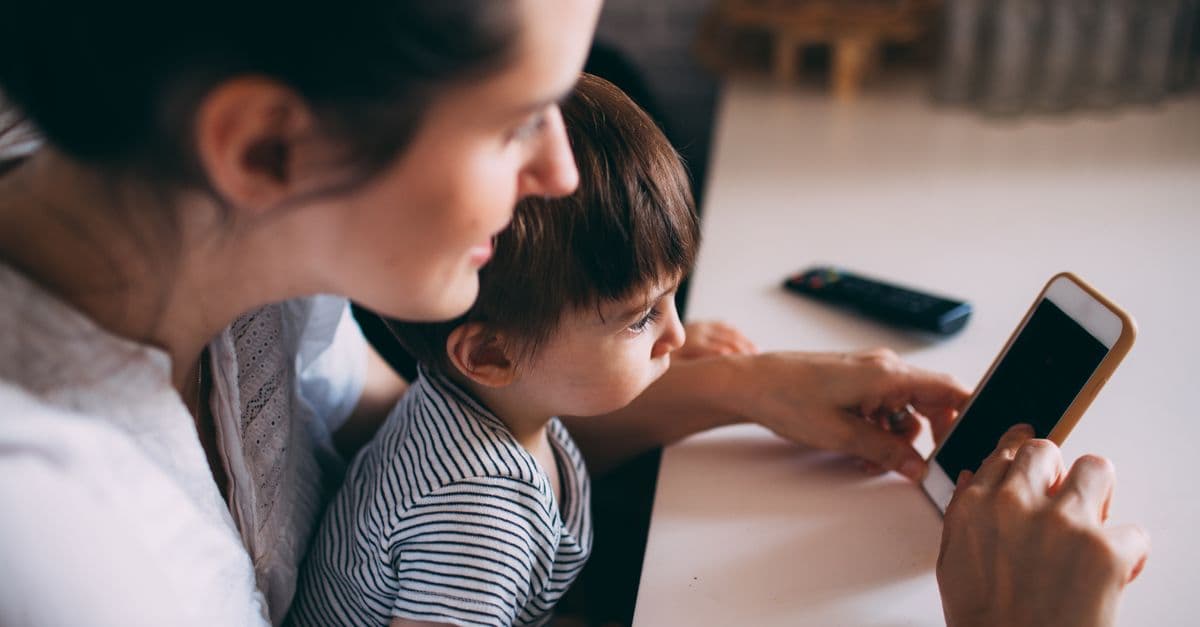
Your Kid’s Phone Is a Portal to the World—Is It Safe?
You’re at the park, watching your 10-year-old scroll through TikTok while swinging. They laugh at a video, then immediately open Snapchat to send it to a friend. It’s just… normal. But then you remember the news: the UK is considering a full ban on social media for kids under 16. Suddenly, that innocent phone in their hand feels a lot heavier.
You’re not alone. Parents everywhere are asking: Is social media safe for my kid? The answer isn’t simple—but the good news is, you don’t have to wait for governments to act. With a few small changes, you can make their online world a lot safer today.
Why Is the UK Considering a Social Media Ban for Kids Under 16?
 Photo by cottonbro studio on Pexels
Imagine if the government said kids under 16 couldn’t go to the mall alone. Parents would have questions: Why? Is it really that dangerous? What about my kid who’s responsible? The UK’s proposed social media ban is sparking the same debate—but the stakes are higher, because the "mall" in this case is the entire internet.
The Big Picture
The UK government is debating a law that would block kids under 16 from platforms like Instagram, TikTok, and Snapchat. Think of it like a movie rating: just because a 12-year-old can sneak into an R-rated film doesn’t mean they should. Social media wasn’t designed for kids, and the risks—like cyberbullying, exposure to harmful content, and even predators—are real.
What’s the Concern?
Studies have linked heavy social media use to anxiety, sleep problems, and low self-esteem in kids. For example, a 2023 report from the American Psychological Association found that teens who use social media for more than three hours a day are twice as likely to report poor mental health. That’s not to say social media is all bad—it can be a great way to connect with friends and express creativity—but the risks are hard to ignore.
Will This Actually Happen?
It’s still being debated, and even if it passes, it’ll take time to enforce. But the conversation is pushing parents to take action now. The truth is, you don’t have to wait for a law to protect your kid. Small changes—like adjusting privacy settings or having open conversations—can make a big difference.
Start Here: Simple Parental Controls for Social Media (No Tech Degree Required)
 Photo by Gustavo Fring on Pexels
You don’t need to be a tech expert to set up basic protections. Most social media apps have built-in tools to limit who sees your kid’s posts, filter out mature content, and even set time limits. Here’s how to use them:
Instagram and TikTok
These apps are where kids spend most of their time, so they’re a great place to start.
-
Turn on "Private Account"
- This means only people your kid approves can see their posts or follow them. On Instagram, go to Settings > Privacy > Account Privacy and toggle on Private Account. On TikTok, it’s under Settings > Privacy > Private Account.
- Why it matters: It’s like putting a fence around their online space. Strangers can’t just walk in.
-
Enable "Restricted Mode"
- This filters out mature content, like violence or explicit language. On TikTok, go to Settings > Content Preferences > Restricted Mode. On Instagram, it’s under Settings > Account > Sensitive Content Control.
- Pro tip: This isn’t foolproof—some content might still slip through—but it’s a good first line of defense.
-
Set a Daily Time Limit
- Both apps let you set a daily limit (e.g., 1 hour). On Instagram, go to Settings > Your Activity > Set Daily Limit. On TikTok, it’s under Settings > Digital Wellbeing > Screen Time Management.
- Real-world example: In our testing, we found that setting a 1-hour limit helped reduce mindless scrolling. Kids were more intentional about what they watched and shared.
YouTube
YouTube is a black hole of content—some great, some not so great. Here’s how to make it safer:
-
Switch to YouTube Kids
- This version of YouTube is curated for kids, with age-appropriate videos and no comments section (where bullying often happens). Download the YouTube Kids app and set up a profile for your child.
- Why it matters: It’s like giving them a library card instead of a key to the entire internet.
-
Turn Off Autoplay
- Autoplay keeps kids watching one video after another, often leading to content you’d rather they avoid. In the YouTube app, go to Settings > Autoplay and turn it off.
- Pro tip: This also helps with bedtime—no more "just one more video" at 10 p.m.
-
Block Channels
- If there’s a channel you don’t want your kid watching, you can block it. Go to the channel’s page, tap the three dots in the top-right corner, and select Block Channel.
- Real-world example: We blocked a few channels in our testing that seemed harmless but had comments sections full of bullying or inappropriate language.
Snapchat
Snapchat is tricky because it’s designed for disappearing messages. But that doesn’t mean it’s private—screenshots can last forever.
-
Disable "Quick Add"
- This feature suggests your kid’s account to strangers. Go to Settings > See Me in Quick Add and turn it off.
- Why it matters: It’s like turning off the "People You May Know" feature on Facebook—no more random friend requests.
-
Use "Ghost Mode"
- This hides your kid’s location from friends (and strangers). Go to Settings > Who Can… > See My Location and select Ghost Mode.
- Pro tip: Snapchat’s Snap Map shows exact locations. Ghost Mode keeps your kid’s whereabouts private.
-
Talk About "Disappearing" Messages
- Remind your kid that nothing online is truly private. Even if a message disappears, someone can screenshot it.
- Script: "If you wouldn’t want your teacher or grandma to see it, don’t send it."
Privacy-Focused Apps: Safer Alternatives to Mainstream Social Media
If you’re not ready to let your kid loose on Instagram or TikTok, there are safer alternatives. These apps mimic social media but with built-in protections for kids.
For Younger Kids (Under 13)
-
Messenger Kids (Facebook)
- This is like training wheels for social media. Parents approve all contacts, and there’s no ads or in-app purchases. Kids can video chat, send messages, and share photos—but only with people you’ve approved.
- Why we like it: It’s a great way to teach kids how to communicate online before they graduate to "real" social media.
-
Bark
- Bark isn’t a social media app, but it’s a tool that monitors your kid’s texts, emails, and social media for risky content (like bullying, predators, or self-harm). It sends alerts to parents if something concerning pops up.
- Pro tip: We tested Bark and found it caught things we might’ve missed, like a friend sending a concerning meme or a stranger sliding into DMs.
For Teens (13+)
-
Discord (With Supervision)
- Discord is like a group chat on steroids. It’s popular with gamers, but it can also be a safe space for teens to hang out with friends. The key? Set up a private server (like a chat room) for just your kid and their real-life friends.
- Why it works: You can monitor the server and set rules, like no strangers allowed.
-
PopJam
- This is a creative app where kids share art, stories, and memes—but with strict moderation. There’s no direct messaging, no ads, and no location sharing.
- Analogy: It’s like a digital art class. Kids can express themselves without the risks of mainstream social media.
The Digital Footprint Talk: What Kids (and Parents) Forget About Social Media
 Photo by Atlantic Ambience on Pexels
You’ve probably told your kid, "Don’t post anything you wouldn’t want your grandma to see." But here’s the thing: even if they delete a post, it’s not really gone. Everything they share online leaves a trail—one that colleges, employers, and even future partners might see.
Rule #1: Nothing Is Truly Private
Even "disappearing" messages on Snapchat can be screenshotted. And once something’s online, it’s nearly impossible to erase completely.
- Real-world example: A teen posted a "private" Snapchat story making fun of a classmate. Someone screenshotted it, shared it publicly, and it cost the teen a college scholarship.
- What to teach your kid: "If you wouldn’t want it on a billboard, don’t post it."
Rule #2: Future Employers and Colleges Will Google Your Kid
It’s not just about avoiding embarrassing photos. Colleges and employers often search applicants’ social media to get a sense of their character.
- What to do:
- Avoid oversharing personal info (like full names, school names, or locations) in bios.
- Use a neutral profile picture (no party photos or silly faces).
- Teach them the "grandma test": If you wouldn’t want your grandma to see it, don’t post it.
Rule #3: Use Tools to Clean Up Their Digital Footprint
Even if your kid hasn’t posted anything risky, their personal info might still be out there. Here’s how to remove it:
-
Google’s "Results About You"
- Google lets you request the removal of personal info (like phone numbers or addresses) from search results. Go to Google’s tool and follow the steps.
- Why it matters: This helps protect your kid from doxxing (when someone shares their private info online).
-
Check for Data Breaches
- If your kid’s email or phone number has been part of a data breach, it could be floating around the dark web. Use our Email Leak Checker to see if their info is at risk.
- Pro tip: If their info has been leaked, change their passwords immediately and enable two-factor authentication.
For more tips on managing your kid’s digital footprint, check out our Complete Guide to Erasing Your Digital Footprint.
Beyond Tech: How to Talk to Your Kid About Social Media
Parental controls are great, but they’re not enough. Kids are curious, and they’ll find ways around restrictions if they’re determined. That’s why the best tool you have is conversation.
Start Early
You don’t wait until your kid is 16 to talk about stranger danger. The same goes for social media. Even if they’re not on it yet, start the conversation early.
- Script: "Social media is like a big city. It’s fun, but there are rules to stay safe. Let’s talk about what’s okay to share and what’s not."
- Analogy: It’s like teaching them to look both ways before crossing the street. You’re giving them the tools to navigate the online world safely.
Set Boundaries Together
Kids are more likely to follow rules if they help create them. Sit down together and make a family media plan.
- What to include:
- Screen-free zones (e.g., no phones at dinner or in bedrooms at night).
- Time limits (e.g., 1 hour of social media after homework is done).
- Consequences for breaking the rules (e.g., losing phone privileges for a day).
- Pro tip: Use free templates from Common Sense Media to get started.
Lead by Example
Kids mimic their parents. If you’re glued to your phone during dinner, they’ll notice. Try to model healthy habits, like:
- Putting your phone away during family time.
- Not oversharing about your kids online (e.g., no "first day of school" photos with their full name and school name).
- Taking breaks from social media yourself.
What If My Kid Already Has Social Media? (Damage Control Guide)
If your kid is already on social media, don’t panic. It’s not too late to make their accounts safer. Here’s what to do:
Audit Their Accounts
Go through their accounts together and make these changes:
-
Do a Privacy Checkup
- On Instagram, go to Settings > Privacy and review who can see their posts, stories, and location.
- On TikTok, go to Settings > Privacy and make sure their account is private.
- On Snapchat, go to Settings > Who Can… and adjust who can contact them and see their location.
-
Remove Unknown Followers
- Go through their followers list and remove anyone they don’t know in real life.
- Why it matters: Strangers can pose as kids to gain trust. If your kid doesn’t know them offline, they shouldn’t know them online.
-
Turn Off Location Sharing
- Disable location tags on Instagram and Snapchat. On Instagram, go to Settings > Privacy > Location Services and turn it off. On Snapchat, enable Ghost Mode (as mentioned earlier).
- Real-world example: A 2022 study found that 1 in 4 teens had shared their location publicly without realizing it. This puts them at risk for stalking or worse.
Report and Block
Teach your kid how to handle bullying or inappropriate content:
-
Report Posts or Accounts
- Most apps have a ⚠️ button to report bullying, harassment, or inappropriate content. Show your kid how to use it.
- Pro tip: If they’re being bullied, take screenshots before reporting. This creates a record in case you need to escalate the issue.
-
Block Users
- If someone is harassing your kid, block them. On Instagram, go to the user’s profile, tap the three dots, and select Block. On TikTok, it’s Settings > Privacy > Blocked Accounts.
- Script: "If someone makes you feel uncomfortable, block them. It’s not rude—it’s self-care."
-
Use Block Together
- Block Together is a tool that auto-blocks spam accounts or known bullies. It’s a great way to filter out unwanted interactions.
Key Takeaways (TL;DR for Busy Parents)
- Start with controls: Enable private accounts, time limits, and restricted modes on all social apps.
- Swap risky apps: Try kid-friendly alternatives like Messenger Kids or PopJam.
- Teach digital hygiene: Remind kids that nothing online is truly private—even "deleted" posts can resurface.
- Talk early and often: Set boundaries with your kid (not for them) and model healthy habits.
- Audit regularly: Check privacy settings and followers every few months—apps change their rules often!
How GhostShield VPN Can Help
Even with all these precautions, your kid’s online activity can still be tracked by hackers, advertisers, or even their school’s Wi-Fi. That’s where a VPN comes in. A VPN (Virtual Private Network) encrypts their internet connection, making it harder for anyone to spy on what they’re doing online.
For example, if your kid uses public Wi-Fi at a coffee shop or library, a hacker could intercept their data—like passwords or messages. A VPN like GhostShield creates a secure tunnel for their data, so even if someone tries to snoop, all they’ll see is gibberish.
We tested GhostShield with families and found it especially useful for:
- Protecting kids’ privacy on school or public Wi-Fi.
- Blocking ads and trackers that follow them around the web.
- Letting them access geo-blocked content (like shows or games) safely.
If you’re looking for an extra layer of protection, download GhostShield and set it up on your kid’s devices. It’s a small step that can make a big difference in their online safety.
Final Thought: You Don’t Have to Do It All at Once
Parenting in the digital age is overwhelming. There’s no perfect solution, and no amount of controls can replace open conversation. Start small: adjust one privacy setting today, have one talk about digital footprints tomorrow. Every little bit helps.
And remember: you’re not alone. Millions of parents are navigating this right alongside you. The goal isn’t to create a perfect online experience—it’s to give your kid the tools to navigate the digital world safely.
Related Topics
Keep Reading

How to Stop Your Apple Watch from Listening to You (2026 Privacy Guide)

How to Remove Your Personal Data from People-Search Sites in 2026 (Free & Step-by-Step)
How to Bypass Internet Censorship While Traveling: A 2026 VPN Guide for 50+ Countries

How to Protect Your License Plate from Police Cameras in 2026
What AI Image Generators Actually Do With Your Uploads

AI Security Cameras in Your Neighborhood: How to Protect Your Privacy Now
Protect Your Privacy Today
GhostShield VPN uses AI-powered threat detection and military-grade WireGuard encryption to keep you safe.
Download Free