How to Stop Meta Smart Glasses from Scanning Your Face in Public (2026 Guide)
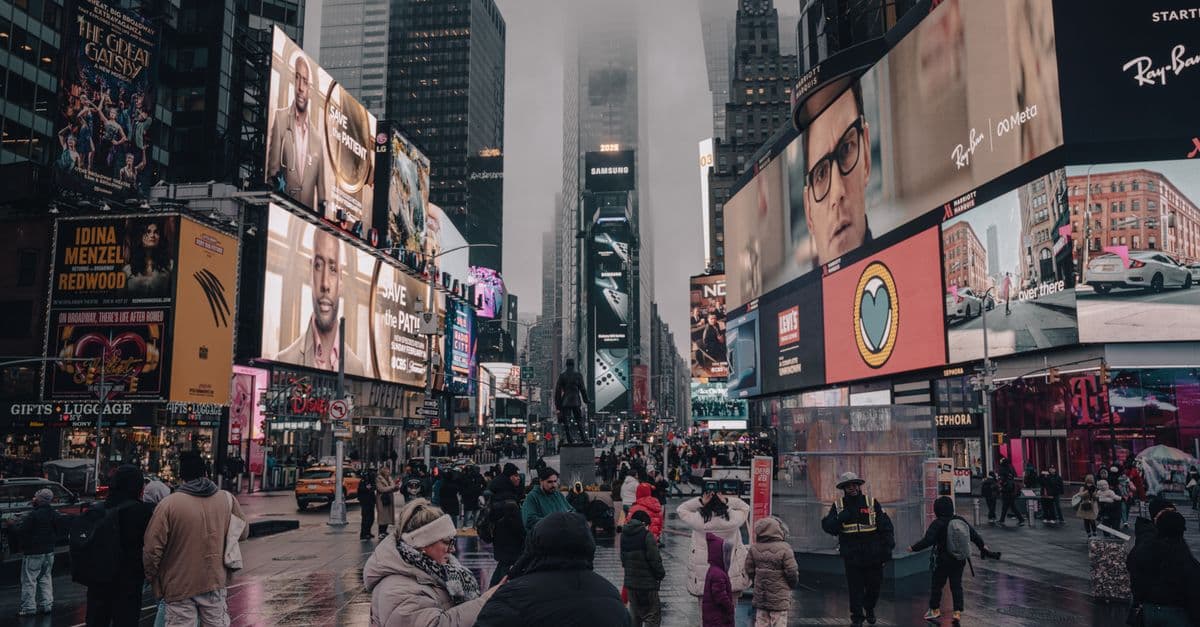
Meta Smart Glasses Are Everywhere (And Yes, They Can Scan Your Face)
You grab a coffee, sit by the window, and a stranger walks past wearing sleek, dark glasses. They don't stop, they don't say a word, but their glasses just took a photo of your face. A few seconds later, that photo is matched to your LinkedIn profile, your Instagram photos, and maybe even your home address. Sound like a spy movie? It's not. It's a real risk with Meta's smart glasses, and after this year's Meta Connect event, those glasses are more capable and more common than ever.
Meta has been pushing hard to make its Ray-Ban smart glasses a mainstream gadget. The company used its 2026 Connect event to expand the lineup, roll out new AI features, and make the glasses easier to buy. That means more people are walking around with a camera on their face, and the privacy questions are no longer hypothetical. The good news: you are not powerless. In this guide, we'll walk through what these glasses can and cannot actually do in 2026, how to opt out of facial recognition, the risks of ignoring your settings, and why a VPN is a smart layer of protection even if you never wear the glasses yourself.
What Meta’s Glasses Can (and Cannot) Scan in 2026
Let's separate fact from fear. Meta's Ray-Ban smart glasses are built around a small camera and an onboard AI processor. That AI can recognize objects, translate signs, answer questions about what you're looking at, and yes, match a face to a name under certain conditions.
What they can do:
- Take photos and videos on command. A wearer can say "Hey Meta, take a photo" or press a button, and the glasses capture whatever is in front of them.
- Run live AI analysis. The glasses can describe what they see, read text, and identify landmarks or products in real time.
- Match faces to known people. If the wearer has your face in their contacts, tagged photos, or a searchable database of public images, the glasses can connect a face to a name, job title, social media profile, and sometimes location history.
What they cannot do (yet):
- Constantly scan every face in a crowd. The glasses do not automatically identify every person they see. The wearer has to trigger a search or capture an image and then ask the AI to identify the person. It's not a continuous biometric scanner strapped to someone's head.
- Read your mind or access your phone. No, the glasses cannot pull data off your device just by looking at you. They only process what their own camera sees.
- See through walls or clothing. The camera is no different from a phone camera in that regard.
Still, the practical risk is real. If you have ever posted a photo on Facebook, Instagram, LinkedIn, or a public blog, your face is likely in a database that can be searched. The glasses make that search instantaneous and mobile. Someone could sit across from you on a train, snap a photo, and within seconds know your name, where you work, and who your mutual friends are. That is the core privacy problem.
Step-by-Step: How to Opt Out of Meta’s Facial Recognition Systems (2026 Update)
Meta's facial recognition once lived in a single Facebook setting. Over the years, the company has moved these controls around, removed some features, and added new ones. As of 2026, the exact menu paths may vary by region and app version, but the principles remain the same. Here is a practical guide you can follow today.
1. Turn off facial recognition in your Meta accounts
Even if Meta has changed the label, the underlying setting still exists in some form. The quickest way to find it:
- Open the Facebook app or website.
- Go to Settings & Privacy > Settings.
- Use the search bar at the top and type "face recognition."
- If a setting appears, toggle it to No or Off.
On Instagram, go to Settings > Privacy > Face Recognition and turn it off if you see the option. If the toggle is missing, that means Meta has either removed it from your region or integrated it into a broader "Data Use" setting. In that case, search for "face" in the settings search bar and see what comes up.
This step tells Meta not to automatically match your face to photos and videos on its platforms. It does not stop someone from taking a photo of you with their glasses, but it signals that you do not want your face used as a searchable identifier. For a full walkthrough of locking down your online identity, our Complete Guide to Online Privacy covers all the layers.
2. Control who can tag you in photos
Facial recognition settings are only half the battle. If your friends or acquaintances tag you in photos, those tags can still link your face to your name, even if Meta's own recognition is off. Here's how to take control:
- On Facebook, go to Settings > Privacy > Profile and Tagging.
- Set Who can tag you? to Friends or Only Me.
- Turn on Review tags before they appear on your profile.
On Instagram, find similar options under Settings > Privacy > Tags and Mentions. This prevents new tags from automatically appearing on your profile, though old tags will still exist unless you remove them manually.
3. Submit a formal data request (especially in strong-privacy regions)
If you live in a region covered by the GDPR, CCPA, or similar laws, you have legal rights over your biometric data. Use Meta's Data Access Tool to request a copy of everything the company holds on you, including any facial templates. After you receive the file, you can follow up with a deletion request if you find something you don't want stored.
For step-by-step help on handling these requests and monitoring for leaked data, our Data Breach Response Guide walks you through the process.
4. Physical countermeasures: hats, sunglasses, and beyond
Online settings alone won't stop a camera from capturing your face in public. If you want to make it harder for smart glasses to identify you, try these practical, low-cost methods:
- Wear a hat and sunglasses. Facial recognition depends on key points like the distance between your eyes and the shape of your jaw. Obscuring those points makes automated matching much less reliable. A baseball cap plus sunglasses is enough to foil many systems.
- Look into IR-blocking sunglasses. Some facial recognition uses infrared light to see details in shadow. Lenses that block infrared, such as those from specialized brands, act as a privacy shield for your face.
- Try anti-facial-recognition makeup. The style known as CV Dazzle uses bold, asymmetric patterns to disrupt the AI's ability to map facial features. It's not perfect, but it makes you a harder target.
- Consider Reflectacles. These sunglasses are engineered to reflect infrared light back at the camera, effectively hiding your facial landmarks from IR-based systems.
None of these are foolproof, but they raise the bar significantly. For most people, a hat and sunglasses are enough to avoid casual identification.
5. Be aware of high-scan environments
Assume you are being scanned in crowded malls, stadiums, airports, and tourist hotspots. Some cities have banned government use of facial recognition, but private companies and individuals are largely unregulated. If you're concerned, you can ask store managers whether they use real-time face scanning. Several major retailers have piloted such systems, and transparency varies widely.
The Risks of Ignoring Facial-Recognition Settings
Why bother with all this? Because the consequences go far beyond an awkward moment. Here's what can happen if you ignore these settings and assume "it won't happen to me."
Your name and personal info become instantly available to strangers. A person wearing smart glasses can take your photo, run a search, and within seconds know your full name, employer, hometown, and relationship status. That information could be used for stalking, harassment, or social engineering.
Scammers can use your face for deepfakes or identity theft. A clear photo of your face is enough to create a convincing deepfake video or bypass some facial authentication systems. Once your face is linked to your name, the barrier to abuse drops dramatically.
Your location history gets pieced together. If someone scans you at a coffee shop on Monday and at a gym on Wednesday, they can start building a timeline of your routine. That is valuable to marketers, private investigators, or anyone with bad intentions.
Your face could be used to train future AI models without your knowledge. Meta has not been fully transparent about how long facial data is stored or whether it's used to train new AI systems. By opting out and limiting tags, you reduce the chance that your face becomes part of a training dataset.
The cumulative effect is a permanent digital profile. One scan might seem harmless, but dozens of scans across different locations and platforms create a detailed picture of who you are, where you go, and who you know. That picture is hard to erase once it exists.
Ignoring these settings is like leaving your front door unlocked because you assume no one will try the handle. Most people won't, but the ones who do can cause real damage.
VPN Tie-In: Public Wi-Fi and Biometric Exposure
Here's where a VPN comes in, even if you never wear smart glasses yourself. Smart glasses rely heavily on cloud processing. When a wearer asks the AI to identify a face, the image is sent over the internet to Meta's servers, often through whatever Wi-Fi network is available. That network might be a coffee shop hotspot, an airport network, or a hotel guest Wi-Fi.
You cannot control the wearer's connection, but you can control your own. If you are sitting in the same coffee shop, using the same public Wi-Fi to check your Facebook settings or submit a data deletion request, your traffic is exposed to anyone on that network. A VPN encrypts your internet traffic, making it unreadable to snoops, network operators, and even your internet service provider.
Think of it this way: a VPN is like a private tunnel for your data. Without it, your online activity is like a postcard anyone can read. With it, your activity is sealed in an envelope. It doesn't stop someone from taking your photo, but it protects the digital trail you leave when you respond to privacy concerns. If you want to understand exactly how a VPN works in plain language, our What Is a VPN and How Does It Work? guide breaks it down. For broader examples of when a VPN is useful, check out our VPN use cases page.
Using a VPN on public Wi-Fi is now a basic security habit, like locking your car doors. It takes five seconds and protects you from a whole category of attacks.
Future-Proofing Your Privacy Against Wearable Cameras
Facial recognition is not going away. The technology will get smaller, cheaper, and more accurate. Laws may eventually catch up, but you should not wait for legislation to protect you. Here are a few habits that will serve you well as wearable cameras become more common.
Review your public social media photos. Go to Facebook, Instagram, and LinkedIn, and look at what a stranger would see if they found your profile. Remove any photo that clearly shows your face and is publicly visible. Set your profiles to private where possible.
Limit what you share in real time. Posting a photo of yourself at a specific coffee shop is an invitation for someone with smart glasses to find you there. Consider delaying posts or removing location tags.
Use a password manager and unique passwords. Your face might be your identity, but your passwords are your keys. A password manager makes it easy to use strong, unique passwords everywhere. Our Password Generator can help you create one in seconds.
Check for data leaks regularly. If your email or personal details have been exposed in a breach, that information can be combined with a face scan to build a fuller profile. Use our free Email Leak Checker to see if your accounts are at risk.
Stay informed about legislation. Some regions are introducing laws that require companies to get consent before collecting biometric data. Knowing your local rights gives you leverage when asking companies to delete your data.
Consider a VPN as part of your everyday privacy toolkit. While it won't stop a camera, it ensures that your online activity, especially on public networks, stays private. And if you ever need to submit a data request or check your privacy settings while out and about, a VPN protects that process from prying eyes.
Key Takeaways
- Meta's smart glasses can match a face to a name using public photos and social media, but they do not constantly scan every person in a crowd. The wearer must trigger a search.
- You can reduce your risk by turning off face recognition in Facebook and Instagram settings, controlling who can tag you, and submitting a data request if you're in a strong-privacy region.
- Physical countermeasures like hats, sunglasses, IR-blocking lenses, and anti-recognition makeup make automated matching significantly harder.
- Ignoring these settings can lead to stalking, identity theft, deepfake abuse, and a permanent digital profile.
- A VPN protects your online activity on public Wi-Fi, which is especially important when you're responding to privacy concerns in the same spaces where smart glasses are used.
- Future-proof your privacy by reviewing public photos, using strong passwords, checking for data leaks, and staying informed about biometric laws.
If you are serious about keeping your digital life private, GhostShield VPN offers a straightforward way to encrypt your connection on public Wi-Fi and reduce the data trail you leave behind. It is not a magical shield against cameras, but it closes a major gap that many people overlook. You can explore pricing or download the app to get started. A few minutes of setup today can save you from a much bigger headache tomorrow.
Related Topics
Keep Reading

How to Stop Your Smart TV from Spying on You (Keep All Streaming Apps)

12 Simple Steps to Lock Down Your Phone from Government Tracking
How to Stop Your Apple Watch from Listening to You (2026 Privacy Guide)

How to Remove Your Personal Data from People-Search Sites in 2026 (Free Step-by-Step Guide)

How to Bypass Internet Censorship While Traveling: A 2026 VPN Guide for 50+ Countries

How to Protect Your License Plate from Police Cameras in 2026
Protect Your Privacy Today
GhostShield VPN uses AI-powered threat detection and military-grade WireGuard encryption to keep you safe.
Download Free