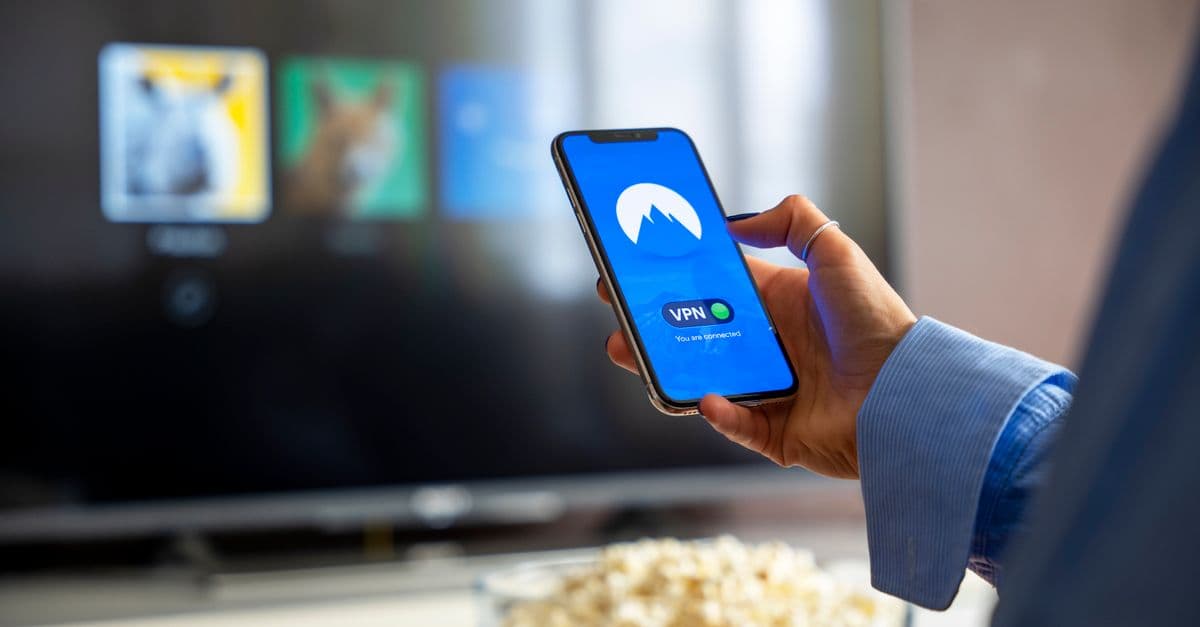
Watch Summer Game Fest 2026 Live Anywhere with a VPN (Easy Guide)

How to Watch Summer Game Fest 2026 Live From Anywhere (No Tech Degree Required)
You’ve been waiting all year for Summer Game Fest. The trailers, the reveals, the hype—it’s like the Super Bowl for gamers. But when you click the stream link, you get a message: "This content is not available in your region."
Frustrating, right? It’s like showing up to a concert only to find out your ticket isn’t valid in your country. The good news? You don’t need to miss out. With a few simple steps, you can bypass those annoying geo-blocks and watch Summer Game Fest 2026 live, no matter where you are.
Here’s how to do it—without needing a degree in computer science.
Why Is Summer Game Fest Blocked in Some Countries?
 Photo by Stefan Coders on Pexels
Imagine you’re at a movie theater, and the usher checks your ID before letting you in. If your ID says you’re from the wrong country, you’re turned away—even if you bought a ticket. That’s basically how geo-blocks work online.
Streaming platforms like YouTube or Twitch use your IP address (a unique number assigned to your internet connection) to figure out where you are. If your IP shows you’re in a country where the stream isn’t licensed, you’re blocked. It’s not personal—it’s just business. Companies sign deals to show content in specific regions, and they enforce those deals with geo-blocks.
Last year, for example, fans in Australia missed out on the Crossfire trailer live because of these restrictions. Don’t let that happen to you this time.
What You’ll Need to Watch Without Restrictions
 Photo by cottonbro studio on Pexels
You don’t need a fancy setup to bypass geo-blocks. Here’s what you’ll need:
1. A Reliable VPN (Your Digital Passport)
A VPN (Virtual Private Network) is like a secret tunnel for your internet connection. It hides your real location and makes it look like you’re browsing from another country. Think of it as a digital disguise—if you connect to a U.S. server, streaming platforms will think you’re in the U.S., even if you’re actually in Japan or Germany.
Free vs. Paid VPNs: What’s the Difference?
- Free VPNs are like free Wi-Fi at a coffee shop. They might work in a pinch, but they’re often slow, unreliable, and sometimes even sell your data. We don’t recommend them for streaming.
- Paid VPNs (like NordVPN, ExpressVPN, or GhostShield) are like a premium streaming service. They’re fast, secure, and designed to handle big events like Summer Game Fest without buffering.
Best VPNs for Gaming Streams
If you’re not sure which VPN to pick, here are a few top options:
- NordVPN: Fast speeds, great for streaming, and easy to use.
- ExpressVPN: Reliable and works on almost any device, including smart TVs.
- GhostShield: A solid choice if you want a balance of speed and affordability. (More on this later.)
2. A Device to Stream On
You can watch Summer Game Fest on almost any device:
- PC or Mac: Just open your browser and go to the stream link.
- Phone or Tablet: Download the YouTube or Twitch app and connect your VPN.
- Smart TV or Gaming Console: Some VPNs have apps for these, or you can set up the VPN on your router (more on that below).
3. The Summer Game Fest Stream Link
The event is usually streamed live on:
- YouTube
- Twitch
- The official Summer Game Fest website
Bookmark the stream page so you don’t miss the start time!
Step-by-Step: How to Set Up Your VPN for Summer Game Fest
Ready to watch? Here’s how to set up your VPN in just a few minutes.
Step 1: Download and Install Your VPN
- Pick a VPN (we recommend NordVPN, ExpressVPN, or GhostShield).
- Go to the VPN’s website or your device’s app store (Google Play, Apple App Store, etc.).
- Download and install the app. It’s as easy as installing Netflix or Spotify.
Pro tip: If you’re using a smart TV or gaming console, check if your VPN has an app for it. If not, you can set up the VPN on your router (this protects all devices on your network). Most VPNs have guides for this on their websites.
Step 2: Connect to a U.S. Server (or Another Unblocked Country)
- Open the VPN app and log in.
- Look for a list of server locations. Pick a server in the U.S. (e.g., New York, Los Angeles, or Chicago). This is where Summer Game Fest is most likely to be available.
- Click "Connect." The app will do the rest.
Why the U.S.? Most gaming events are streamed from the U.S. first, so connecting to a U.S. server gives you the best chance of unblocking the stream.
Step 3: Test Your Connection
Before you open the stream, make sure your VPN is working:
- Open a browser and search "What’s my IP?" (or use our What Is My IP Address tool).
- If the IP address shows the country you connected to (e.g., the U.S.), you’re good to go.
- If it still shows your real location, try switching servers or restarting the VPN app.
Step 4: Open the Stream and Enjoy!
- Go to the Summer Game Fest stream link (YouTube, Twitch, or the official website).
- Click play. If the stream loads, you’re in! If not, try switching to a different U.S. server.
Troubleshooting tip: If the stream is buffering, try a server labeled "low load" or "optimized for streaming" in your VPN app.
Pro Tips for the Smoothest Stream (No Buffering!)
 Photo by
 Even with a VPN, a few small tweaks can make your stream buttery smooth.
1. Use a Wired Connection (If Possible)
Wi-Fi is convenient, but it’s like a walkie-talkie—sometimes the signal drops. A wired connection (Ethernet cable) is like a landline: steady and reliable. If you’re streaming on a PC or console, plug in an Ethernet cable for the best experience.
2. Close Background Apps
Streaming while downloading a game or running Zoom is like trying to watch a movie while someone’s vacuuming—it’ll stutter. Close any apps or programs you’re not using to free up bandwidth.
3. Pick the Right VPN Server
Not all servers are created equal. Avoid "overcrowded" servers (like rush hour traffic). Look for ones labeled:
- "Low load"
- "Optimized for streaming"
- "Fast connection"
4. Enable Split Tunneling (If Your VPN Has It)
Some VPNs let you choose which apps use the VPN and which don’t. This is called split tunneling. For example, you can route only the Summer Game Fest stream through the VPN while keeping the rest of your internet fast.
How to enable it:
- Open your VPN app’s settings.
- Look for "Split Tunneling" or "Per-App Settings."
- Select the browser or app you’re using to stream.
Troubleshooting: Fix Common VPN Issues
Even the best VPNs can run into problems. Here’s how to fix them fast.
"Stream Won’t Load? Try These Quick Fixes"
- Switch servers: If one U.S. server is blocked, try another (e.g., switch from New York to Chicago).
- Clear your browser cache: Think of it like restarting your phone—sometimes it just needs a fresh start.
- How to do it: Go to your browser settings and clear "Cached images and files."
- Disable IPv6: Some VPNs struggle with IPv6 (a newer internet protocol). Turn it off in your network settings.
- Windows: Go to Control Panel > Network and Sharing Center > Change adapter settings > Right-click your connection > Properties > Uncheck "Internet Protocol Version 6 (TCP/IPv6)."
- Mac: Go to System Preferences > Network > Advanced > TCP/IP > Configure IPv6 > Off.
"VPN Keeps Disconnecting? Here’s What to Do"
- Enable the VPN’s "kill switch": This cuts your internet if the VPN drops, so you don’t accidentally stream without protection.
- How to enable it: Check your VPN app’s settings for "Kill Switch" or "Network Lock."
- Restart your router: Unplug it, count to 10, and plug it back in. It’s the "turn it off and on again" of the internet.
- Try a different protocol: VPNs use different "protocols" to connect. If one isn’t working, switch to another.
- How to do it: Go to your VPN app’s settings and look for "Protocol." Try OpenVPN (UDP) or WireGuard—they’re usually the fastest.
"Still Blocked? Contact Your VPN’s Support"
Most paid VPNs have 24/7 chat support. Think of them like tech support for your "digital tunnel." They can help you troubleshoot in real time.
What to Do If You Can’t Use a VPN
No VPN? No problem. Here are a few workarounds.
Alternative 1: Use a Proxy Website
A proxy is like a VPN’s little sibling. It changes your location but doesn’t encrypt your data. It’s less secure, but it can work in a pinch.
How to use a proxy:
- Go to a proxy website like Hide.me or KProxy.
- Enter the Summer Game Fest stream URL.
- Select a U.S. server and click "Connect."
Warning: Proxy sites often have ads and can be risky. Use them only for streaming, not for anything sensitive like banking.
Alternative 2: Ask a Friend to Screen-Share
If you have a friend in an unblocked country (like the U.S.), ask them to screen-share the stream with you on Discord or Zoom. It’s not as good as watching it yourself, but it’s better than missing out!
Alternative 3: Wait for the VOD (Video on Demand)
Most trailers and announcements are uploaded to YouTube or the official Summer Game Fest channel after the event. If you can’t watch live, check back later—you won’t miss the big reveals!
Key Takeaways (TL;DR)
- Geo-blocks are like digital bouncers—a VPN lets you "teleport" to another country to bypass them.
- Use a paid VPN (like NordVPN, ExpressVPN, or GhostShield) for the best speed and reliability.
- Connect to a U.S. server, test your IP with our What Is My IP Address tool, then open the stream.
- Buffering? Switch servers, close background apps, or use a wired connection.
- No VPN? Try a proxy, ask a friend to screen-share, or wait for the VOD.
How GhostShield VPN Can Help
If you’re looking for a VPN that’s fast, easy to use, and perfect for streaming big events like Summer Game Fest, GhostShield VPN is a great choice. It’s affordable, with apps for Windows, macOS, Android, iPhone and iPad, and Google TV, so you can watch on your phone, laptop or TV.
Ready to watch Summer Game Fest without restrictions? Download GhostShield VPN here and get set up in minutes. No tech skills required!
Final Thoughts
Missing out on Summer Game Fest because of geo-blocks is like being locked out of a concert you paid for. But with a VPN, you can bypass those restrictions and watch the event live, no matter where you are.
The best part? It’s easier than you think. Just download a VPN, connect to a U.S. server, and open the stream. No hacking, no complicated setups—just a few clicks and you’re in.
So grab your snacks, fire up your VPN, and get ready for the biggest gaming event of the summer. You won’t miss a single trailer, reveal, or surprise. Happy streaming!
Related Topics
Keep Reading
How to Watch the 2026 World Cup Free & Legally (No Scams or Cable)

How to Watch Premier League Anywhere Without Blackouts (2026 VPN Guide)

How to Watch Euphoria Season 3 from Anywhere with a VPN (Easy Guide)

How to Watch Disney’s Super App Without Being Tracked (2026 Privacy Guide)

How to Watch Disney+ & Hulu Anywhere in 2026 (Easy VPN Steps)