Is Siri Listening to You? How to Protect Your iPhone Privacy in 2026

Siri just got a major upgrade at WWDC 2026—but with smarter AI comes bigger privacy questions. Is your iPhone listening more than you realize?
You’re sitting on the couch, venting to your partner about how you really need a new vacuum. The next day, you open Instagram—and there’s an ad for the exact model you mentioned. Coincidence? Or is Siri eavesdropping?
Apple’s latest AI-powered Siri is smarter than ever. It can now predict what you need before you ask, pull info from more apps, and even understand context better. That’s great for convenience—but it also means your iPhone might be collecting more data than you’d expect.
The good news? You’re in control. Here’s how to check your settings and keep your conversations private—without giving up Siri’s best features.
Want more ways to lock down your iPhone? Check out our full Phone Security Guide for extra tips.
1. How Siri’s New AI Might Be Collecting More Data
 Photo by Brett Jordan on Pexels
Siri’s latest upgrade isn’t just about better answers—it’s about predicting what you need. That means it’s paying closer attention to what you do on your phone. Here’s how:
Always-listening mode is smarter (and scarier?)
Old Siri only listened after you said "Hey Siri." The new version uses AI to guess when you might need help. For example:
- You type "What time is my meeting?" in Messages, and Siri pops up with your calendar details.
- You browse a recipe site, and Siri suggests setting a timer.
It’s like having a waiter who now guesses what you want before you ask—helpful, but a little too attentive?
Deeper app access = more data
Siri can now pull info from way more apps, including third-party ones like WhatsApp or banking apps. Ask "What’s my flight time?" and Siri might scan your emails for travel confirmations.
This is convenient, but it also means Siri has access to more of your personal data than ever.
Cloud processing = your voice leaves your phone
Some of Siri’s new AI features require sending voice clips to Apple’s servers for analysis—even if just temporarily. Think of it like sending a postcard: anyone handling it along the way could read it.
Apple says these clips are anonymized and deleted quickly, but it’s still worth knowing.
2. Is My iPhone Actually Listening to Me? (The Truth)
 Photo by Mikhail Nilov on Pexels
Let’s clear up some myths—and explain the real risks.
Apple says no—but the fine print matters
Apple’s official stance is that Siri only records after you activate it. But here’s the catch: Siri does process some background audio to improve wake-word detection. For example, it needs to distinguish "Hey Siri" from "seriously?" or "sorry."
This doesn’t mean it’s recording everything you say, but it is listening more than you might realize.
How to test if Siri is eavesdropping
Want to see for yourself? Try this:
- Say a random phrase without activating Siri (e.g., "I need a new toaster").
- Wait a day, then check your Siri history (we’ll show you how in Section 3).
- Look for any recordings of things you only said out loud (not typed).
What to watch for: If you start seeing ads or suggestions for things you only mentioned in conversation, that’s a red flag.
The real risk: Accidental recordings
Siri can mishear things. For example, it might think "Hey, sorry" is "Hey Siri" and start recording.
The good news? You can adjust Siri’s sensitivity (we’ll cover how in Section 4).
3. How to Check What Siri Has Recorded About You
Wondering what Siri has been up to? Here’s how to peek behind the curtain.
View your Siri & Dictation history
Your iPhone stores short audio clips of your Siri requests. Here’s how to check them:
- Go to Settings > Siri & Search.
- Tap Siri & Dictation History.
- Review the clips (you’ll hear short snippets of your requests).
What to do: If you see anything you don’t like, tap "Delete Siri & Dictation History" to clear it out.
See which apps Siri is snooping on
Siri can pull info from apps like Calendar, Notes, and even third-party apps. Here’s how to see which ones:
- Go to Settings > Siri & Search.
- Scroll to "Siri Suggestions" and check which apps are enabled.
- Toggle off any apps you don’t want Siri to access (e.g., Health, Messages).
Pro tip: If you don’t use Siri with an app, turn it off—like closing a window you never open.
4. How to Stop Siri from Recording You (Step-by-Step)
 Photo by Sharath G. on Pexels
Ready to take control? Here’s how to lock down Siri’s settings.
Turn off "Listen for ‘Hey Siri’"
This prevents Siri from passively listening for its wake word. Here’s how:
- Go to Settings > Siri & Search.
- Toggle off "Listen for ‘Hey Siri’".
- Optional: Keep "Press Side Button for Siri" on if you still want manual access.
Why it matters: This stops Siri from listening all the time, reducing the chance of accidental recordings.
Disable Siri in Lock Screen (and why it matters)
Anyone can ask Siri questions without unlocking your phone—like "What’s my next appointment?" or "Send a message to Mom." Here’s how to stop it:
- Go to Settings > Siri & Search.
- Toggle off "Allow Siri When Locked".
Bonus: This also prevents thieves from using Siri to access your info if your phone is stolen.
Opt out of Siri’s "Improve Siri" data collection
Apple uses your recordings to train its AI. Opting out stops this. Here’s how:
- Go to Settings > Privacy & Security > Analytics & Improvements.
- Toggle off "Improve Siri & Dictation".
What this does: It prevents Apple from using your voice clips to improve Siri’s accuracy.
5. Extra Privacy Boosters for iPhone AI Features
Want to go the extra mile? Here are some bonus tips.
Use "On-Device Processing" for sensitive requests
Some AI tasks can now happen only on your phone (no cloud upload). Here’s how to enable it:
- Go to Settings > Siri & Search.
- Toggle on "On-Device Speech Recognition" (if available).
Why it matters: This keeps sensitive requests (like passwords or personal info) off Apple’s servers.
Limit ad tracking (so Siri’s data isn’t used for ads)
Siri’s data can be used to personalize ads. Here’s how to stop it:
- Go to Settings > Privacy & Security > Apple Advertising.
- Toggle off "Personalized Ads".
What this does: It prevents Apple from using your Siri data to target you with ads.
Turn off "Siri Suggestions" in Search/Look Up
Siri scans your activity to make suggestions. Here’s how to stop it:
- Go to Settings > Siri & Search.
- Toggle off "Suggestions in Search", "Suggestions in Look Up", and "Suggestions on Lock Screen".
Why it matters: This stops Siri from tracking your habits for suggestions.
6. What Apple Isn’t Telling You (And What to Watch For)
Apple’s AI improvements are impressive, but they come with trade-offs. Here’s what you should know:
Apple’s AI improvements rely on some data collection
Siri’s new predictive features (like suggesting the weather before you ask) require tracking your habits. That means Apple is collecting some data about how you use your phone.
Third-party apps can still access Siri data
Apps with Siri integration (like banking or messaging apps) might share data with Apple. For example, if you ask Siri "What’s my bank balance?" your banking app might send data to Apple.
Solution: Review app permissions in Settings > Privacy & Security.
The trade-off: Convenience vs. privacy
Siri’s new features are incredibly convenient. But the more you use them, the more data Apple collects. It’s up to you to decide where to draw the line.
Key Takeaways
- Siri’s new AI is smarter—but it’s also collecting more data.
- You can check (and delete) your Siri history in Settings > Siri & Search.
- Turn off "Listen for ‘Hey Siri’" and "Allow Siri When Locked" to reduce accidental recordings.
- Opt out of "Improve Siri & Dictation" to stop Apple from using your voice clips for training.
- Use "On-Device Processing" for sensitive requests to keep data off Apple’s servers.
- Limit ad tracking and Siri suggestions to reduce data collection.
Final Thoughts: Staying Private in the Age of AI
Siri’s new AI features are a double-edged sword: they’re incredibly useful, but they also come with privacy trade-offs. The good news? You don’t have to choose between convenience and privacy. With a few simple tweaks, you can enjoy Siri’s best features without giving up control of your data.
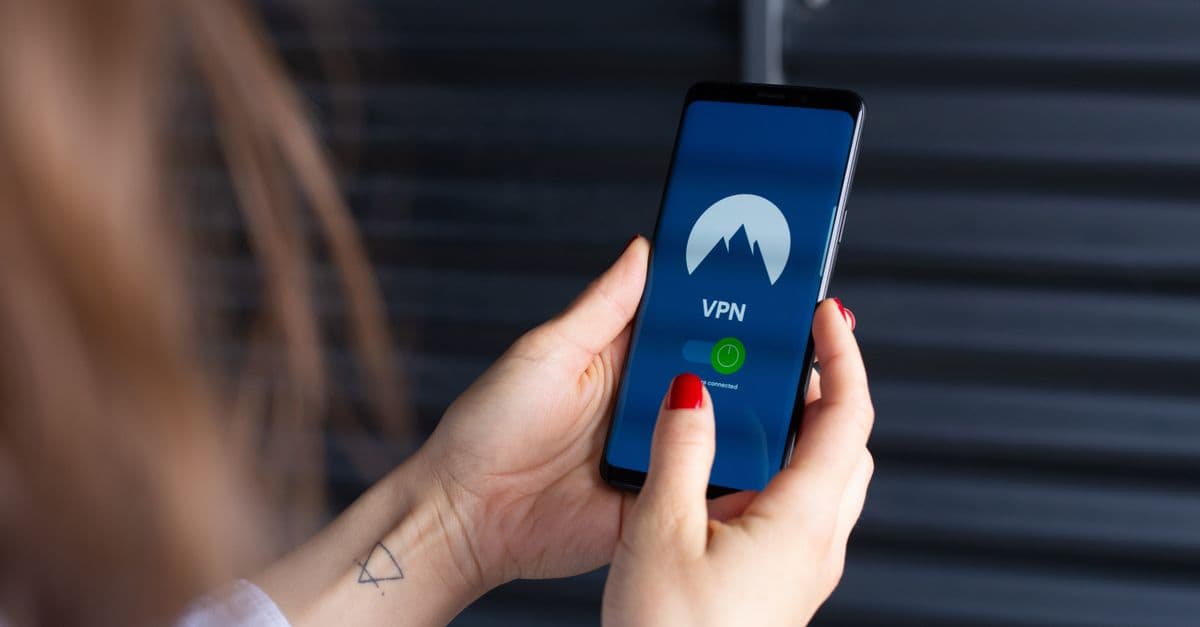
If you’re looking for an extra layer of privacy, a VPN can help protect your online activity from prying eyes—even on your iPhone. GhostShield VPN encrypts your connection, so your browsing, messages, and app usage stay private. It’s an easy way to add peace of mind, whether you’re at home or on public Wi-Fi.
Want to test your iPhone’s privacy settings? Try our DNS Leak Test to see if your connection is secure.
Related Topics
Keep Reading
Telegram Banned in India? How to Keep Chatting Safely in 2026

How to Spot AI Scams in 2026: Simple Steps to Stay Safe

How to Stop Signal Hackers: Lock Down Your Chats in 2026

5 Simple Steps to Secure Your eSIM from Hackers in 2026

How to Turn Off Chrome’s AI Features in 2026 (Stop Google Spying)
