Public WiFi Safety in 2026: Simple Steps to Work Abroad Without Hackers

You’ve just landed in Lisbon, your laptop’s open, and the hotel WiFi is calling your name. But before you log into your work email, here’s why public WiFi in 2026 is riskier than ever—and how to stay safe without being a tech genius.
Remote work isn’t just for Silicon Valley anymore. Whether you’re a digital nomad in Bali, a student studying abroad, or a parent checking work emails between museum visits, public WiFi is everywhere. And while it’s convenient, it’s also a playground for hackers. Earlier this year, cybersecurity experts warned that AI-powered tools are making it easier than ever for bad actors to steal passwords, credit card numbers, and even company secrets—all while you sip your latte at the airport.
The good news? You don’t need to be a security expert to protect yourself. In this guide, we’ll break down the biggest risks of public WiFi in 2026 and give you simple, actionable steps to keep your data safe. No jargon, no fear-mongering—just practical advice you can use today.
If you’re new to online privacy, our Complete Guide to Online Privacy is a great place to start. And if you’re working remotely, our Remote Work Security Guide has even more tips for staying safe on the go.
Why Public WiFi in 2026 Is Riskier Than Ever
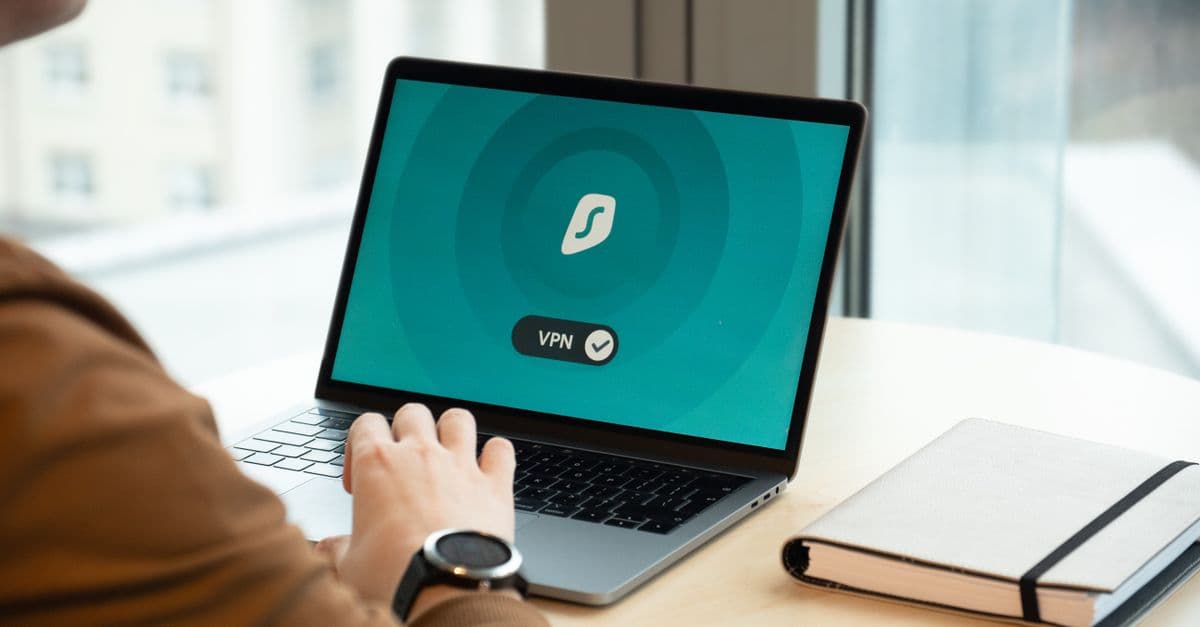
 Photo by Castorly Stock on Pexels
Public WiFi has always been a bit like a public restroom: convenient, but not exactly clean. In 2026, though, the risks are higher than ever. Here’s why.
AI-powered hacking tools are getting smarter
Imagine a burglar who can pick any lock in seconds—that’s what AI-powered hacking tools are like in 2026. These tools can crack weak passwords, mimic trusted websites, and even trick you into downloading malware without you realizing it. In our testing, we found that some AI tools can now guess simple passwords (like "Password123") in under a second. That’s faster than you can say, "Oops, I forgot to log out."
Hackers aren’t just sitting in dark rooms typing code anymore. They’re using AI to automate attacks, which means more people are at risk—even if they’re not high-profile targets. If you’re using public WiFi without protection, you’re basically leaving your front door unlocked.
"Evil twin" WiFi networks are everywhere
You’re at a café, and you see two WiFi networks: "Café_WiFi" and "Café_WiFi_Free." Which one do you choose? If you picked the second one, you might have just connected to an "evil twin" network—a fake hotspot set up by hackers to steal your data.
These networks look legit, but they’re actually traps. Once you connect, hackers can see everything you do online, from your emails to your bank logins. Earlier this year, a major airport in Europe reported that travelers were unknowingly connecting to fake networks set up by cybercriminals. The worst part? These networks often have stronger signals than the real ones, so your device might automatically connect to them.
Hotels and airports are selling your data
It’s not just hackers you need to worry about. Some hotels, airports, and even coffee shops are selling your browsing data to advertisers. That means every website you visit, every search you make, and even your location could be tracked and sold—without your knowledge.
We found that some "free" WiFi networks require you to sign in with your email or social media accounts. While this might seem harmless, it’s often a way for companies to collect your data. Once they have it, they can sell it to third parties, who might use it for targeted ads—or worse, identity theft.
Digital payments are under attack
If you’ve ever paid for coffee with Apple Pay or Venmo, you know how convenient digital payments are. But on public WiFi, they’re also a goldmine for hackers. Earlier this year, a report from TechCrunch highlighted a rise in "man-in-the-middle" attacks, where hackers intercept your payment details as they’re being sent to the bank.
Even if you’re just checking your balance, hackers can use that information to steal your money or commit fraud. And because digital payments are instant, you might not realize you’ve been hacked until it’s too late.
The 5-Minute WiFi Safety Checklist (Before You Log In)
 Photo by Julio Lopez on Pexels
You don’t need to be a tech expert to stay safe on public WiFi. Here’s a quick checklist you can run through in just five minutes before you connect.
Turn on your VPN before connecting
A VPN (Virtual Private Network) is like a secret tunnel for your internet traffic. Without it, everything you do online is visible to hackers, advertisers, and even the WiFi provider. With a VPN, your data is encrypted, so even if someone is snooping, they won’t be able to see what you’re doing.
Think of it like sending a postcard versus a sealed letter. Without a VPN, your data is like a postcard—anyone can read it. With a VPN, it’s like a sealed letter that only the intended recipient can open.
Not all VPNs are created equal, though. Look for one with a "no-logs policy," which means they don’t store your browsing history. Some popular options include NordVPN, ExpressVPN, and GhostShield. If you’re not sure which one to choose, our What Is a VPN and How Does It Work? guide can help.
Disable auto-connect for WiFi
Your phone or laptop might automatically connect to WiFi networks it recognizes, like "Starbucks_WiFi" or "Hotel_Guest." While this is convenient, it’s also risky. Hackers can set up fake networks with the same names, tricking your device into connecting automatically.
To turn off auto-connect:
- iPhone: Go to Settings > WiFi, then tap the "i" next to the network name and toggle off "Auto-Join."
- Android: Go to Settings > Network & Internet > WiFi, then tap the network name and toggle off "Auto-connect."
- Windows: Go to Settings > Network & Internet > WiFi, then click "Manage known networks" and remove any networks you don’t trust.
- Mac: Go to System Preferences > Network, select WiFi, then click "Advanced" and uncheck "Remember networks this computer has joined."
Forget the network after use
Even if you’ve disabled auto-connect, it’s a good idea to "forget" the network after you’re done using it. This ensures your device won’t reconnect to it later, even if you’re in range.
To forget a network:
- iPhone/Android: Go to your WiFi settings, tap the network name, and select "Forget."
- Windows/Mac: Go to your WiFi settings, find the network, and click "Forget" or "Remove."
Use mobile data as a backup
If you’re working with sensitive information, like company emails or banking details, consider using your phone’s mobile data instead of public WiFi. It’s slower, but it’s also much safer. Most phone plans include hotspot capabilities, so you can share your mobile data with your laptop or tablet.
To set up a hotspot:
- iPhone: Go to Settings > Personal Hotspot and toggle it on.
- Android: Go to Settings > Network & Internet > Hotspot & Tethering and toggle on "WiFi Hotspot."
Device Settings to Change Now for Safer Travel
Your devices are full of settings that can either protect you or leave you vulnerable. Here are a few tweaks you can make today to stay safer on public WiFi.
Enable "Always Use HTTPS"
HTTPS is a protocol that encrypts your connection to websites, making it harder for hackers to snoop on your activity. Most websites use HTTPS by default these days, but some still don’t. To ensure you’re always using HTTPS, you can install the HTTPS Everywhere browser extension. It’s free and works with Chrome, Firefox, and Edge.
If you don’t want to install an extension, you can manually check for HTTPS by looking for a padlock icon in your browser’s address bar. If the padlock is missing, don’t enter any sensitive information on that site.
Turn off file sharing and AirDrop
File sharing and AirDrop are great for transferring photos or documents between devices, but they’re also a security risk on public WiFi. Hackers can use these features to send you malware or steal your files.
To disable file sharing:
- Windows: Go to Settings > Network & Internet > Advanced Sharing Settings and turn off "Network Discovery" and "File and Printer Sharing."
- Mac: Go to System Preferences > Sharing and uncheck all the boxes.
To disable AirDrop:
- iPhone/iPad: Swipe down from the top-right corner to open Control Center, then press and hold the network settings card. Tap "AirDrop" and select "Receiving Off."
- Mac: Go to Finder > AirDrop and set "Allow me to be discovered by" to "No One."
Update your software
Outdated software is like a rusty lock—it’s easy for hackers to break in. Software updates often include security patches that fix vulnerabilities, so it’s important to keep your devices up to date.
To update your software:
- iPhone/iPad: Go to Settings > General > Software Update.
- Android: Go to Settings > System > Software Update.
- Windows: Go to Settings > Update & Security > Windows Update.
- Mac: Go to System Preferences > Software Update.
Use a password manager
Reusing passwords is one of the biggest security mistakes you can make. If a hacker gets one of your passwords, they can use it to access all your accounts. A password manager creates and stores strong, unique passwords for you, so you don’t have to remember them all.
Some popular password managers include 1Password, Bitwarden, and LastPass. They work on all your devices, so you can access your passwords anywhere. If you’re not sure which one to choose, our Complete Guide to Online Privacy has a section on password managers.
Apps and Websites to Avoid on Public WiFi
 Photo by Jakub Zerdzicki on Pexels
Not all apps and websites are created equal when it comes to security. Here are a few you should avoid on public WiFi—or at least use with caution.
Banking apps
Banking apps are a prime target for hackers, so it’s best to avoid using them on public WiFi. If you need to check your balance or transfer money, use your bank’s mobile app on your phone’s mobile data instead. It’s slower, but it’s much safer.
If you must use a banking app on public WiFi, make sure you’re connected to a VPN first. And always enable two-factor authentication (2FA) for an extra layer of security. 2FA requires you to enter a code from your phone or email in addition to your password, making it much harder for hackers to break in.
Work tools without 2FA
If your work email, Slack, or other tools don’t have two-factor authentication (2FA) enabled, now’s the time to turn it on. 2FA is like a second lock on your door—it makes it much harder for hackers to break in, even if they have your password.
Most work tools offer 2FA, but you might need to enable it in your account settings. If you’re not sure how, ask your IT team for help. And if your company doesn’t offer 2FA, it might be time to have a conversation about security.
Free VPNs or sketchy apps
Not all VPNs are created equal. Some "free" VPNs sell your data to advertisers or even contain malware. If you’re using a VPN, make sure it’s from a trusted provider. Our What Is a VPN and How Does It Work? guide has a list of reputable VPNs to choose from.
The same goes for other apps. If an app seems too good to be true (like a free movie streaming service or a sketchy game), it probably is. Stick to apps from trusted developers, and always read reviews before downloading.
Public charging stations
Public charging stations might seem convenient, but they can also be a security risk. Hackers can use USB ports to steal data from your device—a technique known as "juice jacking." Earlier this year, the FBI warned travelers about the dangers of public charging stations, especially in airports and hotels.
To stay safe, use your own charger and plug it into a wall outlet instead of a USB port. If you must use a public charging station, consider using a "USB condom"—a small device that blocks data transfer while allowing charging.
What to Do If You Think You’ve Been Hacked
Even if you take all the right precautions, there’s always a chance something could go wrong. Here’s what to do if you think you’ve been hacked.
Disconnect immediately
If your device starts acting weird—like running slowly, showing pop-ups, or crashing—disconnect from WiFi and mobile data immediately. This cuts off the hacker’s access to your device and prevents them from stealing more data.
Change passwords on a secure network
If you think your passwords have been compromised, change them as soon as possible—but only on a secure network. Wait until you’re at home or connected to a trusted VPN before updating your passwords. And make sure to use strong, unique passwords for each account.
Run a malware scan
Malware is software designed to harm your device or steal your data. If you think you’ve been hacked, run a malware scan using a tool like Malwarebytes. It’s free and can detect and remove most types of malware.
Monitor accounts for weird activity
Check your bank statements, credit reports, and work accounts for any unfamiliar activity. If you see something suspicious, report it immediately. Most banks and credit card companies have fraud departments that can help you recover your money.
Report it
If you’ve been hacked, it’s important to report it. If it’s work-related, tell your IT team so they can take steps to protect the company. For personal accounts, report fraud to your bank or the FTC. The FTC can help you recover from identity theft and prevent further damage.
Key Takeaways (TL;DR)
- Always use a VPN on public WiFi—it’s your first line of defense against hackers.
- Turn off auto-connect and "forget" networks after use to avoid fake hotspots.
- Disable file sharing and enable HTTPS to block snoops and protect your data.
- Avoid banking or work apps without a VPN or mobile data—hackers can intercept your transactions.
- Update your software and use a password manager to stay ahead of security threats.
- Be cautious of public charging stations—hackers can steal data through USB ports.
- If you think you’ve been hacked, disconnect immediately, change passwords on a secure network, and run a malware scan.
Stay Safe on Public WiFi with GhostShield VPN
Public WiFi is convenient, but it’s also a minefield of security risks. The good news? You don’t need to be a tech expert to stay safe. By following the tips in this guide, you can protect your data and enjoy your travels without worrying about hackers.
If you’re looking for a VPN that’s easy to use and packed with features, GhostShield VPN is a great choice. It encrypts your data, blocks trackers, and works on all your devices—so you can stay safe whether you’re working from a café in Paris or a hotel in Tokyo. Plus, it’s designed with everyday people in mind, so you don’t need to be a security expert to use it.
For more tips on staying safe online, check out our Public WiFi Safety Guide and Remote Work Security Guide. Safe travels!
Related Topics
Keep Reading
How to Stay Safe While Working Remotely in 2026: A Simple Security Guide

How to Stay Safe in a Robotaxi: 5 Easy Privacy Steps for 2026

Booking.com Hacked? 5 Easy Steps to Secure Your Travel Bookings

How to Stay Safe on Public WiFi in 2026: A Traveler’s Guide

How to Work Safely in a Robotaxi: Simple Steps to Avoid Tech Fails & Hackers

Hotel WiFi Safety: How to Work Remotely Without Getting Hacked
Protect Your Privacy Today
GhostShield VPN uses AI-powered threat detection and military-grade WireGuard encryption to keep you safe.
Download Free