How to Protect Your Photos from Hackers in 2026: A Simple Step-by-Step Guide
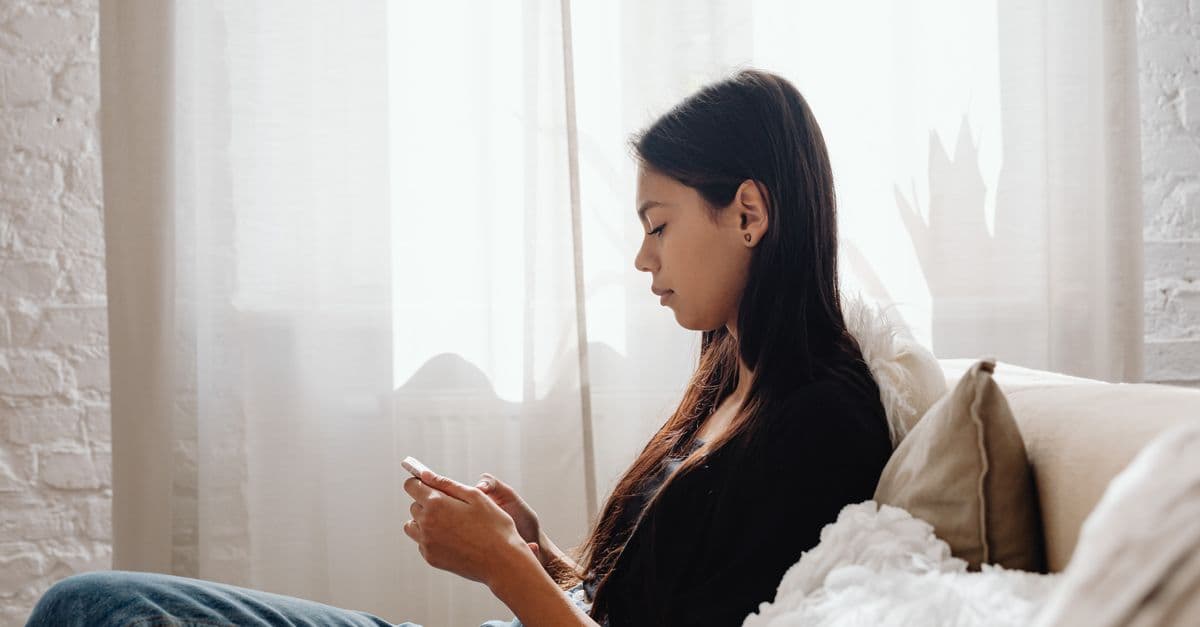
Why Hackers Want Your Photos (and the FBI Warning You Can’t Ignore)
Imagine waking up to a message from a stranger who has your private photos. They know your name, they've seen your vacation pics, and they're threatening to publish an intimate snapshot unless you pay up. This isn't a script from a thriller. It happened to thousands of people recently, prompting the FBI to issue a blunt public alert. Cybercriminals aren't just after credit card numbers anymore. Your photo library has become a jackpot for extortion, doxxing, and public humiliation.
Real victims have lost jobs, ruined relationships, and spent months in emotional turmoil. One case involved a woman whose ex-partner's accounts were hacked, leaking private images that then circulated among her coworkers. Another saw a family's holiday photos weaponized to map their daily routines, leading to a burglary. These stories rarely make headlines because the victims are not celebrities. They're regular people like you and me.
Here's the uncomfortable truth. Everyday users are the prime targets precisely because our defenses tend to be lower. Hackers look for easy money, and a cloud account with weak security is like leaving your family photo album on a park bench. Anyone walking by can flip through it. That album doesn't just hold happy memories. It may contain sensitive details, screenshots of documents, and moments never meant to be seen by strangers.
Lock Down Your Cloud Storage: Google Photos & iCloud Made Safe
 Photo by Helena Lopes on Pexels
The first line of defense is the place most of our photos live: the cloud. Services like Google Photos and iCloud make syncing effortless, but they also create a single point of failure. Locking them down takes only a few minutes.
Treat Two-Factor Authentication Like a Second Deadbolt
Turn on two-factor authentication (2FA) for every account that stores photos. Think of your password as the front door key. 2FA is a second deadbolt that works even if someone copied your key. When you log in from a new device, you'll need both your password and a one-time code sent to your phone. So even if a hacker guesses your password through a data breach, they're stuck without that code.
In Google, you can enable 2FA under your account's Security settings. For Apple ID, it's in the Password & Security section of your device settings. Take the extra minute to save the backup codes they give you (store them offline, like in a locked drawer). And since your phone is often the gatekeeper for those 2FA codes, making sure your phone itself isn't vulnerable is just as important. A compromised phone can give a hacker the codes and access to everything. (We've covered this in depth in our guide on how to know if your phone is hacked.)
Audit Who Has Access (Yes, Even Your Ex)
Over the years, we grant access to cloud libraries for convenience. A partner's phone, a tablet you sold, a third-party app that requested photo permissions. It's worth doing a spring cleaning right now.
In Google Photos, tap your profile picture, go to Photos settings, then "Share your library." Remove anyone who no longer needs access. Check "Partner Sharing" and "Shared albums" too. On iCloud, head to Settings, tap your name, and scroll down to see all devices signed into your account. Kick out any you don't recognize. While you're at it, review which apps have permission to read your photos in your phone's privacy settings. A photo-editing app may have been pulling your library in the background for years.
Use Passwords That Are Actually Strong
Reusing passwords across accounts is like using the same key for your house, car, and office. One lost key, and everything is wide open. A strong, unique password for every account stops that. But remembering a dozen complex passwords is impossible without help. That's where a password manager comes in. It stores everything securely and fills them in for you, so you only have to remember one master password. (If you need a truly random password right now, our Password Generator can create one in a second.)
Secure Your Social Media Photo Albums in Three Taps
 Photo by Dan Nelson on Pexels
Social media is the other massive vault of personal photos. The platform itself might be secure, but the way we share can accidentally turn our private lives into public property.
Private Is the New Normal
Start by making your main profiles private. On Instagram, go to Settings and privacy, then Account privacy, and toggle Private Account on. On Facebook, use the Privacy Checkup tool (found under Settings & privacy) to limit past posts and future sharing to Friends only. Think of it as deciding who gets an invitation to your house party. You wouldn't open the door to strangers, so don't let unknown accounts browse your photo albums.
For existing albums, open each one and check the audience setting. A perfectly harmless-looking album from five years ago might still be set to Public. On Google Photos, any album you've linked or shared has a visible share icon. Tap it and see who still has access.
Turn Off the Invisible Tags (Facial Recognition and Metadata)
Every photo you upload can carry hidden data. That selfie likely contains the exact GPS coordinates of where it was taken. Cameras embed this metadata automatically. Most platforms also use facial recognition to suggest tagging you or your friends, which can make it easier for someone to piece together your identity and daily patterns.
On Facebook, go to Settings, then Face Recognition, and turn it off. On Instagram, you can't fully disable it, but making your account private limits who sees tagged suggestions. To strip location data before posting, share a screenshot of the photo rather than the original file (screenshots typically don't carry GPS info). Better yet, get into the habit of checking your camera settings. Both iOS and Android let you disable location tagging for the camera app entirely. It's a small fix that stops a big leak.
Remember: Everything Is Screenshottable
Even "vanishing" stories on Instagram or WhatsApp can be captured with a screenshot or screen recording in an instant. There is no truly disappearing photo online. A good rule of thumb: never upload anything you wouldn't want a stranger to download and keep forever. If a photo feels too personal for the internet, listen to that feeling. Keep it on your device, or store it offline altogether.
The Public WiFi Danger: Why a VPN Like GhostShield Is Your Best Friend
We all love free WiFi at cafés, airports, and hotels. It's convenient until you realize that an open network is like a glass house. Anyone on the same network with a simple sniffing tool can see the data flowing between your device and the internet. When you upload a photo to iCloud or view a private album on Google Photos over that connection, you're basically showing those pictures to anyone who's watching.
A VPN, or Virtual Private Network, fixes this by building an encrypted tunnel. Your photos and login details travel through that tunnel, hidden from nosy neighbors on the network. It's like putting your mail in a locked, opaque envelope instead of a transparent one. Even the internet provider or the café owner can't peek inside.
GhostShield makes this dead simple. Before you open a photo app on public WiFi, you tap one button in the app. That's it. From that moment, everything leaving your phone is scrambled. Our testing shows it adds almost no noticeable lag for browsing or light uploads, so you can stay protected without feeling like you're wading through molasses. It's the digital equivalent of zipping up a waterproof jacket before stepping into the rain.
There's an added bonus too. A VPN masks your IP address, which means your internet provider can't log every website you visit and every cloud service you use. It makes you a harder target for all sorts of third-party snooping. (If you want to understand the full scope of public WiFi threats, we break down all the risks in our Public WiFi Risks Guide.)
Simple Daily Habits That Keep Hackers Out
 Photo by Andrea Piacquadio on Pexels
Beyond the big lock-down steps, a few tiny habits can make you a nightmare for anyone trying to steal your photos.
Update Your Software (Yes, Right Now)
Those annoying update notifications on your phone, laptop, and apps aren't just about new emojis. They almost always patch security holes that hackers are actively exploiting. Think of them as fixing a broken window before a burglar notices it. Enable automatic updates where possible, and when you see a prompt, don't postpone it for weeks. A few minutes of downtime now saves you from a disaster later.
Treat Suspicious Messages Like a Rude Stranger on the Phone
Phishing emails and texts remain the number one way accounts get compromised. You'll receive messages that look exactly like a warning from Google, Apple, or your cloud storage provider. "Your storage is full, tap here to upgrade." "We noticed a suspicious sign-in, verify your account now." They often include urgent language to make you panic and click.
Don't click. Ever. If your bank called you out of the blue and asked for your PIN, you'd hang up and call the official number. Do the same here. Open the app directly (Google Photos, iCloud, etc.) and check notifications there. If everything looks normal, the message was a fake. Forward suspicious texts to your carrier's spam number and delete them.
Keep Your Most Private Photos Truly Offline
Some photos simply don't belong on the internet at all. Highly personal or intimate images are safest stored on an encrypted USB drive or an external hard drive that stays disconnected from any network. Think of it as a digital safe deposit box that no remote hacker can crack. Both Windows and macOS include built-in encryption tools to password-protect external drives. Taking the ten minutes to set one up gives you absolute peace of mind.
Building these small routines creates a privacy shield that goes well beyond photos. For a full walkthrough on locking down your digital life, our Complete Guide to Online Privacy connects all the dots.
What to Do If Your Photos Have Already Been Leaked
Sometimes, despite all precautions, a breach happens. If you discover a private photo has been leaked or someone is blackmailing you, your actions in the first hour matter enormously.
Step one: Locksmith mode. Change the password on the affected account immediately, then on every other account that shared a similar password. While you're in the account settings, enable 2FA if it wasn't already on. Next, go to your account's security page (Google's "Your devices" panel or Apple's "Manage Your Apple ID") and forcibly sign out of all other sessions. This kicks out the intruder instantly. Think of it as changing all the locks the moment you realize a key went missing.
Step two: Report and remove. Contact the platform where the photo appeared and use their reporting tools to request immediate removal. Sites like Facebook, Instagram, and Reddit have dedicated forms for non-consensual intimate images. There's also a free, global tool called StopNCII.org. You create a digital fingerprint (a "hash") of your image on your own device, and StopNCII shares that hash with participating platforms to block the photo before it's ever uploaded again. You never have to share the actual image with anyone. For severe cases, file a complaint with the FBI's Internet Crime Complaint Center at ic3.gov. These reports are taken seriously.
Step three: Don't engage. If someone is trying to blackmail you, no matter how scary the threat sounds, do not pay a single cent and do not continue the conversation. Paying only proves to the criminal that you're a willing target and often leads to repeated demands. Instead, contact your local authorities and lean on a trusted friend or family member. You are not alone, and law enforcement has tools to trace these attackers. The shame belongs to the criminal, not you.
If you're looking for a straightforward way to add an extra layer of encryption to your everyday online activities, GhostShield VPN offers one-tap protection that works across all your devices. Whether you're syncing photos on café WiFi or just want to stop your internet provider from watching your traffic, it's a simple habit that pays off every day. You can try it out at https://www.ghostshield.ai/downloads.
Key Takeaways (Save or Print This)
- Turn on two-factor authentication for every account that stores photos. This single step stops the vast majority of break-ins.
- Audit sharing settings regularly on Google Photos, iCloud, and social media. Remove old devices, ex-partners, and unused apps.
- Use strong, unique passwords for each account, with a password manager to handle the heavy lifting.
- Never upload sensitive photos via public WiFi without a VPN. Encrypt your connection before opening any photo app.
- Treat every unexpected email and text as a potential trap. Go directly to the app instead of clicking links.
- Keep truly private photos offline on an encrypted drive. If they're never online, they can't be hacked.
- Act fast if a leak happens: change passwords, force-logout all sessions, and use tools like StopNCII.org to prevent re-uploads.
Related Topics
Keep Reading
How to Stop AI Chatbots from Using Your Personal Data in 2026
How to Use AI Chatbots Safely: 7 Simple Rules to Protect Your Data
Is Your AI Account Hacked? Easy Steps to Check & Secure It (2026 Guide)
How to Watch England vs India Cricket Live Anywhere Without Cable in 2024
5 Simple Steps to Use AI Chatbots Safely in 2026 Without Risking Privacy
How to Use Passkeys in 2026: Ditch Passwords for Good in Minutes
Protect Your Privacy Today
GhostShield VPN uses AI-powered threat detection and military-grade WireGuard encryption to keep you safe.
Download Free