How to Stay Safe While Working Remotely in 2026: A Simple Security Guide
Working From Anywhere Is Amazing. It's Also Risky.
You can now work from a beach in Thailand, a train in Europe, or your own couch. That freedom is great, but every time you connect to a network you don't control, you're rolling the dice with your personal and work data. Many public WiFi networks offer zero encryption, which means anyone nearby may be able to see what you send.
The problem is that remote work has become normal faster than most people's security habits. Hackers know this. They target remote workers specifically because we're often tired, distracted, or in a hurry. The good news? You don't need to be a security expert to stay safe. You just need to follow a few practical habits we'll walk through here.
We wrote a full guide on this exact topic, which you can read here: Remote Work Security Guide. For now, let's focus on the everyday steps that actually matter.
What Actually Goes Wrong
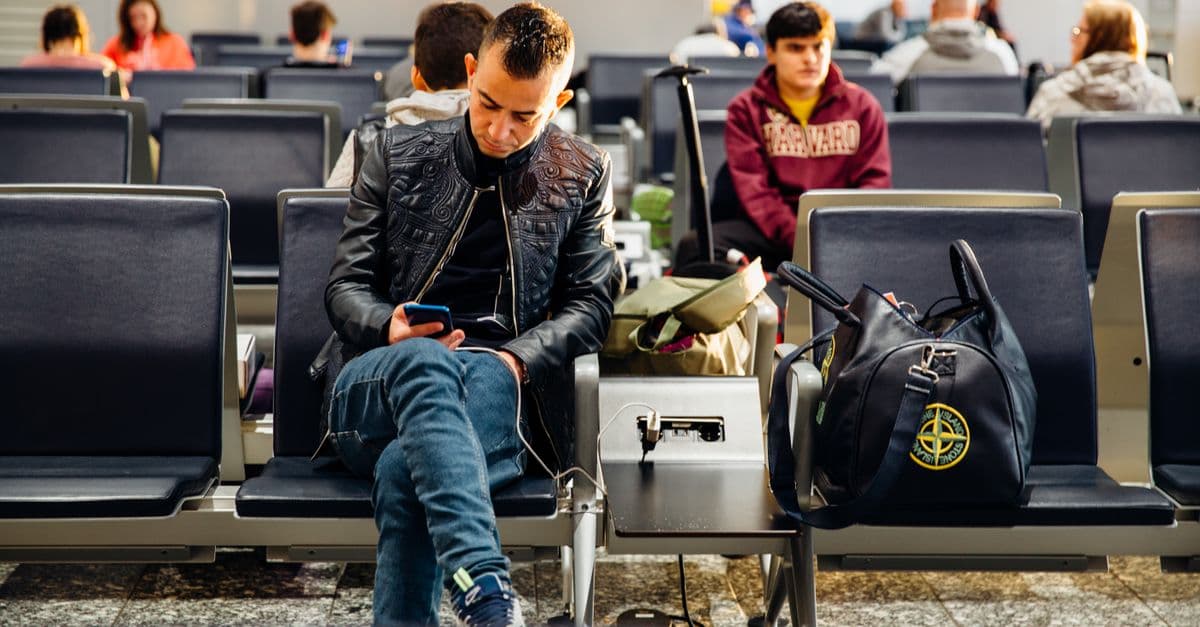
 Photo by Abdullah Bin Mubarak on Pexels
When you connect to public WiFi without any protection, a hacker can run what's called a "man in the middle" attack. Think of it like someone secretly standing between you and your bank, copying every message you send. They don't need to be a genius, they can buy a tool online for the price of a pizza.
Another common trick is the "evil twin" network. A hacker sets up a WiFi network called "Free Airport WiFi" that looks official but is actually just their laptop. When you connect, all your internet traffic goes through them first. That includes your passwords, emails, and anything else you type.
Phishing is also huge. You get an email that looks like it's from your boss or your bank, but it's actually a fake designed to steal your login. Remote workers are especially vulnerable because we often communicate through email and chat instead of face to face. A convincing message can slip through when you're juggling time zones and deadlines.
Step 1: Lock Down Your Internet Connection
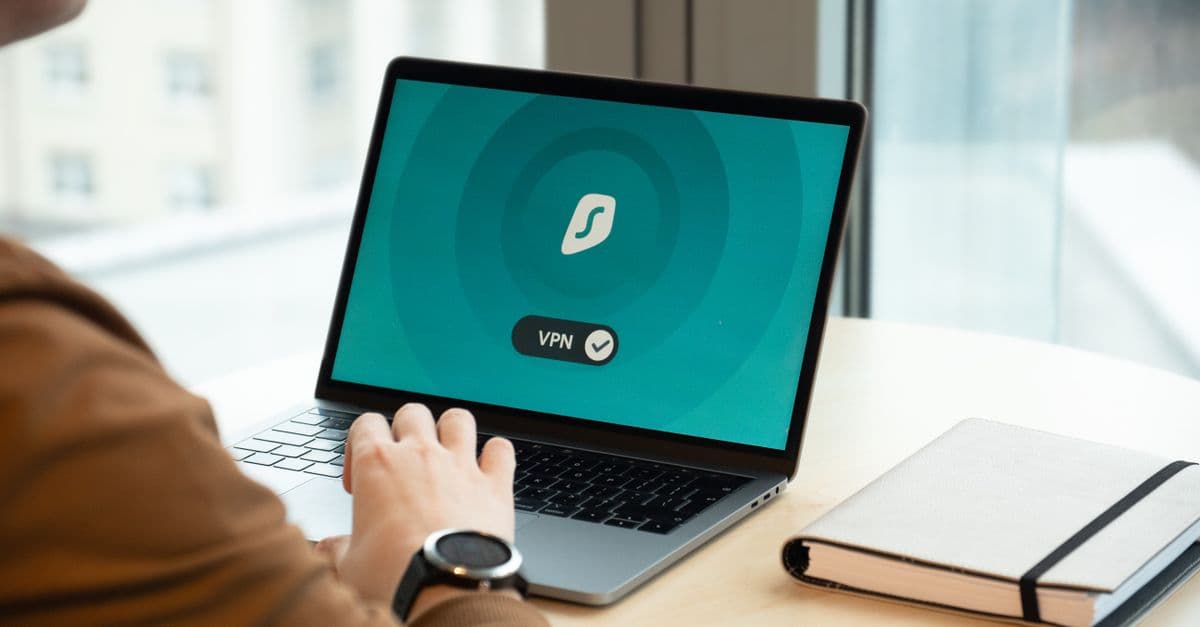
 Photo by Tima Miroshnichenko on Pexels
Public WiFi Is Not Your Friend
The first rule of remote work security is simple: treat every public WiFi network as if a stranger is reading over your shoulder. Because in many cases, they are. That doesn't mean you can never use cafe WiFi. It means you need a layer of protection between you and the network.
Before you connect to any public network, ask yourself two questions. Do I trust the person running this network? Do I know who else is connected? If the answer to either is no, don't send anything sensitive. That includes logging into your work email, checking your bank account, or entering your credit card.
For a deeper look at why public WiFi is risky and how to spot dangerous networks, check out Public WiFi Risks Guide. It covers the most common threats in plain English.
Use a VPN (The Right Way)
A VPN, or virtual private network, creates a secure tunnel between your device and the internet. Everything you send goes through that tunnel, scrambled so that nobody on the same WiFi network can read it. Even if a hacker is running an evil twin network, all they see is encrypted gibberish.
A good VPN usually adds only a small delay to your connection, so you can still stream video, join video calls, and upload files without major slowdowns. The key is to use a VPN every time you connect to a network you don't own. Not just when you're doing something "important." All your browsing sends data that could reveal passwords or personal details.
One thing many people forget: a VPN is only as good as its setup. Make sure your VPN is actually connected before you start working. You can check your real IP address with a simple tool like What Is My IP Address. If your VPN says you're in another country but the tool shows your home city, something is wrong.
Step 2: Make Your Accounts Hack-Proof
Use a Password Manager
Reusing passwords is the single most common mistake remote workers make. If one website gets hacked and your password leaks, a hacker will try that same password on your email, your bank, and your work accounts. It's like using the same key for your house, your car, and your office.
A password manager solves this by creating a unique, random password for every account and remembering them for you. You only need to remember one master password. It sounds complicated, but it takes about 10 minutes to set up and saves you hours of frustration later.
Need a strong password right now? You can use a Password Generator to create one that would take a hacker millions of years to crack. Then store it in your password manager.
Turn On Two-Factor Authentication
Two-factor authentication, or 2FA, adds a second lock to your accounts. After you enter your password, you also enter a short code sent to your phone or generated by an app. Even if a hacker gets your password, they can't get in without that second code.
Turn on 2FA for your email first. That's the master key to everything else because most password reset links go to your email. Then enable it for your bank, your work accounts, and any social media you use for work. It takes about 30 seconds per account and makes a huge difference.
Step 3: Keep Your Devices Healthy
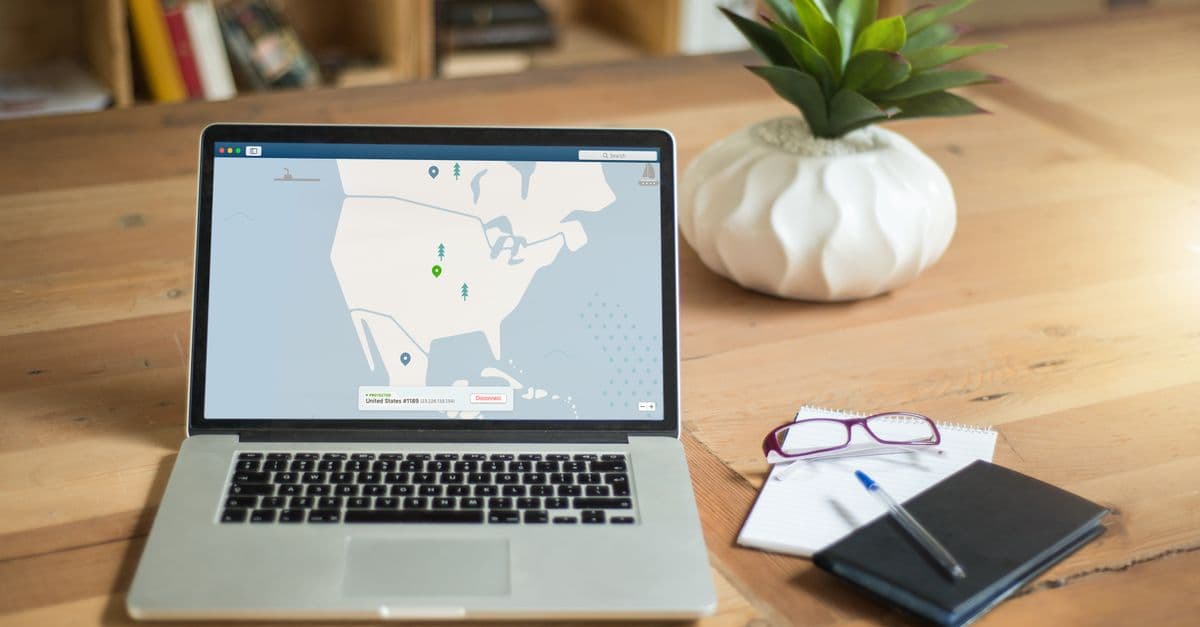
 Photo by Nataliya Vaitkevich on Pexels
Update Everything
Software updates are annoying, but they usually fix security holes that hackers already know about. When your laptop or phone says an update is available, don't ignore it for weeks. Those updates patch the exact vulnerabilities that attackers use to break in.
Set your devices to install updates automatically if you can. That way you don't have to think about it. This applies to your operating system, your apps, your browser, and even your router at home or in your coworking space.
Run Basic Security Software
You don't need expensive security suites. But you should have some basic protection on every device you use for work. A modern antivirus program can catch malicious files before they cause damage. A firewall, which is built into most operating systems, blocks unwanted connections.
Keep these tools turned on and updated. They're your last line of defense if you accidentally click a bad link or download a shady file. Think of them like the airbags in your car. You hope you never need them, but you're glad they're there.
Step 4: Watch Out for Human Tricks
Phishing Emails
Hackers don't always break through technical defenses. Often they simply trick you into opening the door. Phishing emails look real. They might use your boss's name, your company logo, and a sense of urgency like "Your account will be locked in 24 hours."
Before you click any link or download any attachment, check the sender's email address carefully. Look for small misspellings or strange domains. If you're not sure, contact the person directly through a different channel, like a phone call or a chat app. Don't reply to the email itself.
A good habit: hover over links to see where they actually lead. If the text says "bank.com" but the link goes to "bank-secure-login.xyz," delete the email immediately.
Shoulder Surfing and Eavesdropping
Remote work often happens in public spaces. Someone sitting behind you can watch you type your password. Someone at the next table can overhear a sensitive phone call. This sounds paranoid, but it happens more than you think.
Use a privacy screen on your laptop when working in public. It darkens the screen for anyone not directly in front of it. When you're on a work call, step outside or use headphones. And never say account numbers or passwords out loud in a public place.
Step 5: Protect Your Physical Space
Lock Your Screen
The simplest security habit is also the most ignored. Lock your screen every time you step away from your laptop, even for a minute. Set your device to lock automatically after a short period of inactivity. On most laptops you can press a key combination to lock instantly.
A stolen or lost device is bad enough. An unlocked device is a disaster. A thief who grabs your laptop could access everything in seconds if you left it open and logged in.
Use a Privacy Filter
A privacy filter is a thin sheet you attach to your screen. It limits the viewing angle so only someone directly in front of the screen can read it. This is a cheap, effective way to stop shoulder surfers. It also helps when you're working on a plane or train and don't want the person next to you reading your emails.
What To Do If You Think You've Been Hacked
Immediate Steps
If you notice strange activity, like emails you didn't send or logins from unknown locations, act fast. Change your passwords for the most important accounts first: email, bank, and work. Do this from a device you trust, not from a public computer.
Turn on two-factor authentication if you haven't already. Then check your account recovery options. Make sure the hacker didn't set up a forwarding rule in your email or change your recovery phone number. Log out of all sessions on your accounts.
Long Term Recovery
After the immediate crisis is handled, take time to review what happened. Run a full antivirus scan on all your devices. Check your bank and credit card statements for any charges you don't recognize. Consider freezing your credit if you think your identity might be at risk.
For a step by step walkthrough of what to do after a data breach or hack, read Data Breach Response Guide. It covers everything from reporting to securing your accounts.
Key Takeaways
- Treat every public WiFi network as insecure. Use a VPN every time you connect.
- Use a password manager and never reuse passwords. Turn on two-factor authentication for all important accounts.
- Keep your devices and software updated. Those updates fix known security holes.
- Be skeptical of unexpected emails and links. Verify the sender before clicking.
- Lock your screen and use a privacy filter when working in public.
- If you suspect a hack, change your most important passwords immediately and check for unauthorized access.
Remote work is a freedom worth protecting. A few simple habits can save you from weeks of stress, stolen money, and lost work.
If you want a simple way to secure your internet connection wherever you are, we recommend trying GhostShield VPN. It creates an encrypted tunnel in one click and works on all your devices. You can get started at https://www.ghostshield.ai/downloads. It won't solve every security problem, but it closes the biggest gap most remote workers face.
Related Topics
Keep Reading

How to Stay Safe in a Robotaxi: 5 Easy Privacy Steps for 2026

How to Stay Safe on Public WiFi in 2026: A Traveler’s Guide
Public WiFi Safety in 2026: Simple Steps to Work Abroad Without Hackers

Booking.com Hacked? 5 Easy Steps to Secure Your Travel Bookings

How to Work Safely in a Robotaxi: Simple Steps to Avoid Tech Fails & Hackers