Is Alexa Listening? How to Stop Voice Assistants from Spying in 2026
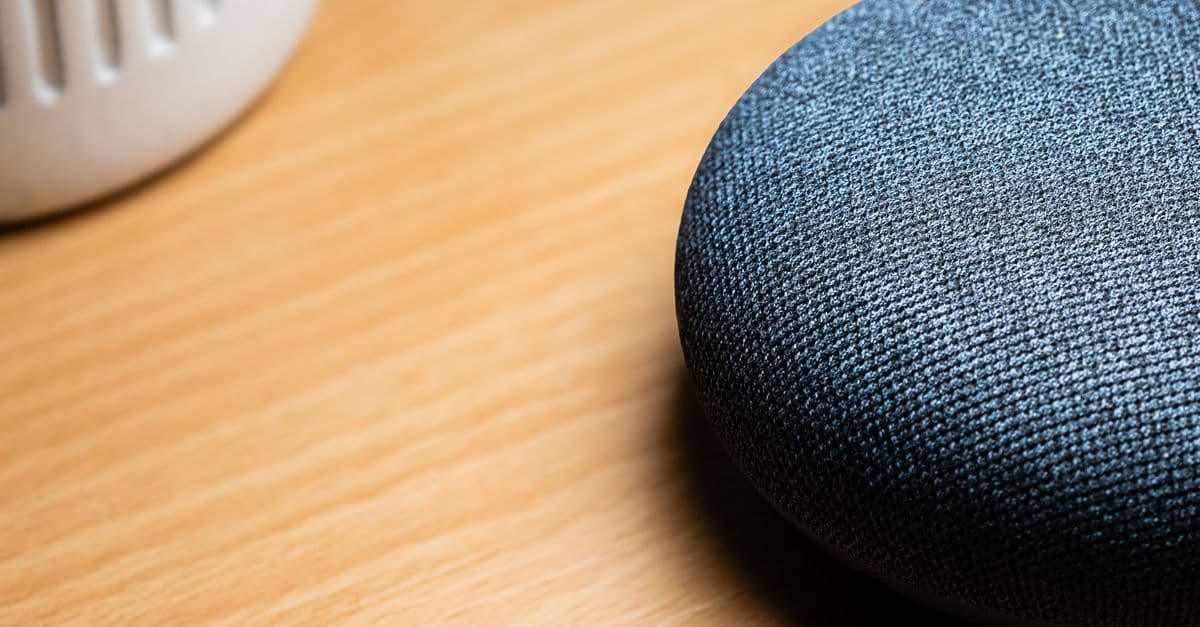
1. What Smart Speakers Really Hear (and What They Don’t)
Your Echo Dot sits on the kitchen counter. Your phone is in your pocket with "Hey Siri" turned on. It can feel like these devices are always listening, and in a technical sense they are. But there is a big difference between listening for a specific word and recording everything you say.
The sleeping dog analogy
Think of a smart speaker like a dog asleep by the front door. It is not watching every car that passes or memorizing the mail carrier's footsteps. But the moment it hears its name, or the jingle of a leash, it snaps to attention.
A smart speaker works the same way. It listens for a wake word such as "Alexa," "Hey Siri," or "OK Google." Before that word, it is not saving your conversation. After the wake word, it records what it hears so it can understand and respond.
That "always listening" part sounds scary, but it is really just a tiny local buffer. The device processes audio on the device just enough to recognize the wake word. Think of it like a security guard watching a monitor. The guard sees everything, but he only writes down an incident when something specific happens. The rest of the time, the footage fades away.
False triggers are common
Here is where things get less tidy. Wake word detection is not perfect. Your speaker can wake up because a TV character says something that sounds like "Alexa." A song lyric, a podcast, or a sentence like "I'll ask her" can trigger it. When that happens, the device may record a few seconds of audio and send it to the cloud, thinking you asked for something.
This is why your phone sometimes lights up during a movie. It is not spying. It is just confused. But those accidental clips can linger in your voice history unless you clean them out.
What happens to those clips
If you check your assistant's app, you may find a list of voice recordings. Some are real commands, like "play rain sounds." Others are accidental snippets of your living room. Those clips can be stored for months, depending on your settings. They exist so companies can improve speech recognition and personalize responses. But for many people, the idea of a saved clip of a private conversation feels like crossing a line.
The simple truth is this: your smart speaker is usually not recording you. But it may be saving more than you expect. The first step to peace of mind is understanding your voice history and how to control it.
2. Why People Worry About Voice Assistants
 Photo by Tima Miroshnichenko on Pexels
Always listening vs always recording
A lot of fear comes from the phrase "always listening." It sounds like a microphone is hot at all times. In reality, always listening means the device is waiting for its wake word. Always recording would mean it stores everything, which it does not do by default.
Think of a doorbell camera. It may always be on, but it only saves clips when motion is detected. Voice assistants work on a similar trigger model.
But there are exceptions. Some features require more active listening. Smart displays with cameras, like an Echo Show, can use motion detection to wake the screen. Voice ID features can learn your voice to respond to you specifically. These are optional in many cases.
Do humans listen to your recordings?
Yes, sometimes. This is a fact that surprised a lot of people a few years ago. Tech companies have used human reviewers to listen to small samples of voice recordings to improve accuracy. After public backlash, most major companies changed their policies. Amazon, Google, and Apple now let you opt out of human review in your settings. If you never touched that setting, it may still be on in some regions or for certain features.
This does not mean a stranger is listening to your every word. It means an anonymized clip might be reviewed to help the assistant understand accents and background noise better. Still, you should decide whether you are comfortable with that. You can turn it off.
What about ads?
You may have noticed an ad for running shoes right after you talked about running. It feels like proof that your speaker is listening and selling your conversations. Most large companies deny using voice recordings for ad targeting. Instead, they point to other signals: your search history, your location, your purchase history, and the apps you use. Those signals are often strong enough to make an ad feel psychic.
Picture this: you joke about cat food in the kitchen and see cat food ads later that day. Check your assistant's voice history and there may be no cat food recording at all. But a search for a local pet shelter two days earlier would be enough.
So if you are creeped out by ads, voice recordings are probably not the culprit. But that does not mean you should ignore privacy settings. It means the bigger picture of data collection matters, not just the microphone.
3. How to Check What Your Assistant Has Recorded
 Photo by Vitaly Gariev on Pexels
Before you change anything, see what is actually stored. This takes less than five minutes and often surprises people.
Amazon Alexa
Open the Alexa app on your phone. Go to More, then Settings, then Alexa Privacy. You can review your voice history, listen to clips, and delete them one by one or all at once. You can also say, "Alexa, delete everything I said today" if you have enabled voice deletion by voice.
Google Assistant
Open the Google Home app or visit myactivity.google.com. Look for "Voice and Audio Activity." You can browse recordings, listen to them, and delete individual items or a date range. You can also turn on auto-delete from there.
Apple Siri
On an iPhone, open Settings, then Siri & Search, then Siri & Dictation History. Apple may keep some transcripts for up to six months and audio for up to two years if you opt in to improve Siri. You can delete your history there.
4. Simple Privacy Settings to Change Today
Here are steps anyone can take in a few minutes. None of them require technical skill.
1. Turn on auto-delete
Every major assistant has an option to automatically delete voice recordings after 3 months, 18 months, or in some cases immediately. Choose the shortest time frame. This is the single most effective setting.
For Alexa: go to Settings, then Alexa Privacy, then Manage Your Alexa Data, then choose auto-delete. For Google: go to Activity controls, then Auto-delete. For Siri: go to Settings, then Siri & Search, then Siri & Dictation History, then choose Delete and turn off retention if you do not want it saved.
2. Turn off the microphone when you do not need it
Most Echo devices have a physical mute button on top. Press it and the light turns red. The device stops responding to wake words. Google Nest speakers have a similar switch. Your phone can disable "Hey Siri" or "OK Google" in settings.
If you are having a sensitive conversation, just mute the speaker. It is the digital equivalent of closing the door.
3. Review and delete old recordings
Even with auto-delete on, your history may have years of old clips. Spend five minutes deleting them. Go to the privacy portal in your assistant's app and choose delete all. It feels good, like cleaning out a closet you have been avoiding.
4. Turn off human review
Look for settings like "Help improve Alexa," "Use Voice & Audio Activity to improve Google services," or "Improve Siri & Dictation." Turn these off. This means your clips will not be used for human review.
5. Turn off voice purchasing
This is not about spying, but it prevents accidental orders. If your speaker can buy things with your voice, someone in the house could say, "Alexa, order 400 rolls of toilet paper." Set a purchase confirmation code or disable voice purchases entirely.
6. Check which skills or apps have access
Third-party skills and apps can sometimes request access to your voice or other data. Review them under your assistant's privacy settings and remove anything you do not use.
5. When Voice Assistants Can Become a Real Risk
 Photo by Dan Nelson on Pexels
Most voice assistant privacy concerns are manageable with settings. But there are a few situations where the risk is more real.
Shared households and guest voice
Your speaker may recognize different voices. In a shared house, anyone can ask your speaker to play messages, make calls, or access your calendar. You can set up Voice Match or voice profiles so it only responds to you for personal info. If you have a guest, consider guest mode or muting.
Smart displays with cameras
If you have an Echo Show or Nest Hub with a camera, it may be more than a microphone. Cover the camera when not in use. Turn off "Drop In" or "Duo calling" if you do not want family members or contacts to pop in unannounced. Review settings for motion and sound detection.
Network security matters
A voice assistant is one more device on your home network. If your router has a weak password, someone nearby could access your network and connected devices. Use a strong wifi password, enable WPA2 or WPA3, and keep your speaker's software updated.
For broader privacy on public networks, a VPN adds a layer of encryption for your phone and laptop. If you use voice assistants on your phone while out and about, a VPN does not stop the assistant from recording, but it does stop snoopers on the same cafe wifi from seeing your other traffic. You can read more in our Public WiFi Risks Guide.
6. How a VPN Fits Into Your Privacy Setup
A VPN is not a magic fix for voice assistant settings. Your assistant's microphone behavior is controlled by the assistant's own privacy controls. But a VPN is a useful tool for the broader privacy picture.
When you connect to a VPN, your internet traffic travels through an encrypted tunnel. This hides your browsing activity from your internet service provider and anyone else on your network. It also masks your IP address, which is the number that identifies your device online. You can see what your IP address reveals using our What Is My IP Address tool.
This matters because voice assistants are only one part of your digital life. Your searches, app usage, and browsing history create a much larger profile. A VPN helps you reduce that exposure, especially when you are on a shared network at a coffee shop, hotel, or airport. If you want to understand how all the pieces fit together, start with our Complete Guide to Online Privacy.
One word of caution: a VPN does not stop Amazon, Google, or Apple from storing voice clips when you use their assistants. It also does not prevent false triggers. For that, you need the privacy settings we covered above. Think of it this way: assistant settings control what the microphone does. A VPN controls what your network traffic reveals.
If you want a simple way to protect the rest of your online activity, GhostShield VPN is a solid option. It encrypts your connection on public wifi and hides your IP address, which helps with the broader privacy picture. You can check it out at https://www.ghostshield.ai/pricing.
Key Takeaways
- Smart speakers are usually asleep until they hear a wake word. They are not recording your entire day.
- False triggers happen often, and those accidental clips may be saved in your voice history.
- You can review and delete voice recordings in the Alexa, Google Home, or Siri settings.
- Turn on auto-delete for the shortest time frame available. This is the most important setting.
- Turn off human review and voice purchasing if you do not need them.
- Mute the microphone during sensitive conversations.
- Smart displays with cameras need extra attention. Cover the camera and turn off Drop In.
- A VPN helps protect your broader online privacy on public wifi, but it does not change your assistant's microphone settings.
Related Topics
Keep Reading
Canva Hacked? 2019 Breach vs 2026 Canvas Hack: What to Do
T-Mobile 2G Shutdown: What It Means and How to Upgrade Safely

Cookie Stuffing Scams: How to Spot and Stop Online Shopping Theft
How to Stop Google from Using Your Searches to Train AI (Easy Steps)

5 Warning Signs Your Phone Is Hacked & How to Fix It Fast (2026 Guide)