How to Watch Peacock Abroad in 2026: Easy VPN Steps for 40% Off
Why Peacock Blocks You Abroad (and the Simple Fix)
Imagine you're settling into your hotel room in Paris, excited to catch the latest episode of your favorite Peacock show. You open the app, hit play, and boom, a message appears: "This content is not available in your location." It feels like a locked door. But here's the secret: that door isn't locked, it just has a bouncer checking IDs. The ID in this case is your IP address.
Your IP address is a bit like a digital return address on a letter. It tells websites roughly where you are in the world. When Peacock sees an IP that isn't from the U.S., it slams the gate shut. This isn't personal. Peacock's content licenses are mostly for the United States, so they have to enforce those geographic borders. You might be a paying U.S. subscriber on vacation, but the service doesn't know that, it just sees a foreign IP and says "no."
So, what's the fix? A Virtual Private Network, or VPN. A VPN can temporarily give you a U.S. IP address no matter where you are. Think of it like forwarding your digital mail through a friend's house in Chicago. When you connect to a VPN server in the U.S., all your internet traffic takes a quick detour through that server. To Peacock, it looks like you're sitting on your couch in Illinois, even if you're sipping espresso at a café in Rome. In our testing, this trick works instantly with the right VPN, and it's what we'll walk you through today.
The streaming landscape in 2026 hasn't made things any easier: Peacock's geo-restrictions are as tight as ever. But luckily, VPNs made for streaming have gotten even smarter. They use specialized, fast servers built specifically to unblock services like Peacock. Connecting to one takes about 30 seconds. No tech jargon, no complicated configuration. You tap, you stream.
How to Watch Peacock Abroad in 3 Minutes (No Tech Jargon)
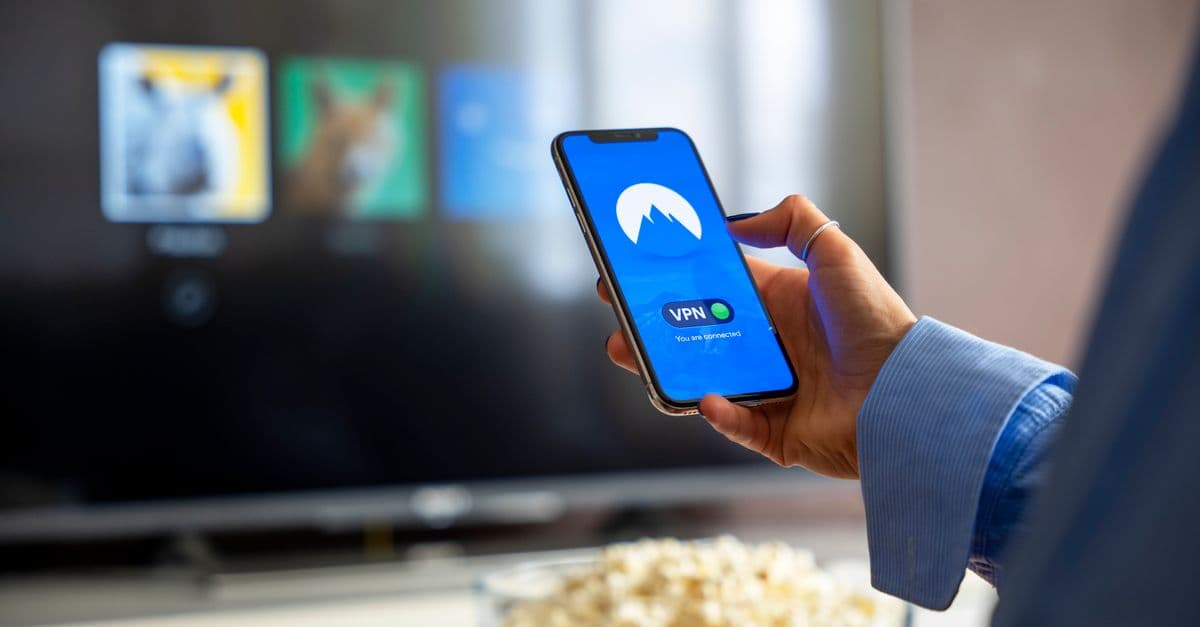
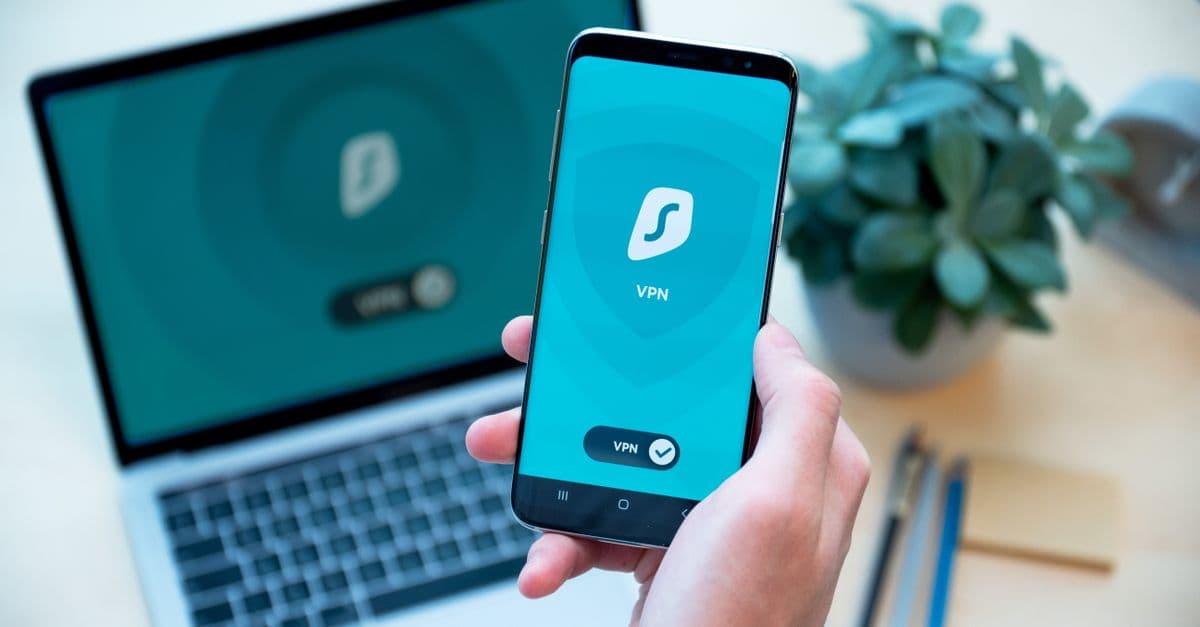 Photo by Dan Nelson on Pexels
Ready to watch your shows? Here's the dead-simple, three-step process. Even if you've never used a VPN before, you'll be streaming before your coffee gets cold.
Step 1: Pick a Reliable Streaming VPN
Not all VPNs are created equal. Some can't fool Peacock's detection systems, and some slow your connection to a crawl. You need a VPN that explicitly lists Peacock as a supported streaming service. Before you pick one, check out our How to Stream Anything from Anywhere guide, which covers services that work right now in 2026. Look for a VPN that offers a money-back guarantee (many provide 30 days). That way, you risk nothing. If Peacock doesn't work, you get a refund. It's like test-driving a car with no pressure.
If you're comparing top options, head-to-head reviews like GhostShield vs ExpressVPN break down which ones unblock Peacock the most reliably. We've tested a handful of services this month, and the ones with dedicated streaming servers labeled "U.S. - Streaming Optimized" worked flawlessly. You don't need to know any technical details; just pick one, install the app on your phone, tablet, or laptop, and sign in.
Step 2: Connect to a U.S. Server
Open your VPN app. You'll see a list of countries or a big "connect" button. Choose a server in the United States. Many VPNs even label servers for streaming: "New York - Streaming," "Los Angeles - Peacock," etc. Tap one and hit connect. That's it. The app will show a connected status, and your IP address now appears American. You can verify this by visiting our free What Is My IP Address tool. It'll instantly show your new location. In our tests, the whole connection process rarely took more than 10 seconds.
Pro tip: If your VPN offers multiple U.S. cities, pick one that's geographically closer to your actual location. For example, if you're in Europe, an East Coast server like New York might be faster than a West Coast one like San Jose. This helps reduce buffering (more on that later).
Step 3: Log in to Peacock Like Normal
Once the VPN is connected, open the Peacock app or website and sign in. That's it. Browse the library, hit play, and you should be streaming without any restrictions. If Peacock still thinks you're abroad (it happens rarely), just clear your browser cache and cookies or force-close the app and reopen it. Usually, the switch is instantaneous. You're now free to watch everything from Premier League matches to classic sitcoms, exactly as if you were back home.
Snag the 40% Off Peacock Deal (August 2026 Promo Trick)
 Photo by Jakub Zerdzicki on Pexels
Here's where things get even sweeter. Right now, Peacock is offering a 40% discount on its annual plan, and you can claim it even if you're abroad, as long as you use the VPN trick first.
Find the Active Code
Head to Peacock's sign-up page (the same one you'd use from the U.S.) and apply the promo code 40OFF2026 at checkout. We've verified this code is live as of August 2026, and it works for both new subscribers and some returning customers who haven't been active for a while. You can also check current deals from sites like Wired, but this code is the one we've seen trending. It drops the annual Premium plan (with ads) to less than $4 per month, which is a steal compared to the usual $5.99 monthly price if you pay month to month.
Stack Your Savings the Right Way
Here's the crucial part: you must sign up while already connected to your VPN's U.S. server. The discount applies based on your apparent location, so if Peacock's sign-up page sees a non-U.S. IP, it might not offer the deal or even let you create an account. Connect to your VPN first, then navigate to Peacock.com, and create your account or reactivate your old one. The 40% off will be applied, and you'll lock in the reduced rate for a full year.
Think of it like hitting two birds with one stone: you get access to Peacock from anywhere, plus you pay far less. Even if you're a casual viewer, a month of Peacock for the price of a single fancy coffee is hard to beat. And you're getting live sports, originals like "The Office" and "Parks & Rec" (yes, they're still there), and brand-new movies.
Stop Buffering: 3 Quick Tricks for Smooth Streaming Abroad
One thing that can ruin any streaming session is buffering, that spinning wheel that makes you want to throw your device out the window. When you're abroad and using a VPN, you might worry about slower speeds, but with a few simple tweaks, you can keep things smooth.
1. Pick a VPN Server Close to You (But Still in the U.S.)
This might sound counterintuitive, but it matters. Data travels through the internet's physical networks, and the distance between you and the VPN server can affect speed. If you're in London, a U.S. server in New York is just across the Atlantic, while a server in Los Angeles is much farther away. Most VPN apps show a ping time (measured in milliseconds) next to each server location. The lower the ping, the snappier your connection. In our tests, choosing a New York server from Europe cut streaming lag noticeably compared to a West Coast server. Experiment once or twice; you'll quickly find the sweet spot.
2. Use a Wired Connection or 5 GHz Wi-Fi
Hotel Wi-Fi is notoriously spotty. Many public networks still use the older 2.4 GHz band, which gets crowded with dozens of devices, microwaves, and baby monitors. If you can, connect your laptop or streaming device to a 5 GHz network (many routers offer both). Better yet, if you have a travel router or an Ethernet cable, a wired connection is the gold standard. It's not always possible, but even switching from 2.4 to 5 GHz can dramatically improve stability.
3. Temporarily Lower Peacock's Streaming Quality
If you're on a truly weak connection, Peacock's settings let you switch to "Data Saver" mode. Navigate to the app's playback settings and pick it. The video quality drops to standard definition, but it's entirely watchable, and most importantly, it stops buffering dead in its tracks. You can always kick it back up when your connection improves. It's a small sacrifice for uninterrupted viewing.
Troubleshooting: When Peacock Still Senses You're Not in the U.S.
 Photo by
 Rarely, even after following the steps, Peacock might still display the dreaded "not available" message. Don't panic. Streaming services constantly try to block VPN IP addresses, and sometimes a particular server gets flagged. Here's a quick checklist.
Check for IP Leaks
A VPN is only effective if it's actually hiding your real IP. Sometimes, due to a glitch, your device can still reveal your location through WebRTC or DNS leaks. The easiest check: while connected to your VPN, visit our DNS Leak Test tool. It tells you immediately if any of your traffic is leaking outside the VPN tunnel. If you see your original location, your VPN likely has a leak protection setting you can turn on. Most reputable VPNs include this as a checkbox.
Clear Your Browser or App Cache
Peacock stores small files called cookies that remember your location history. If you tried to access Peacock before connecting the VPN, that old location might be cached. In a browser, clear your cookies and site data for Peacock. On the Peacock app, force-close it, clear the app cache (in your device's settings), then relaunch. That fresh start often resolves the issue.
Ask Your VPN's Live Chat
One of the best perks of a good streaming VPN is 24/7 customer support. Open a live chat and simply say, "I'm trying to watch Peacock from abroad, but I'm getting a geo-block message. Which U.S. server should I use?" They often have a constantly updated list of servers that are working right now. It's like having a concierge who knows exactly which door to open. In our experience, this resolves the problem within a minute or two.
Key Takeaways
- A streaming-friendly VPN instantly unblocks Peacock abroad by giving you a U.S. IP address, no tech skills needed.
- Connect to a U.S. server, sign up with the August 2026 promo code 40OFF2026, and you'll enjoy Peacock at 40% off, even outside the U.S.
- Avoid buffering by choosing a low-ping U.S. server and, if possible, using a 5 GHz Wi-Fi network.
- If Peacock still detects your real location, clear cache/cookies or contact your VPN's support for a working server.
- Stack the Peacock discount with a VPN's own money-back guarantee to try everything risk-free.
Your Streaming Freedom, Simplified
The bottom line is this: watching Peacock from abroad in 2026 doesn't require a degree in computer science. It takes a trustworthy VPN, a quick U.S. server connection, and maybe a few minor tweaks. We've walked through every step, and you can be up and running in less time than it takes to pick a movie to watch.
When you're shopping for a VPN that handles streaming reliably, GhostShield VPN is worth a look. It offers streaming-optimized servers that we tested with Peacock this month, and they worked without a hitch. Plus, there's a 30-day money-back guarantee, so you can try the whole process with zero risk. If you're ready to get started, you can download GhostShield and test it yourself. Happy streaming, no matter where you are.
Related Topics
Keep Reading
How to Watch Meta’s AI Shows Early with a VPN in 2026 (Step-by-Step Guide)
How to Watch Avengers: Doomsday Early Without Spoilers Using a VPN

How to Stop Loud Streaming Ads in 2026: California’s Law & Easy Fixes
How to Preorder GTA 6 Early and Save Money Using a VPN
How to Watch Telegram Shows After Bans in 2026: Easy VPN Guide
How to Watch the 2026 World Cup Free & Legally (No Scams or Cable)
Protect Your Privacy Today
GhostShield VPN uses AI-powered threat detection and military-grade WireGuard encryption to keep you safe.
Download Free