Best Mac VPN 2026: 8 macOS Checks Before You Buy
The best VPN for a Mac runs natively on Apple Silicon and keeps its kill switch working after your MacBook sleeps. It passes DNS and WebRTC leak tests in every browser you use. It also covers your devices and the countries you need at a yearly price you're happy with. Rankings differ from site to site, so confirm these points on your own Mac during a trial. GhostShield VPN starts every plan with a 7-day free trial, which is long enough to run every check in this guide.
For reference, Google's first-page reviews most often name NordVPN, Surfshark, ExpressVPN and Proton VPN. NordVPN is ranked first by CyberInsider and TheBestVPN, ExpressVPN by Top10VPN, and Proton VPN is listed first by PCMag (see the full comparison).
Before you pay, confirm these 5 checks first (all 8 are below):
- Runs natively on Apple Silicon, not through Rosetta 2
- Keeps its kill switch working through sleep and wake
- Works alongside iCloud Private Relay, or lets you cleanly replace it
- Passes DNS and WebRTC leak tests in Safari and Chrome
- Can be controlled from the menu bar without opening the main window
Do Apple Macs have a built-in VPN?
Yes and no. macOS has a built-in VPN client, but it does not include a VPN service. The client is a set of settings that connects you to a server someone else runs. Apple does not supply the servers.
The macOS VPN client: settings, not a service
Open System Settings > VPN and you can add a configuration using IKEv2, L2TP over IPSec or IPSec. This is how many employers connect staff laptops to an office network. Your company gives you a server address and login details, and macOS handles the connection.
If you don't have a server to connect to, the built-in client does nothing on its own. It can't hide your IP address from websites or let you pick a country, because there is no server behind it until you add one. If you use a company Mac, read our guide on using a VPN on a work laptop before you install anything extra.
iCloud Private Relay is not a VPN
iCloud Private Relay comes with paid iCloud+. It covers Safari browsing and some unencrypted app traffic by sending it through two separate relays, so no single company sees both who you are and which site you visit.
It has clear limits. You can't choose a country, it doesn't cover every app on your Mac, and it isn't available in every country. Your torrent client, game launcher and other browsers sit outside it. For those, you need a VPN.
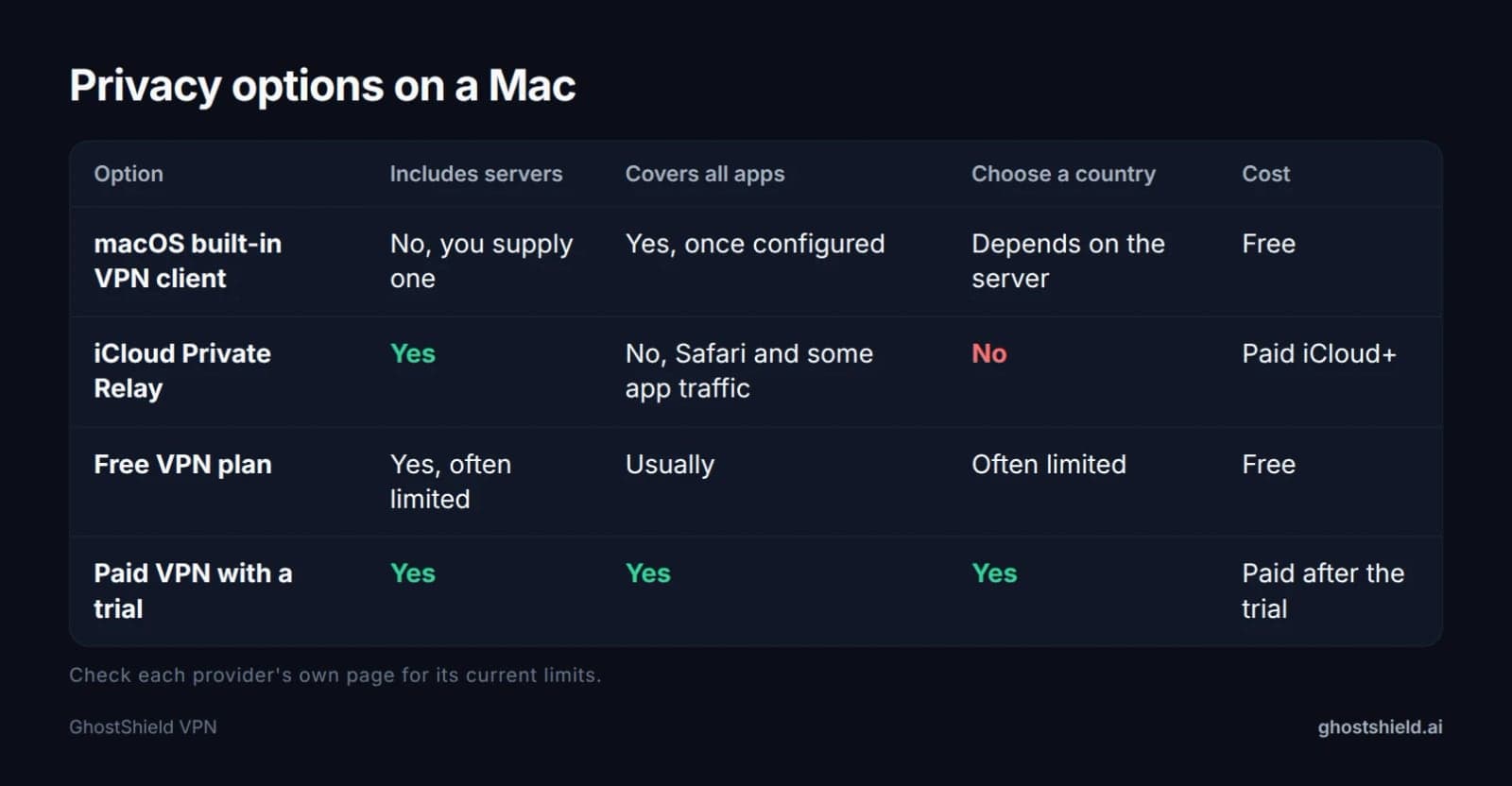 A Mac has four ways to add privacy. Only a VPN service gives you its own servers and a choice of location.
Should you use a VPN on a Mac?
A VPN is worth having on a Mac if you do any of these:
- Use public Wi-Fi in cafés, hotels, airports or coworking spaces
- Want to hide your browsing from your internet provider
- Travel and want to reach the streaming library you already pay for at home
- Play online games or use torrent clients and want to keep your real IP address private
A VPN won't remove malware you have already installed, and it won't stop you clicking a phishing link. It protects the connection, not your judgment. If you work from cafés or shared spaces, our guide to staying safe while working remotely covers the rest of the setup.
If none of those apply and you only browse at home in Safari, iCloud Private Relay may be enough. A VPN earns its place once you leave the house, use apps outside Safari, or need to choose which country your traffic comes from.
What to look for in a Mac VPN
Before you compare brands, decide what a Mac VPN has to do for you. Check these on any provider's site, then confirm them in the app itself:
- A native macOS app built for Apple Silicon, not only an Intel build
- A modern protocol such as WireGuard, which is light on battery and quick to reconnect
- A kill switch that blocks traffic if the tunnel drops, including after sleep
- DNS leak protection, so your lookups don't go to your internet provider
- Split tunneling, if you want some apps, such as a work tool, to bypass the VPN
- A clear menu-bar app that shows whether you're connected at a glance
- A written no-logs policy that says exactly what is and isn't stored
- Enough devices per account to cover your Mac, iPhone and anything else you use
- Server countries you actually need, for travel or reaching your home streaming library
- A free trial or money-back window long enough to run the 8 checks below
- An official download source: the provider's own site or the Mac App Store
A feature list tells you what a provider claims. The checks further down show whether those features hold up on your Mac.
What the top Mac VPN reviews pick, and what they miss
Here is what four of the review sites on Google's first page recommend for Mac, summarised from their own headings in October 2026. vpnMentor and Macworld also rank on page one with their own lists. Proton VPN's download page, a Reddit r/MacOS thread and an App Store listing make up the rest.
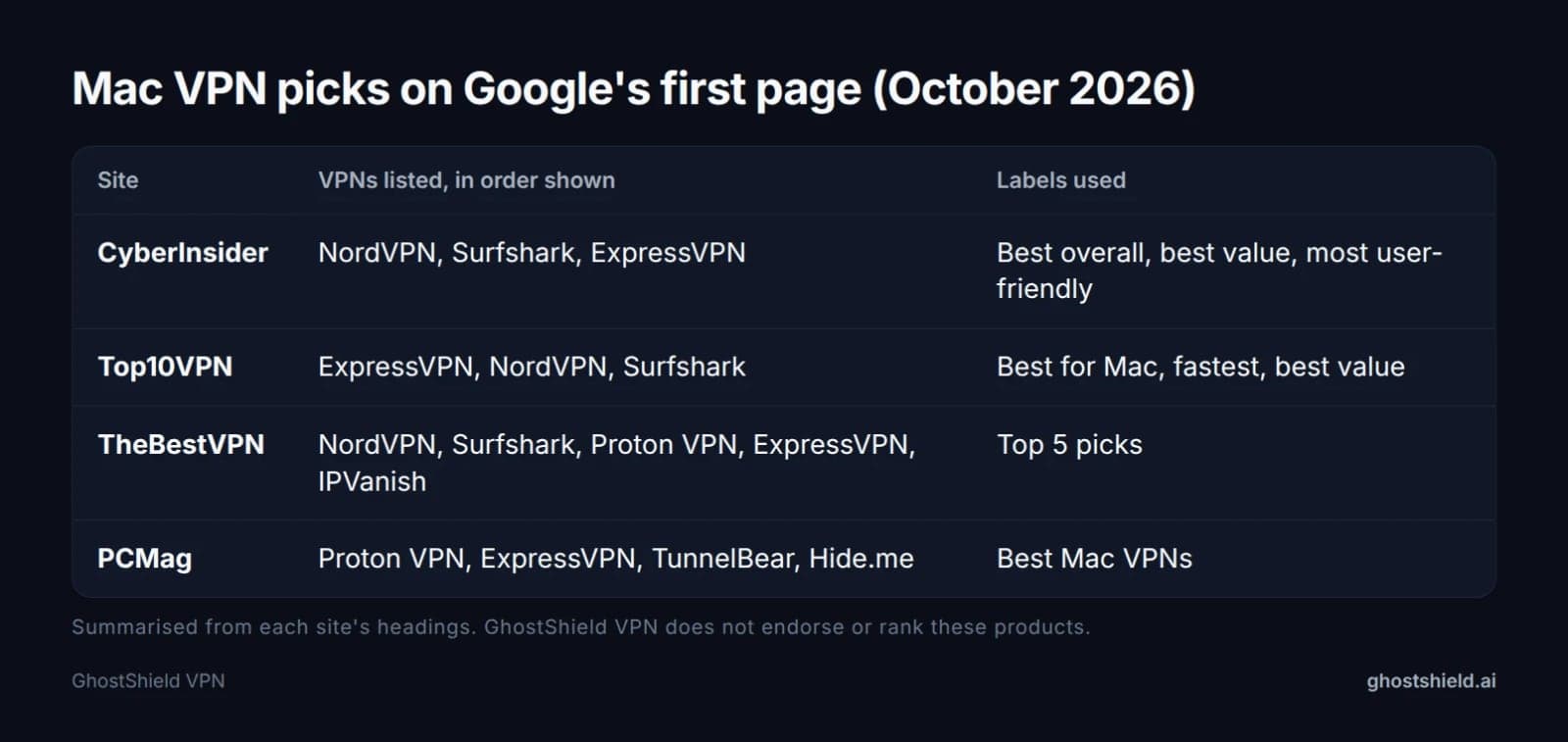 What page one recommends, as each site presents it. None of these lists includes a sleep-and-wake kill switch test.
| Site | VPNs listed, in order shown | Labels used |
|---|---|---|
| CyberInsider | NordVPN, Surfshark, ExpressVPN, Proton VPN | Best overall, best value, most user-friendly, top choice for high-speed privacy |
| Top10VPN | ExpressVPN, NordVPN, Surfshark, Proton VPN | Best for Mac, fastest, best value, best free |
| TheBestVPN | NordVPN, Surfshark, Proton VPN, ExpressVPN, IPVanish | Top 5 picks |
| PCMag | Proton VPN, ExpressVPN, TunnelBear, Hide.me | Best Mac VPNs |
These lists mostly judge speed, streaming and price. TheBestVPN also explains how it tested and how to set up a VPN on a Mac. Their headings don't include repeatable macOS checks, such as whether an app runs natively on Apple Silicon, what happens to the kill switch after your MacBook sleeps, or whether the VPN clashes with iCloud Private Relay. Those are Mac-only problems, and you can test all of them yourself in under an hour.
If you want a wider side-by-side view, you can compare VPNs on features. Then use the checks below to confirm what actually happens on your own machine.
8 macOS checks to run on any VPN during its trial
"What is the safest VPN for Mac?" has no single brand answer. The safest one is whichever passes all 8 of these checks on your Mac, with your network and your apps. Run them in the first two days of a trial so you still have time to cancel.
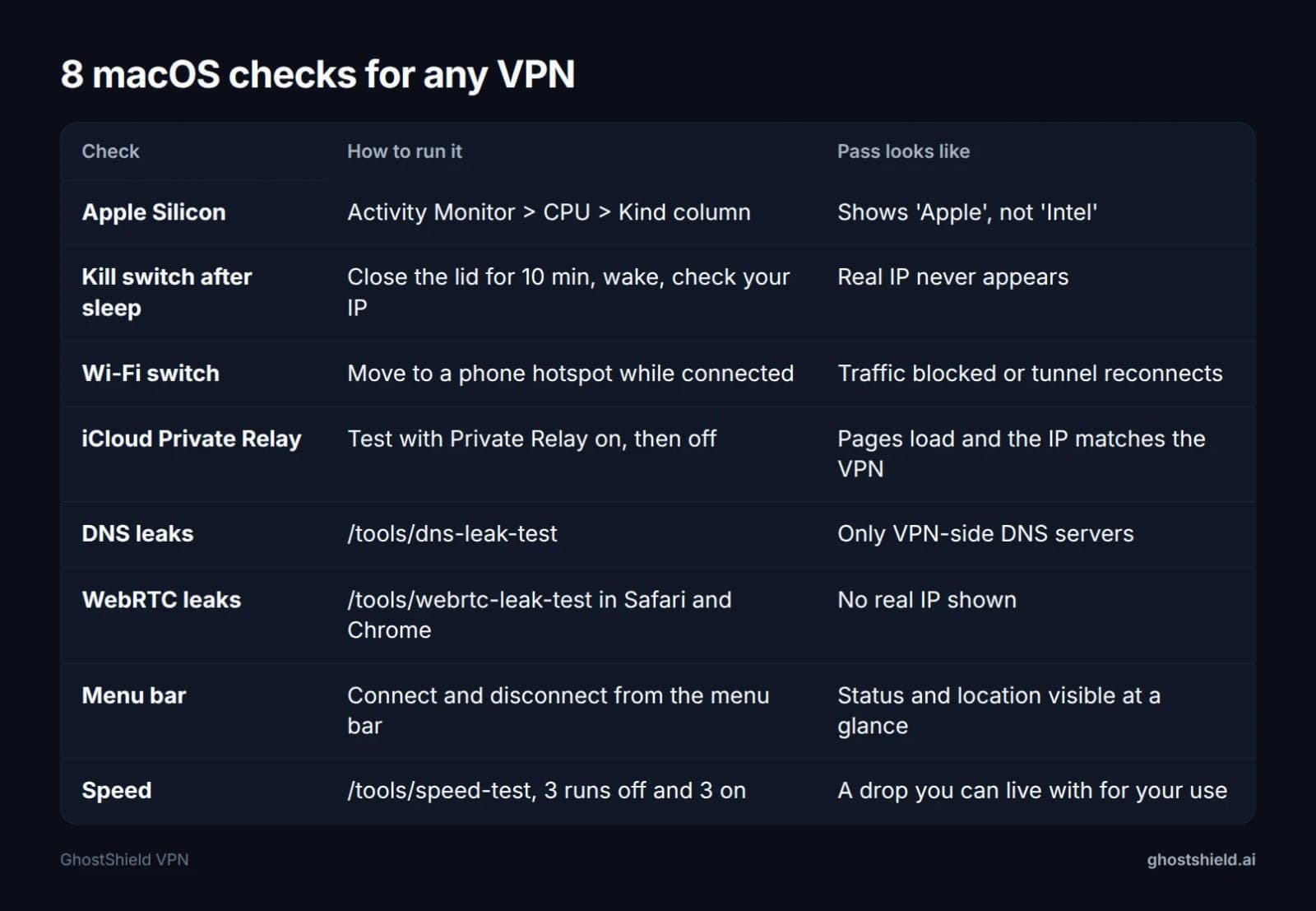 Run all 8 checks in the first two days of any VPN trial.
1. Native Apple Silicon app, or an Intel build running under Rosetta
If your Mac has an M-series chip, the VPN app should be built for it. Open Activity Monitor, go to the CPU tab, and find the VPN app in the list. Look at the Kind column. If you don't see it, right-click any column header and tick Kind.
"Apple" means the app runs natively. "Intel" means it is running through Rosetta 2, Apple's translation layer, which uses extra processing power and battery. An app that runs in the background all day should not be paying that cost.
2. Kill switch after sleep and wake
This is the check most likely to fail, and the one review lists rarely mention. A kill switch should block all internet traffic if the VPN tunnel drops. Sleep is when tunnels drop most often on a laptop.
- Turn on the kill switch in the VPN app and connect.
- Close the lid and wait 10 minutes.
- Open the lid and immediately load /tools/what-is-my-ip.
- Refresh a few times while the VPN reconnects.
Here is what each stage of the test should look like:
| Stage | What you do | Pass | Fail |
|---|---|---|---|
| Before sleep | Connect with kill switch on, check IP | VPN's IP address | Your real IP |
| Lid closed | Wait 10 minutes | Nothing to check yet | Nothing to check yet |
| Lid opened | Load the IP page straight away | No connection, or the VPN's IP | Your real IP, even once |
| Reconnecting | Refresh 3 to 5 times | No connection, then the VPN's IP | Your real IP before the tunnel returns |
| Reconnected | Check IP one last time | VPN's IP address | Your real IP |
If your real IP address appears at any point before the tunnel comes back, the kill switch failed.
3. Switching Wi-Fi networks
MacBooks move between networks all the time: home Wi-Fi, a phone hotspot, an office network. While the VPN is connected, switch from your home Wi-Fi to your phone's hotspot. Then check your IP address again.
A pass means traffic is blocked until the tunnel reconnects, or the tunnel reconnects so quickly that only the VPN's IP ever appears.
4. iCloud Private Relay conflicts
If you pay for iCloud+, Private Relay may be on without you remembering it. VPNs and Private Relay can get in each other's way, so test both settings.
- Connect the VPN with Private Relay on and browse a few sites in Safari. Note any pages that fail to load and check your IP.
- Turn Private Relay off under System Settings > your name > iCloud > Private Relay.
- Repeat the same sites and the same IP check.
A pass means pages load and the IP shown matches the VPN location. If things only work with Private Relay off, that's fine. Just remember to switch it off whenever you use the VPN.
5. DNS leak test
Every time you visit a site, your Mac asks a DNS server to look up the address. If those lookups go to your internet provider instead of through the VPN, your provider can still see which sites you visit.
Connect the VPN and run our DNS leak test. Only DNS servers on the VPN side should appear. If you see your internet provider's name, the VPN is leaking.
6. WebRTC leak test in Safari and Chrome
WebRTC is the browser technology behind video calls, and it can reveal your real IP address to websites even when a VPN is on. Browsers handle it differently, so test each one you use.
With the VPN connected, open our WebRTC leak test in Safari, then in Chrome or any other browser you use. A pass means no real IP address appears in either.
7. Menu-bar control and status
On a Mac, the menu bar is where you check things at a glance. A good VPN app lets you connect, disconnect and see your current location from its menu-bar icon, without opening the main window.
Try it. If you have to open the full app every time you want to know whether you're protected, you'll stop checking, and that defeats the point.
8. Speed with the VPN on and off
Every VPN adds some slowdown, because your traffic takes an extra step through an encrypted tunnel. The question is whether you can live with the drop.
Run our speed test three times with the VPN off and note the average. Then connect to a nearby server and run it three more times. Compare the two averages. Whether the drop is acceptable depends on what you do: email and browsing tolerate more slowdown than 4K streaming or video calls.
Your printable Mac VPN checklist
Here are the 8 tests plus 2 buying checks in one place. Screenshot or print it before you start a trial.
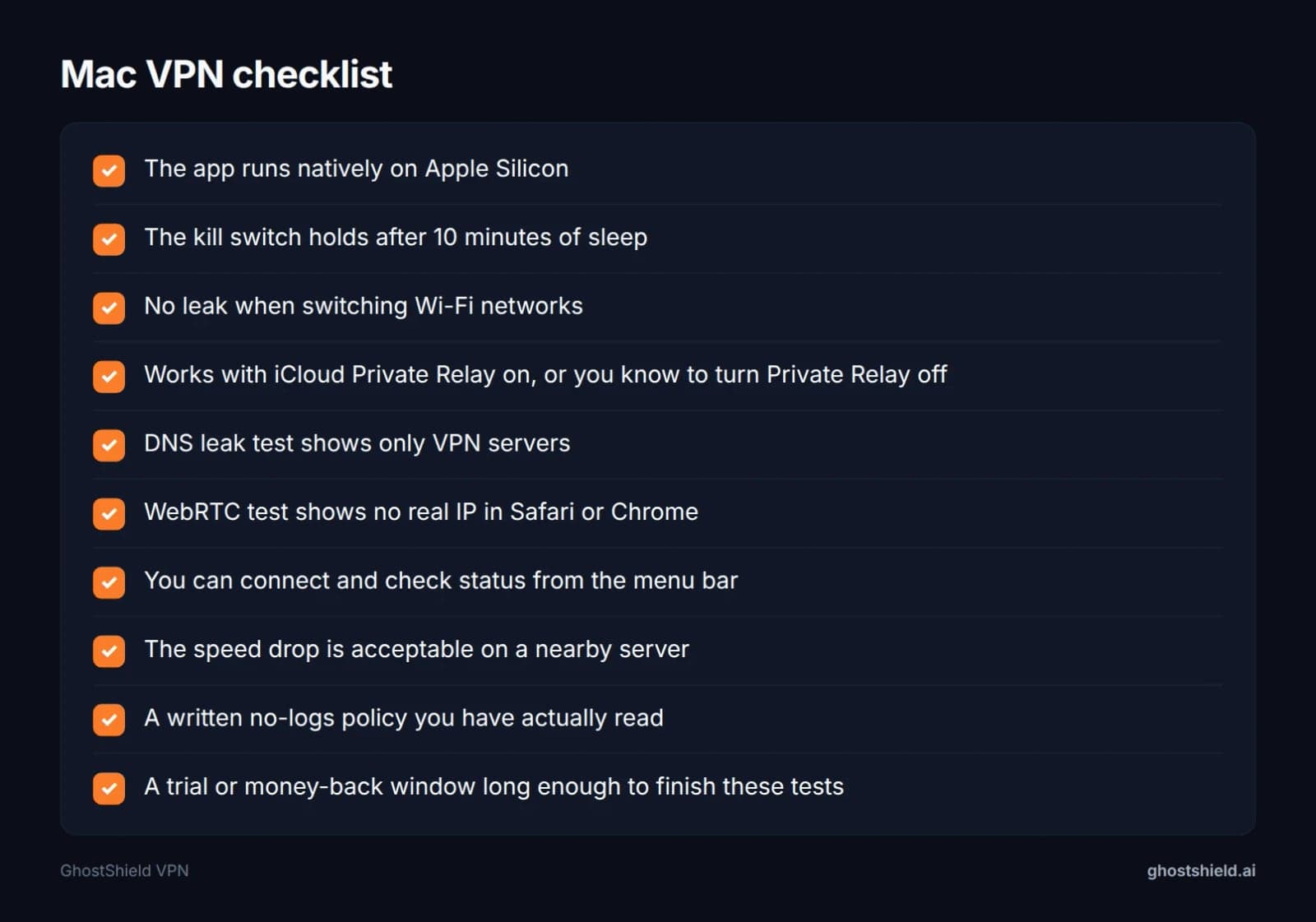 Screenshot or print this before you start a trial.
- The app shows "Apple" in Activity Monitor's Kind column, not "Intel"
- Your real IP never appears after the Mac sleeps and wakes with the kill switch on
- Your real IP never appears when you switch from Wi-Fi to a phone hotspot
- Pages load and the IP matches the VPN location, with iCloud Private Relay on or off
- The DNS leak test shows only VPN-side DNS servers
- The WebRTC leak test shows no real IP in Safari or Chrome
- You can connect, disconnect and see your location from the menu bar
- Speed with the VPN on is good enough for what you do most
- You have read the provider's no-logs policy yourself
- The trial or money-back window is long enough to finish this list
The two buying checks matter as much as the technical tests. Read the no-logs policy in full rather than relying on a summary, and know the exact date your trial ends.
Run the whole list in the first 2 days of any trial. That leaves time to cancel if something fails, without rushing. Our guide on how to test a VPN free trial covers cancelling and billing dates in more detail. If you also want to judge a provider's privacy practices beyond the Mac app, work through our 7 privacy checks before you buy a VPN.
How to weigh the 8 checks against price, devices and server countries
Review sites explain how they chose their picks. Here is a simple way to make your own call, using your checklist results and the 3 things every buyer compares: price, devices and server countries. Work through it in order, because the early steps rule providers out before you spend time on the later ones.
Step 1: treat the leak checks as pass or fail
Checks 2, 3, 5 and 6 protect your real IP address. If a VPN fails any of them, no price, server list or extra feature makes up for it. Run a failed check once more to rule out a one-off glitch, such as the app updating in the background. If it fails again, cancel.
Step 2: score the comfort checks
Checks 1, 4, 7 and 8 affect how pleasant the VPN is to live with, not whether it protects you. An app running under Rosetta 2 still encrypts your traffic, but it costs battery. A Private Relay clash has an easy workaround. Give each comfort check one point and compare totals between the providers you're trialling.
Step 3: compare what you'll pay over a year
Headline prices are usually quoted per month, but longer plans are billed upfront. Compare what each provider charges for 12 months, then check how long its free trial and money-back window last. A short window matters more than a small price gap, because it decides whether you can finish your tests.
Step 4: count your devices
List every device that should be covered: your Mac, your iPhone, an iPad, a partner's laptop, a TV. Compare that number with the provider's limit on simultaneous devices. Then confirm there is an app for each one, because a high device limit doesn't help if your TV or games console has no app.
Step 5: list the countries you need
Write down your home country, for reaching the streaming library you pay for, and the countries you travel to most. A provider is only useful if it has servers where you need them. If you travel to a country that restricts VPNs, check our country guides first, because a VPN without obfuscation may not connect there at all.
| Factor | How to weigh it | Deal-breaker? |
|---|---|---|
| Leak checks (2, 3, 5, 6) | Must pass every time | Yes |
| Apple Silicon app (1) | Strong preference, saves battery | No, but weigh it heavily |
| Private Relay (4) | Workaround exists | No |
| Menu-bar control (7) | Daily convenience | No |
| Speed (8) | Match to your main use | Only if too slow for it |
| No-logs policy | Read the full text | Yes, if it's vague |
| Yearly cost | Compare 12-month totals | Only if over budget |
| Devices | Count yours, check apps exist | Yes, if too few |
| Server countries | List the ones you need | Yes, if one is missing |
If two providers both pass every deal-breaker, pick the one with the better comfort score. If they tie, choose the one whose trial or money-back window you trust yourself to use.
How to install and remove a VPN on a Mac
Setting up a VPN on a Mac takes a few minutes, whichever provider you choose. The steps below follow standard macOS behaviour, so they apply to most VPN apps.
Installing a VPN app
- Download the app from the provider's own website or the Mac App Store. Never use a third-party download site.
- Open the app and sign in with the account you created.
- When macOS says the app would like to add VPN configurations, click Allow. You may need your Mac password or Touch ID.
- If macOS asks you to approve a system extension, open System Settings > Privacy & Security and allow it.
- Open System Settings > VPN and confirm the new configuration appears.
- Connect, then check your IP address to confirm the VPN is working.
Adding a work VPN manually
If your employer gives you server details instead of an app, open System Settings > VPN and choose Add VPN Configuration. Pick the type your IT team specifies (IKEv2, L2TP over IPSec or IPSec), then enter the server address, account name and password they gave you.
Removing a VPN you no longer use
Disconnect and quit the app, then drag it from Applications to the Bin. Open System Settings > VPN afterwards. If the old configuration is still listed, open its details and remove it, so it can't interfere with a new VPN you install later.
Is there a 100% free VPN for Mac?
Yes, some exist. Proton VPN's page on Google's first page offers a free plan for Mac, for example. Most free options limit something, usually data, speed, server choice or the number of devices. The real question is whether you can trust the free VPN you pick.
What are the risks of free VPNs?
Running a VPN costs money, so a free VPN has to be paid for somehow. Some are funded by a paid tier. Others are funded by ads or by collecting and selling data about their users, which is the opposite of what you want.
 Photo by cottonbro studio on Pexels
Other common problems:
Photo by cottonbro studio on Pexels
Other common problems:
- A weak or missing kill switch, so your real IP leaks when the connection drops
- Unknown publishers in the App Store, with no clear company behind the app
- Vague privacy policies that never say what is logged
Before you install a free VPN, look at who publishes it, read its privacy policy, and run checks 2, 5 and 6 above.
Why people say never use a free VPN
"Never use a free VPN" overstates it. The better rule is never to use a VPN you can't verify. That goes for paid ones too.
Be especially careful with searches like "VPN for Mac free download DMG." A DMG file from an unofficial download site is a common way to deliver malware to Macs. Only download a VPN from the provider's own website or the Mac App Store.
A free trial of a paid VPN is the middle path. You get the full product for long enough to run every test, then decide. GhostShield VPN has no free plan, but every plan starts with a 7-day free trial.
Can hackers get through a VPN?
A VPN encrypts the traffic between your Mac and the VPN server. Someone else on the same café Wi-Fi can see that you're connected to something, but not what you're reading or sending.
A VPN doesn't protect you from everything, though. It won't stop phishing emails, malware you install yourself, reused passwords or breaches at companies that hold your data. Pair it with these basics:
- Keep macOS updated
- Turn on FileVault to encrypt your disk
- Use strong, unique passwords from a password generator
In practice, leaks are the realistic weak point for a VPN on a Mac, not someone breaking the encryption. That is why checks 2, 5 and 6 matter most.
Will VPNs be banned in the USA?
VPNs are legal to use in the United States. Anything that is illegal stays illegal when you do it over a VPN, but the VPN itself is not.
Some other countries restrict or block VPNs. GhostShield VPN has no obfuscation or stealth mode, so it is not reliable in China, Russia, Iran or the UAE. If you're travelling to one of those places, read our country-by-country VPN guide before you go.
GhostShield VPN on Mac: what you get, pros and cons
GhostShield VPN has a macOS app, and you can run all 8 checks above on it during the free trial. Weigh the list below against your own checklist results. The scores that matter are the ones from your Mac.
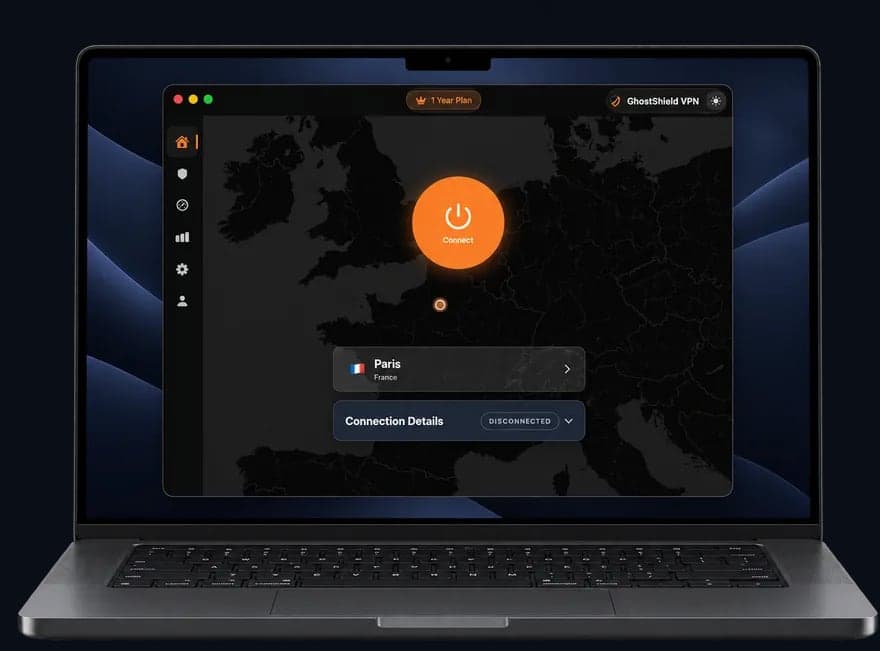 GhostShield VPN app on a MacBook
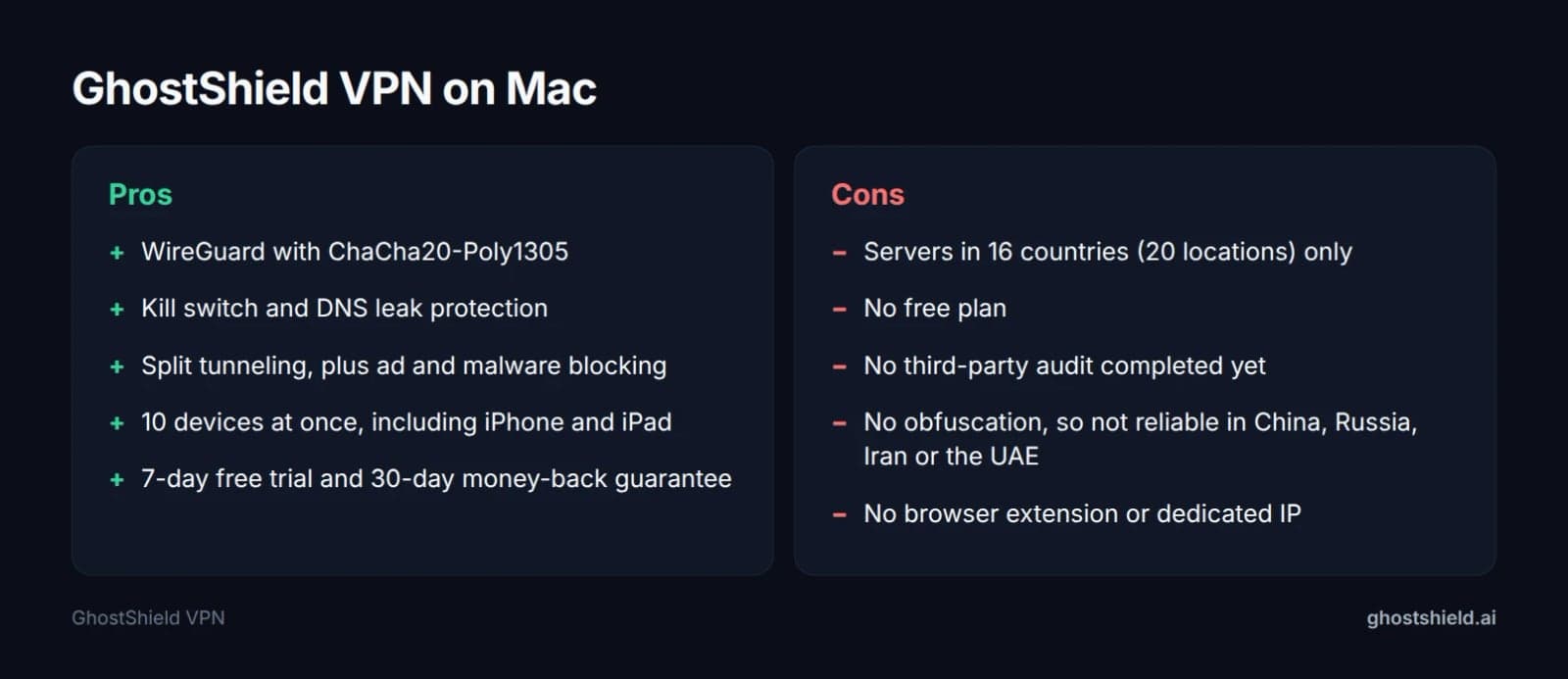 What GhostShield VPN offers on a Mac, and what it does not.
Pros
What GhostShield VPN offers on a Mac, and what it does not.
Pros
- WireGuard with ChaCha20-Poly1305 encryption
- Kill switch and DNS leak protection built in
- Split tunneling
- Ad and malware blocking
- Family mode and AI threat detection
- A strict no-logs policy: no browsing activity, traffic content, DNS queries or real IP addresses are stored on our servers
- 10 devices at once across Mac, iPhone, iPad, Windows, Android and Google TV
- 7-day free trial on every plan, plus a 30-day money-back guarantee
Cons
- No completed third-party audit yet
- No free plan, only the 7-day free trial
- A smaller network, with servers in 16 countries
- No obfuscation, so it isn't reliable in China, Russia, Iran or the UAE
- No browser extension and no dedicated IP
GhostShield VPN includes all of the features above on one account, so the same login covers your Mac and your iPhone. Our best iPhone VPN checks and Android VPN tests cover your other devices.
Servers are in 16 countries (20 locations), with 4 locations in the United States, plus Canada, the United Kingdom, Ireland, France, Germany, the Netherlands, Switzerland, Italy, Spain, Japan, Singapore, Hong Kong, India, Australia and the UAE.
How to set up GhostShield VPN on your Mac
- Start the trial and create your account.
- Download the macOS app and sign in.
- Allow the VPN configuration if macOS asks.
- Turn on the kill switch in the app.
- Connect, then run the 8 checks from this guide.
GhostShield VPN plans
| Plan | Price per month | Billed |
|---|---|---|
| 1 year | $4.99 | $59.88 yearly |
| 3 years | $3.99 | $143.64 every 3 years |
| Monthly | $6.99 | Monthly |
You can see every plan and its current details on the GhostShield VPN pricing page.
If you want to put GhostShield VPN through the same checks as any other Mac VPN, you can start the 7-day free trial and run all 8 in the first two days. If it fails a check that matters to you, the 30-day money-back guarantee still applies after the trial ends.
Why Mac owners search this
Plenty of Mac owners are weighing the same choice. "Mac vpn best" gets 1,600 US searches a month and about 19,800 over the past 12 months. It peaked at 1,900 in October 2025, January, March and September 2026, and was lowest at 1,300 in June and July 2026 (DataForSEO, October 2026).
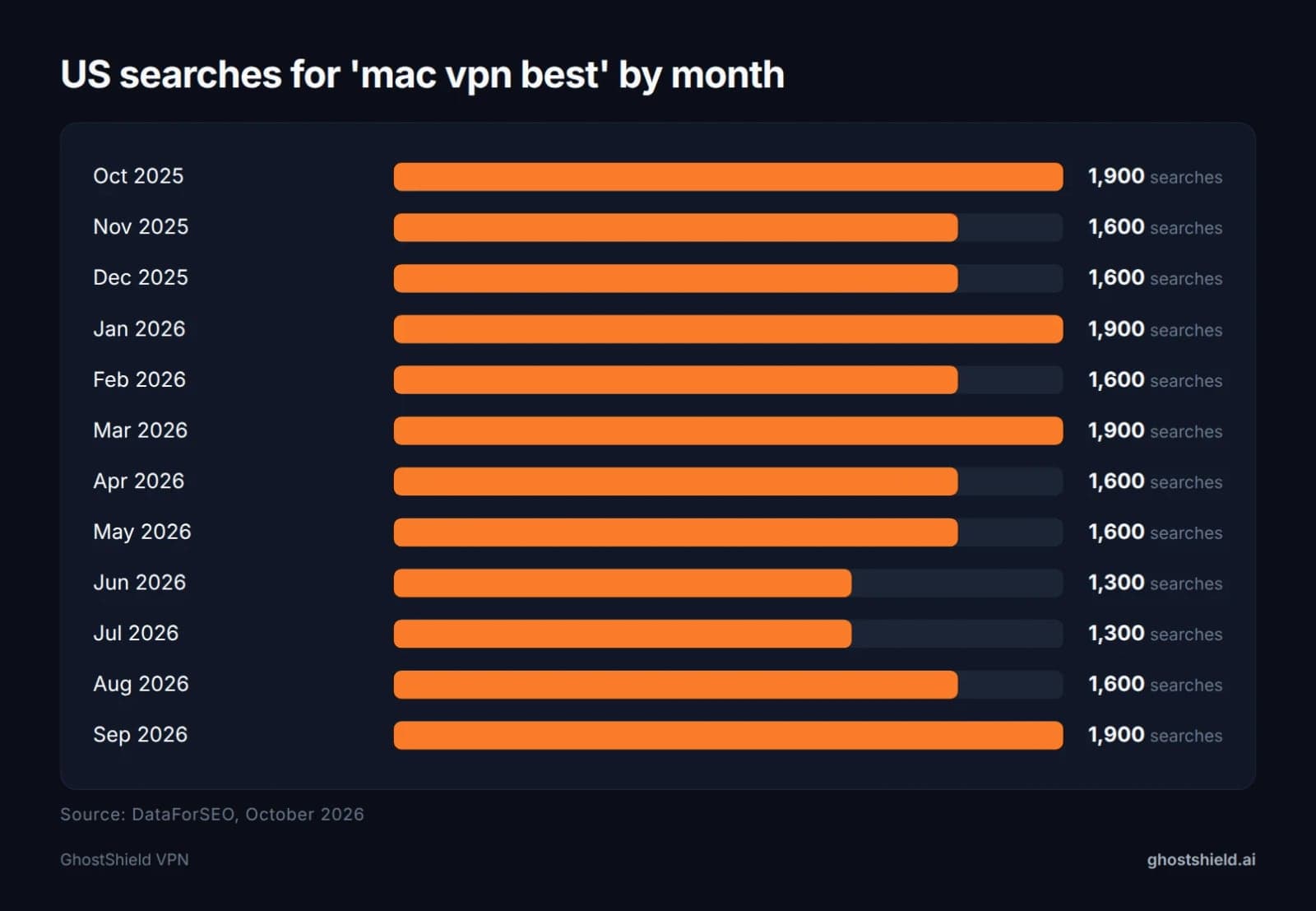 Interest in Mac VPNs stays between 1,300 and 1,900 US searches a month (DataForSEO, October 2026).
Demand stays between 1,300 and 1,900 searches every month, so this isn't a seasonal question. People pick a Mac VPN all year round, which is one more reason to judge on your own test results rather than on whichever review happens to rank this month.
Interest in Mac VPNs stays between 1,300 and 1,900 US searches a month (DataForSEO, October 2026).
Demand stays between 1,300 and 1,900 searches every month, so this isn't a seasonal question. People pick a Mac VPN all year round, which is one more reason to judge on your own test results rather than on whichever review happens to rank this month.
FAQ
Do Apple Macs have a built-in VPN?
Macs have a built-in VPN client but no VPN service. Under System Settings > VPN you can add an IKEv2, L2TP over IPSec or IPSec connection. It still needs a server from someone else, such as your employer. On its own, it can't hide your IP or let you choose a country.
What is the best totally free VPN for Mac?
No single free VPN suits everyone. Proton VPN, which ranks on Google's first page, offers a free plan for Mac, but most free plans limit data, speed, servers or devices. Whichever you pick, download it only from the provider's site or the Mac App Store, then run DNS and WebRTC leak tests.
What is the safest VPN for Mac?
The safest VPN for Mac is the one that passes macOS-specific tests on your own machine. Check that it runs natively on Apple Silicon, keeps the kill switch working after sleep, handles Wi-Fi switches, and passes DNS and WebRTC leak tests. Also read its written no-logs policy before you pay.
Does a VPN work with iCloud Private Relay on a Mac?
A VPN can work with iCloud Private Relay, but the two can conflict. Test with Private Relay on, then off, under System Settings > your name > iCloud > Private Relay. If pages fail to load or your IP doesn't match the VPN location, turn Private Relay off while the VPN is connected.
Can I use the same VPN on my Mac and iPhone?
Yes. Most VPN services let one account cover several devices. GhostShield VPN covers up to 10 devices at once across Mac, iPhone, iPad, Windows, Android and Google TV. Run the same leak checks on each device, because apps on different systems can behave differently after sleep or network changes.
How do I know if my Mac VPN is leaking?
Run three quick tests with the VPN connected. Check your IP address to confirm it shows the VPN's location. Run a DNS leak test to make sure only VPN-side servers appear. Then run a WebRTC leak test in Safari and Chrome. If your real IP or provider shows up, it is leaking.
Related Topics
Keep Reading
Best Android VPN Software 2026: 6 Tests to Run First
Unblocked at School: The Complete Guide (2026)

Can You Use a VPN on a Work Laptop? How to Stay Safe & Keep Your Job (2026)

How to Bypass VPN Blocks in 2026: Easy Fixes for Russia, Turkey & Iran
Canva Hacked? 2019 Breach vs 2026 Canvas Hack: What to Do