How a VPN Can Reduce Gaming Lag, Stop Throttling & Protect Your IP in 2026

Why Your ISP Is Secretly Ruining Your Games (and How a VPN Fixes It)
Your internet plan promises “up to 1 Gbps,” but during your evening Valorant match you’re rubber-banding across the map. And it always seems to happen right when you’re about to land that headshot. Sound familiar? The problem often isn’t your hardware, your router, or even the game server. It’s your own internet service provider (ISP) quietly slowing down your gaming traffic while Netflix and YouTube stream perfectly. Here’s why that happens, and how a VPN can put a stop to it.
ISP Throttling Explained (in Plain English)
Think of your internet connection as a multi-lane highway. Your ISP sees all the different types of traffic (video streams, web browsing, file downloads) and assigns each one a lane. During peak hours, like a Saturday evening when everyone in your neighborhood is online, the ISP might force all gaming data into a single, congested lane. Meanwhile, video streaming gets the fast lane because ISPs often prioritize traffic they can more easily measure or profit from, like from big streaming platforms. The result? Your game stutters and lags even though your speed test shows a healthy connection.
A VPN works like a private tunnel under that highway. When you connect to a VPN, your gaming data gets encrypted and becomes invisible to your ISP. The provider can no longer tell the difference between your game packets and regular web traffic. Because it can’t identify the data as “gaming,” it doesn’t shove you into the slow lane. Your traffic cruises at full speed, just like any other internet activity.
Check Your Own Ping Before and After
Ping spikes are what you feel as lag. For a moment your position on the server isn’t updating in real time, which is why you sometimes die after already ducking behind cover. A VPN only helps when your ISP is throttling or badly routing your game traffic. On a clean connection it can add a little latency instead, so measure it on your own connection.
You don’t need a PhD in networking to test this yourself. Open your game’s network settings, note your ping without a VPN, then connect and compare. You can also use our free Speed Test tool to measure raw latency to different server locations.
Stop DDoS Attacks Automatically
Every device on the internet has a public IP address, like a digital home address. When you play an online game without a VPN, your real IP is visible to the game server and potentially to other players. A sore loser in your lobby can grab that IP and launch a DDoS (Distributed Denial of Service) attack, flooding your connection with junk traffic until your internet goes down entirely. It’s the digital equivalent of prank-calling your phone so often that nobody else can reach you.
A VPN hides your real IP behind the VPN server’s address. If someone tries to attack you, they’ll target the VPN’s well-protected infrastructure, not your home network. For a deeper look at how VPNs mask your identity and keep you safer online, check out our Complete Guide to Online Privacy.
The Secret to Choosing a VPN Server That Lowers Ping
 Photo by Jornt Hornstra on Pexels
Connecting to any VPN server won’t magically reduce lag. If you pick the wrong one, you might actually make your ping worse. The secret is choosing a server that’s close enough to be fast, but not so crowded that it becomes a bottleneck.
Nearby Server = Lower Latency (But Not Always the Closest)
The general rule is simple: the shorter the physical distance your data has to travel, the lower your ping. If you’re in Chicago, a server in Chicago will nearly always give you a better connection than one in London. But internet routing isn’t a straight line. Sometimes a server in a neighboring city has a more direct fiber path to the game’s data center, making it slightly faster than the one right next door.
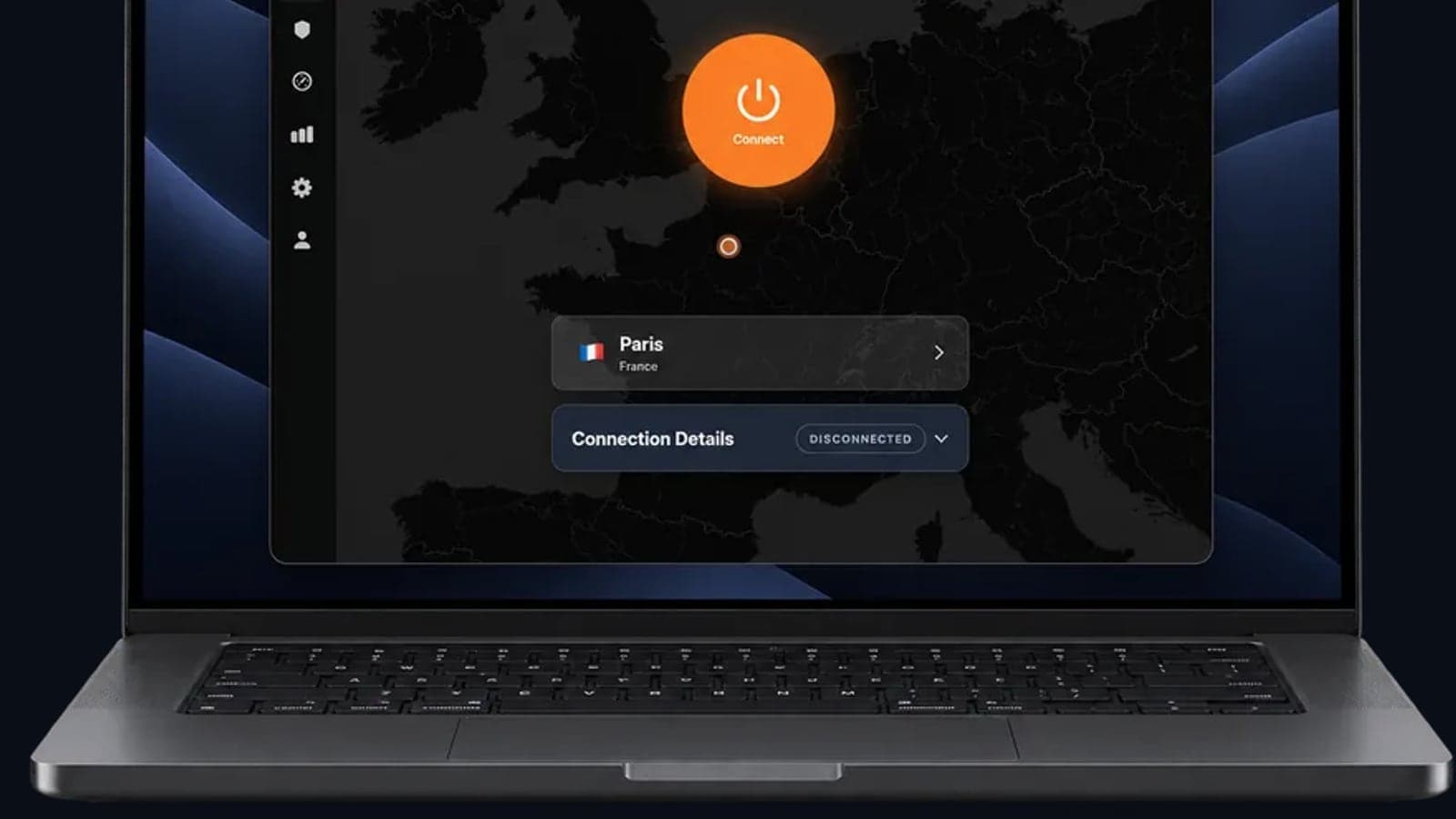
That’s why modern VPNs show real-time ping values next to each server location. Instead of guessing which city is “closest,” you click the one with the lowest millisecond number. A good VPN will even have a “Best Location” button that picks the fastest option for you automatically.
Avoid Overcrowded Servers (the Pool-Party Problem)
Imagine you throw a pool party, and 500 people show up. The pool is tiny, and nobody can swim properly. A VPN server works similarly. Even if a New York server is physically near you, when 500 other gamers are all using it at the same time, the server’s processing power gets stretched thin. Your data moves like a swimmer stuck in a mosh pit.
Look for a VPN that displays server load, often with a simple green/yellow/red indicator. If you see a nearby server marked yellow or red, hop onto a slightly farther one that’s green. That little switch can lower your ping. It’s like moving from the crowded freeway lane to the one with just a couple of cars.
When to Pick a Farther Server
Sometimes you need a server that’s halfway around the world. Maybe a new game launched early in Japan, and you want to play it before anyone in your country. Or you’re traveling abroad and want to keep access to your home library, complete with all your saved progress and regional pricing. By connecting to a VPN server in Tokyo, your traffic appears to originate from Japan, and you get instant access to that geo-blocked title. Yes, your ping will jump, but for slower-paced games or just to purchase and download, that’s perfectly fine. For more on how VPNs unlock regional content, see our How to Stream Anything from Anywhere guide. The same principles apply to games.
Protocol Settings That Can Reduce Lag
 Photo by Stefan Coders on Pexels
Beyond server choice, the hidden ingredient to a snappy gaming connection is the VPN protocol. The protocol is the set of rules your data follows when traveling through the VPN tunnel. Two major players dominate, and one is dramatically faster for gaming.
WireGuard vs. OpenVPN: The Speed Difference Nobody Tells You
Think of protocols as delivery vans carrying your game data from your computer to the game server and back. OpenVPN is the dependable but older truck. It’s been around forever, works on almost any device, and is incredibly secure. But its code is bulky, and that extra weight adds processing time on both ends. WireGuard, on the other hand, is the sleek modern electric van. Its codebase is tiny, it runs circles around OpenVPN with minimal background work, and it zips through traffic.
WireGuard’s lighter design means it adds less delay than OpenVPN, and in a game where reaction times are measured in milliseconds, every bit of added delay counts. If your VPN has a gaming profile or auto-selects WireGuard for you, use it. It’s one of the easiest speed gains after picking the right server.
One-Click “Gaming Mode” Optimization
Modern gaming VPNs bundle all these smart choices into a single button. A gaming mode sets the VPN to use WireGuard automatically, routes your game traffic through low-latency ports, and strips away unnecessary overhead (like specialty DNS lookups or heavy encryption for non-game packets) without sacrificing security. You hit one button, and your connection is tuned specifically for Fortnite, not for streaming 4K video in the background. That granular approach is something you can’t get by just tweaking your Wi-Fi settings.
How to Set Up a VPN on Steam, Xbox, and PlayStation in 5 Minutes
You don’t need to be a network engineer to get a VPN working on your gaming systems. The process takes minutes regardless of your device.
PC (Steam, Epic, etc.)
This is the easiest setup. Install the VPN app on your Windows or Mac machine. Open the app, log in, and hit the “Best Location” button to automatically connect to the fastest-ping server. Then launch your game as usual. That’s it. For an extra layer of protection, dive into the VPN’s settings and enable the Kill Switch. If the VPN connection drops for even a second, the Kill Switch instantly blocks all internet traffic, so your real IP never leaks to the game server. Think of it as a seatbelt for your online identity.
Xbox Series X|S and PlayStation 5
Consoles don’t support native VPN apps the way a PC does. But you have two great workarounds. The first is to run the VPN on your home router. Once configured, every device connected to your Wi-Fi, including your Xbox or PS5, gets protected without any extra steps. Your VPN provider’s website will walk you through the few settings changes needed.
The second, even simpler method is Smart DNS. This feature doesn’t encrypt all your traffic, so it’s not a full VPN, but it does change the virtual location your console sees. It’s perfect for accessing geo-blocked game stores or early releases without adding any ping. You just plug in a custom DNS address in your console’s network settings. For step-by-step screenshots, check your VPN’s support page or look for the “console setup” guide in the app.
Mobile Gaming (Call of Duty: Mobile, PUBG)
The VPN app for iOS and Android works exactly like the desktop version. Open it, tap the “Fastest Server” option, and compare your in-game ping with and without it. The encryption overhead on a modern phone is small, and you’ll be much safer if you occasionally game on coffee shop Wi‑Fi. For more on how public networks put your data at risk, our Public WiFi Risks Guide breaks it all down.
Key Takeaways
 Photo by Stefan Coders on Pexels
- ISP throttling targets gaming traffic during peak hours. A VPN hides your data, so the ISP can’t discriminate and your speeds stay consistent.
- Choosing the right VPN server is about more than geography. Use real-time ping and server load indicators to find the least congested path.
- WireGuard is the fastest protocol for gaming. If your VPN has a gaming mode that auto-selects it, turn it on.
- A VPN also protects you from DDoS attacks by masking your real IP address.
- Setting up a VPN on consoles is simple with router-based connections or Smart DNS, and mobile gaming benefits just as much.
If you’re tired of lag spikes and want a VPN that’s actually tuned for gaming, not just repackaged from a business product, you can try GhostShield for yourself. There’s a free trial and a 30-day money-back guarantee, so you can compare your ping with and without it on your own setup, risk-free. Download the app here.
Related Topics
Keep Reading

OpenVPN UDP vs TCP: Which to Use, and When

VPN for Fubo: Watch Your US Plan While Traveling (2026)
VPN iPhone Not Connecting? 12 Fixes, Most Likely First
TLS VPN vs IPsec: Key Differences and Where WireGuard Fits
Best VPN With No Logging: How to Check the Claim (2026)