VPN iPhone Not Connecting? 12 Fixes, Most Likely First
If the VPN on your iPhone spins on Connecting or won't switch on, the cause is usually one of four things: a connection that got stuck when the phone woke or changed networks, an old VPN profile, a network that blocks VPN traffic, or an iOS setting such as iCloud Private Relay or Low Power Mode. Fixes 1 to 5 below solve most cases in a few minutes: test the internet without the VPN, toggle Airplane Mode, restart, check your login, update, and delete old VPN profiles.
Why is my VPN not working on my iPhone? Find your symptom
A VPN has to complete a handshake with its server before any traffic flows, so anything that interrupts it leaves the button spinning. Match what you see to the likely cause, then jump to the fix.
| What you see | Likely cause | Try |
|---|---|---|
| Stuck on Connecting | Stuck connection or blocked handshake | Fixes 1, 2, 9 |
| "Unable to start VPN" or "VPN configuration could not be loaded" | Old or corrupted VPN profile | Fix 5 |
| Works on Wi-Fi, not cellular (or the reverse) | Network blocks VPN traffic, or Low Data Mode | Fixes 7, 10 |
| Fails only at school, work or a hotel | Sign-in page or VPN blocking | Fixes 8, 10 |
| Connects, then drops at once | Overloaded server | Fix 9 |
| Drops when the phone locks | iOS pauses the app in the background | Fix 7 |
| Says Connected but no pages load | Phone slept, or DNS conflict | Fixes 1, 6, 9 |
| VPN keeps turning itself on | Connect On Demand or a leftover profile | Fix 5 |
| Blank screen when adding a VPN | Screen Time or device management | Fix 11 |
iPhone VPN not connecting: 12 fixes, most likely first
Work down the list and stop as soon as the VPN connects.
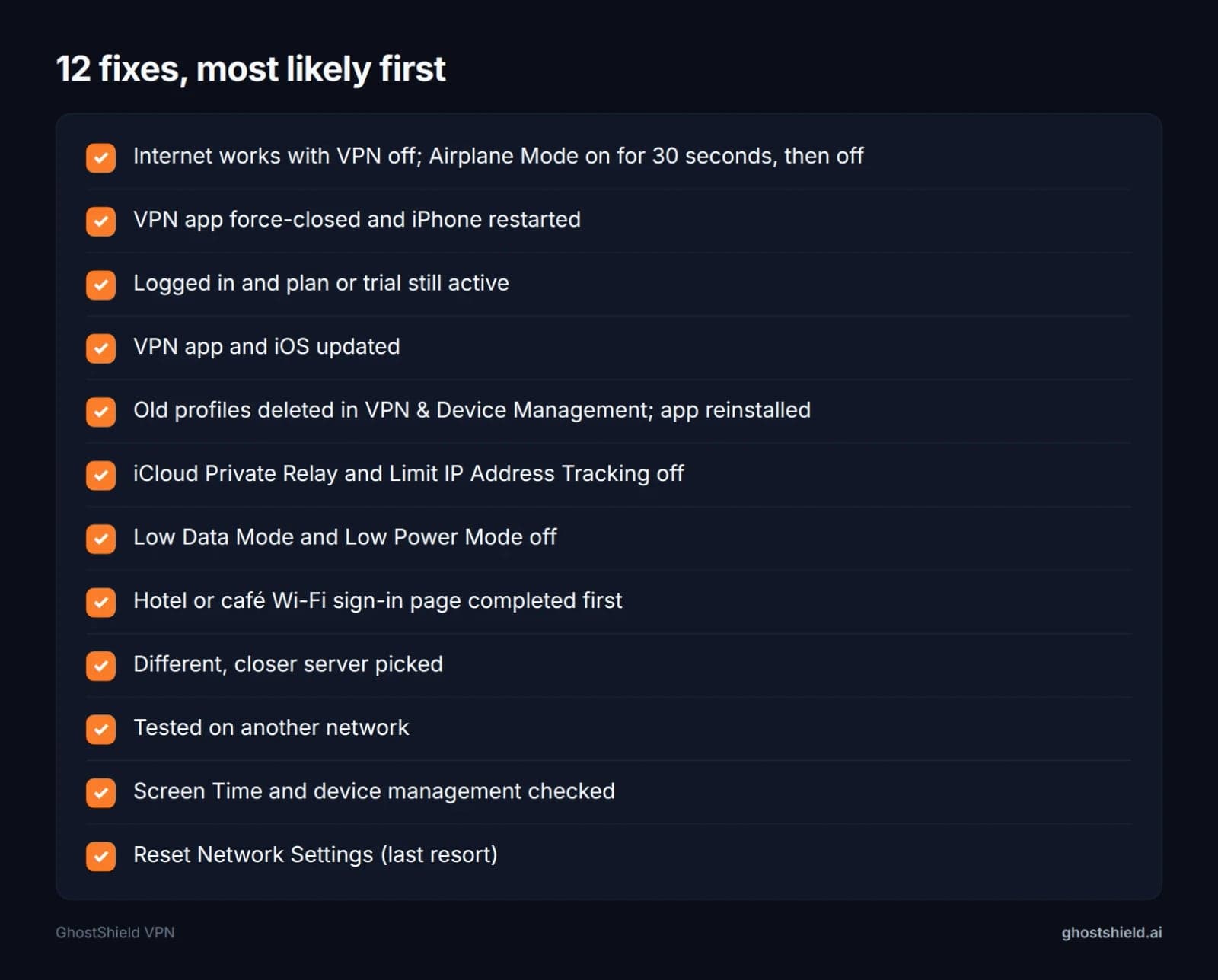 Work down the list and stop when it connects.
1. Check the connection without the VPN, then toggle Airplane Mode
Turn the VPN off and open Safari. If nothing loads, the problem is your Wi-Fi or cellular connection, not the VPN.
If pages load, turn on Airplane Mode for 30 seconds, turn it off, and connect again. windscribe.com puts this reset first, because an iPhone often leaves the VPN stuck after waking up or changing networks. The same reset fixes a VPN that says Connected while no pages load.
2. Restart the VPN app and your iPhone
Swipe up to open the app switcher and swipe the VPN app away. Reopen it and try again. If it still fails, restart the iPhone to clear temporary glitches.
3. Check you are logged in and your plan is active
An expired trial, a failed payment or a quiet logout can all look like a connection failure. Norton's guide calls out being logged out of the VPN client as a common cause. Sign out of the app, sign back in, and check your account status.
4. Update the VPN app and iOS
Open the App Store, tap your profile picture and install any pending update for your VPN app. Then go to Settings > General > Software Update and install the latest iOS.
5. Delete old VPN profiles, check Connect On Demand and reinstall
Go to Settings > General > VPN & Device Management and delete profiles from VPN apps you no longer use. Two profiles can fight over the same connection, so run only one VPN at a time.
If the VPN keeps switching itself on, go to Settings > VPN, tap (i) next to the configuration and turn off Connect On Demand.
Then delete your current VPN app and reinstall it. When iOS asks to add VPN configurations, tap Allow and enter your passcode. This clears the "VPN configuration could not be loaded" error.
6. Turn off iCloud Private Relay and Limit IP Address Tracking
Private Relay also reroutes your traffic and can clash with a VPN. Turn it off in Settings > [your name] > iCloud > Private Relay. Then go to Settings > Wi-Fi, tap (i) next to your network, and turn off Limit IP Address Tracking.
7. Turn off Low Power and Low Data Mode, and allow background refresh
If the VPN drops whenever the screen locks, iOS is suspending the app in the background. windscribe.com traces this to Background App Refresh. Go to Settings > General > Background App Refresh and make sure it is on for your VPN app.
Then turn off Low Power Mode under Settings > Battery, since it cuts background activity too. Turn off Low Data Mode for Wi-Fi in Settings > Wi-Fi > (i) next to your network, and for cellular in Settings > Cellular > Cellular Data Options.
8. Sign in to hotel or café Wi-Fi before you connect
Hotel, airport and café Wi-Fi often sends you to a sign-in page first. Until you accept it, the VPN cannot reach its server. Disconnect the VPN, open any website, complete the sign-in page, then connect.
 Photo by cottonbro studio on Pexels
9. Pick a different server
A busy or distant server can refuse the connection or drop it straight away. Pick a location closer to you. If your app offers more than one protocol, try switching that too.
If you use GhostShield VPN, the app runs WireGuard only, so there is no protocol to change. Changing location is the step that counts:
- Disconnect in the app.
- Pick a different location from its list of 20 in 16 countries.
- Connect again.
In the US there are 4 locations, so try another US one before changing country. France has 2. Every other country has 1, so the next step is a neighbour: from Germany try the Netherlands or Switzerland, from Canada try the US, from Japan try Hong Kong or Singapore.
10. Try another network (school, work and hotel blocks)
If the VPN works on Wi-Fi but not cellular, or fails only at school, work or a hotel, the network is probably blocking VPN traffic. windscribe.com explains that some networks block VPN ports or use deep packet inspection to spot VPNs. Test on cellular data or a different Wi-Fi network to confirm.
In China, Russia, Iran and the UAE, governments block VPNs at a national level. GhostShield VPN has no obfuscation or stealth mode, so it is not reliable there. Our guide to VPNs in countries that censor the internet explains what to expect before you travel.
11. Check Screen Time and device management restrictions
If the VPN settings screen is blank or greyed out, a restriction is usually the cause. Check Settings > Screen Time > Content & Privacy Restrictions.
A school or work iPhone or iPad may be managed by the organisation, which can block VPNs entirely. Our post on unblocking websites on a school iPad covers what managed devices allow. Check your school's or employer's rules before you change anything.
12. Reset Network Settings as a last resort
Go to Settings > General > Transfer or Reset iPhone > Reset > Reset Network Settings. This erases saved Wi-Fi passwords, so have them ready. Once the iPhone restarts, reinstall the VPN app and allow its configuration again.
Where each iPhone setting lives
Every iOS path used in the fixes above, in one place.
| Setting | iOS path | Fix |
|---|---|---|
| Software update | Settings > General > Software Update | 4 |
| VPN profiles | Settings > General > VPN & Device Management | 5 |
| Connect On Demand | Settings > VPN > (i) next to the configuration | 5 |
| iCloud Private Relay | Settings > [your name] > iCloud > Private Relay | 6 |
| Limit IP Address Tracking | Settings > Wi-Fi > (i) next to your network | 6 |
| Background App Refresh | Settings > General > Background App Refresh | 7 |
| Low Power Mode | Settings > Battery | 7 |
| Low Data Mode (Wi-Fi) | Settings > Wi-Fi > (i) next to your network | 7 |
| Low Data Mode (cellular) | Settings > Cellular > Cellular Data Options | 7 |
| Screen Time restrictions | Settings > Screen Time > Content & Privacy Restrictions | 11 |
| Reset Network Settings | Settings > General > Transfer or Reset iPhone > Reset | 12 |
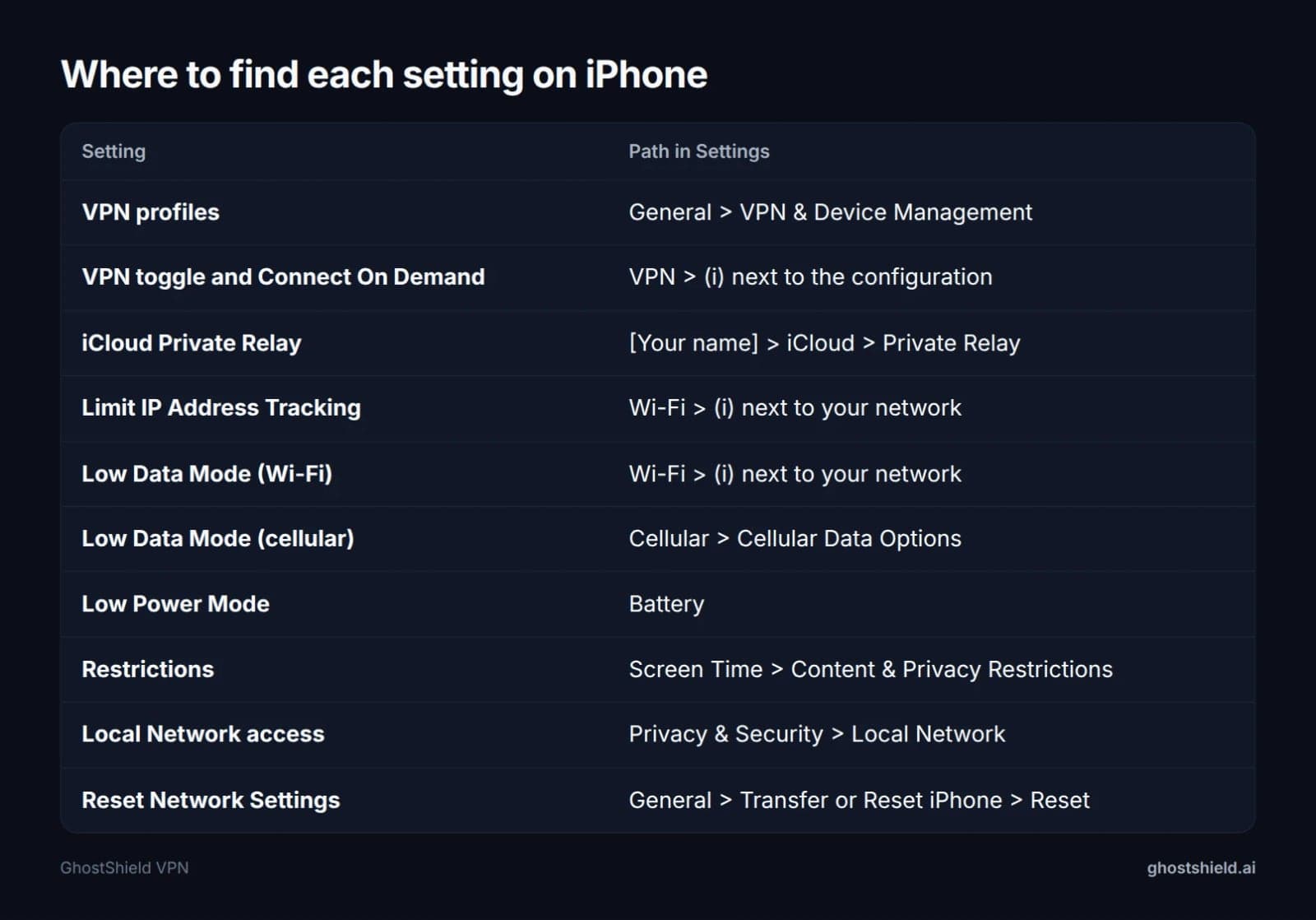 Every iPhone setting used in this guide, in one place.
VPN says Connected but the internet doesn't work
An iPhone can go to sleep to save battery and freeze the VPN while the icon stays in the status bar. Toggle Airplane Mode (Fix 1), then reconnect.
Why is my VPN causing internet issues?
Besides a frozen connection, the usual causes are a DNS conflict, often with Private Relay (Fix 6), or an overloaded server (Fix 9). If pages load but slowly, run our speed test with the VPN off, then on, and compare. A big drop usually means the server is far away or busy.
AirDrop, iMessage or Apple Pay acting up
windscribe.com lists these common side effects of a VPN on iPhone:
| Side effect | What to do |
|---|---|
| iMessage or FaceTime won't activate | Disconnect the VPN for activation, then reconnect |
| Bank or Apple Pay flags you | Disconnect for the banking session, or pick a server in your own country |
| Endless CAPTCHAs | Switch to a less crowded server |
| AirDrop, AirPlay or HomeKit fails | Allow the app in Settings > Privacy & Security > Local Network |
Banks are the trickiest case. Our guide to the risks of using a VPN for online banking explains why they flag VPN addresses and how to avoid a locked account.
Connected but leaking: real IP, DNS and IPv6
A VPN can say Connected while some traffic still goes around it. windscribe.com describes three iPhone leaks:
- Real IP: iOS can leave connections that were open before you switched the VPN on running outside the tunnel. Connect the VPN first, then force-close and reopen the apps you care about.
- DNS: your lookups go to your internet provider instead of the VPN, which reveals your location. Run our DNS leak test. If it lists your provider's servers, reconnect and check Private Relay is off (Fix 6).
- IPv6: your network gives the iPhone an IPv6 address that bypasses the tunnel. Check with What Is My IP. If you see an address from your own provider, try another network and ask your VPN provider how its app handles IPv6.
In Safari, also run the WebRTC leak test. GhostShield VPN includes DNS leak protection and a kill switch, which blocks traffic if the tunnel drops.
Why does my iPhone keep trying to connect to a VPN?
Usually Connect On Demand is switched on in the VPN profile, or a leftover profile from an old app is still installed. Fix 5 covers both.
If your problem is the opposite, with the VPN connecting and then dropping, see Fixes 7 and 9. Our full guide on why a VPN keeps disconnecting walks through each cause.
Do iPhones have a built-in VPN?
Yes and no. iOS includes a VPN client for manual configurations (IKEv2, IPsec and L2TP) under Settings > General > VPN & Device Management > VPN. Apple does not supply a VPN server, though, so you still need a provider or your employer's server details.
iCloud Private Relay is not a full VPN. It covers Safari and some other traffic only, not every app on your phone.
Built-in VPN stuck on Connecting
A built-in VPN that worked weeks ago and now sits on Connecting usually has outdated login details. Check the server address, username and password with whoever gave you the settings. Then delete the configuration and add it again with fresh details.
How can I tell if my iPhone has a VPN?
Look for a VPN icon in the status bar or in Control Center. Then open Settings > General > VPN & Device Management and check for any profiles. Remove any you don't recognise.
How to turn on a VPN on iPhone
The steps are the same for most VPN apps:
- Install the app from the App Store.
- Open it and sign in.
- Tap Allow when iOS asks to add VPN configurations.
- Enter your passcode.
- Tap connect in the app.
After the first setup, you can also switch the VPN on and off with the toggle in Settings.
Should I have the VPN on or off on my iPhone?
Keep it on for public or hotel Wi-Fi, travel and everyday privacy. Turn it off briefly for iMessage or FaceTime activation, some banking apps, or local devices such as AirPlay if they misbehave.
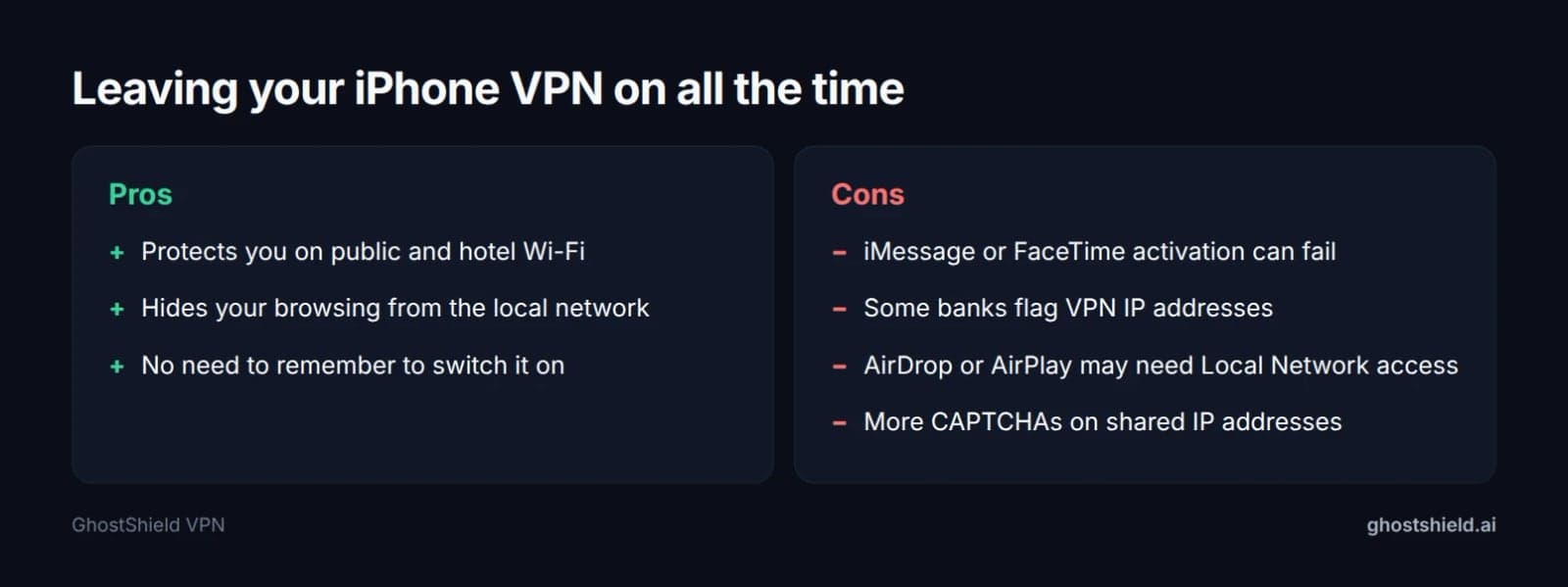 Keep it on for most things; pause it for the few that object.
After you connect, check your address with our What Is My IP tool. If it shows the VPN server's location instead of yours, the VPN is really on.
Still not connecting? Contact your provider
An answer in the Apple Community thread advises contacting the VPN provider, since they may have disabled a feature. Support can fix the issue faster if you send these details:
- Your iOS version (Settings > General > About)
- The VPN app version
- Network type: Wi-Fi or cellular
- The exact error text, or a screenshot
- Which of the 12 fixes you have already tried
Using GhostShield VPN on iPhone
GhostShield VPN has a native app for iPhone and iPad that runs WireGuard with ChaCha20-Poly1305 encryption. It includes a kill switch and DNS leak protection, servers in 20 locations across 16 countries, and up to 10 devices at once under a strict no-logs policy. Be aware of the limits: it uses WireGuard only, with no protocol switching and no stealth mode, so it is not reliable on networks in China, Russia, Iran or the UAE. The yearly plan works out to $4.99 a month ($59.88 billed yearly), and every plan starts with a 7-day free trial and a 30-day money-back guarantee. You can start the 7-day free trial, or read our best iPhone VPN checks before you buy if you are still comparing options.
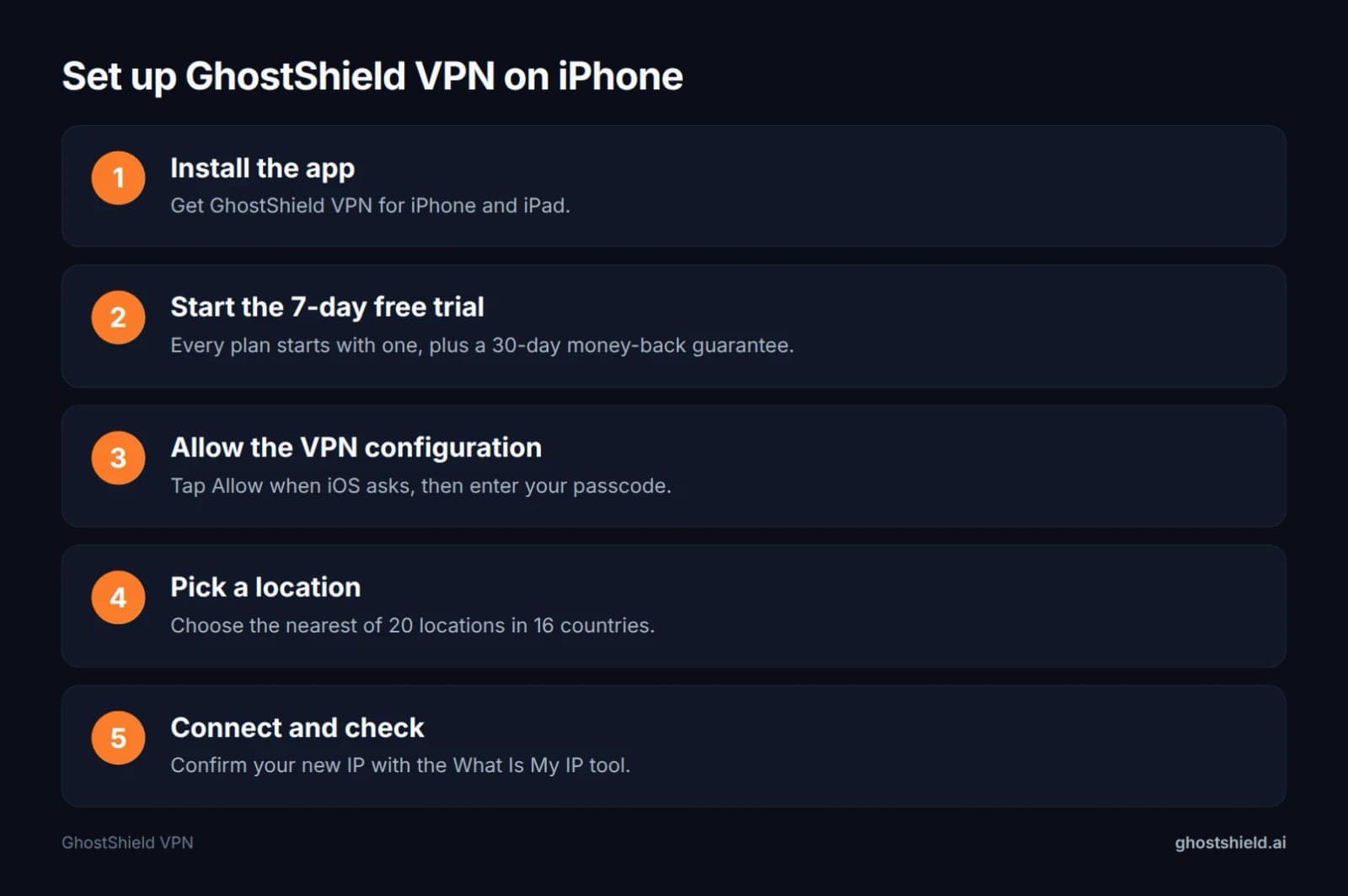 Setting up GhostShield VPN on iPhone from scratch.
FAQ
Is there a 100% free VPN for iPhone?
Free VPN apps exist in the App Store, but running servers costs money, so free apps usually make it back through limits, ads or data use. iCloud Private Relay needs a paid iCloud+ plan and is not a full VPN. GhostShield VPN has no free plan, but every plan starts with a 7-day free trial.
My Norton VPN isn't connecting. What can I do to fix this?
Start with the steps in Norton's own troubleshooting guide: check your internet connection, restart the app and your device, and confirm you are logged in. Then update the app, change servers or protocols, and check app permissions. If it still fails, delete old VPN profiles (Fix 5) and contact Norton's support team.
Why does my VPN work on Wi-Fi but not on cellular data?
Your mobile network is probably blocking or throttling VPN traffic, or Low Data Mode is on for cellular. Turn Low Data Mode off (Fix 7), try a different server, and toggle Airplane Mode. The reverse pattern has the same causes.
Why does my iPhone say 'VPN configuration could not be loaded'?
Your iPhone is reading an old or corrupted VPN profile, often left behind by a previous app. Delete unused profiles and reinstall your VPN app, as in Fix 5.
Does iCloud Private Relay stop a VPN from connecting?
It can, because Private Relay also reroutes your traffic. Turn it off along with Limit IP Address Tracking, as in Fix 6, then connect again.
Will resetting network settings delete my data?
No, resetting network settings does not delete your photos, apps, messages or files. It does erase saved Wi-Fi networks and passwords, VPN configurations and cellular settings. Write down your Wi-Fi passwords first, and expect to reinstall or reconnect your VPN app afterwards.
Related Topics
Keep Reading
Why Does My VPN Keep Disconnecting? 8 Causes and Fixes
Please Unblock challenges.cloudflare.com to Proceed: 7 Fixes

How to Bypass Age Verification Blocks in 2026 Without Uploading Your ID

How to Stop AI Chatbots from Using Your Personal Data in 2026

How to Use AI Chatbots Safely: 7 Simple Rules to Protect Your Data